You can now download Service Pack 1 for ADT 2007. Be certain to download and carefully read the Readme for the Service Pack, which provides a listing of the Architectural Desktop and AutoCAD issues that the Service Pack resolves, along with additional known issues not resolved by the Service Pack, instructions on how to install the Service Pack based on the way you installed ADT 2007 and a list of files modified by the Service Pack.
As noted in the Readme, you may need your original installation disk[s] or network image when installing the Service Pack, so be sure to have that handy before you start.
September 28, 2006


September 09, 2006
List Definitions and Multi-Line Room Names
In anticipation of my firm's migration from ADT 2004 to 2007, I was curious as to how we might be best able to take advantage of the addition of an automatic "Name" property for Spaces and the introduction of List Definitions, an expansion of Name Definitions for Areas in previous releases, which now can be applied to Spaces, Zones and/or Manual Properties and can be used to create a predefined list of Names for Spaces.
We currently use a custom room tag based on the out-of-the-box scale-dependent tag, with a second manual property and attribute to support two-line room names, when needed. A formula property combines the contents of the two individual manual properties into one property for use in schedules. You can find a sample file with content similar to what we use in this thread in the Autodesk Architectural Desktop Content Discussion Group. An alternate formula, that can support two, three, or more room name properties/lines, is discussed in this previous article, which contains links to a sample file posted in the ADT Discussion Groups.
Since there is only one "Name" property for Spaces, that would not be compatible with our current methods. I recalled, however, that the Autodesk Knowledge Base for ADT offers another method for creating a two-line room tag that makes use of a single manual property for entering the name and uses MTEXT codes to achieve two or more lines of text. A companion formula property strips out the MTEXT codes for use in a schedule. I just tested this in ADT 2007, with the hope that the List Definition entries could be set up with the MTEXT codes, but it turns out that the backslash character used by the MTEXT codes is not valid.
It looks as though we will have to keep our current set up, possibly adding a List Definition to each of our Manual Properties for room names and remember to train everyone to ignore the Name property on the Design tab of the Properties palette, and keep using our current two Manual Properties on the Extended Data tab.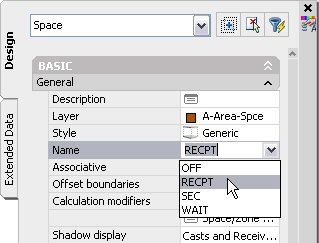
We currently use a custom room tag based on the out-of-the-box scale-dependent tag, with a second manual property and attribute to support two-line room names, when needed. A formula property combines the contents of the two individual manual properties into one property for use in schedules. You can find a sample file with content similar to what we use in this thread in the Autodesk Architectural Desktop Content Discussion Group. An alternate formula, that can support two, three, or more room name properties/lines, is discussed in this previous article, which contains links to a sample file posted in the ADT Discussion Groups.
Since there is only one "Name" property for Spaces, that would not be compatible with our current methods. I recalled, however, that the Autodesk Knowledge Base for ADT offers another method for creating a two-line room tag that makes use of a single manual property for entering the name and uses MTEXT codes to achieve two or more lines of text. A companion formula property strips out the MTEXT codes for use in a schedule. I just tested this in ADT 2007, with the hope that the List Definition entries could be set up with the MTEXT codes, but it turns out that the backslash character used by the MTEXT codes is not valid.

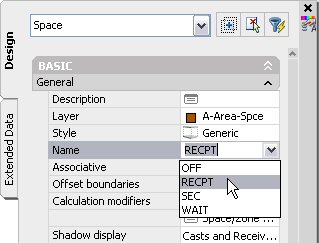
It looks as though we will have to keep our current set up, possibly adding a List Definition to each of our Manual Properties for room names and remember to train everyone to ignore the Name property on the Design tab of the Properties palette, and keep using our current two Manual Properties on the Extended Data tab.
September 03, 2006
NA in Formulas Revisited
I came across an old article on dealing with NA as a potential value in a Formula property. The workaround I suggested, as illustrated in a sample file posted in a reply in the Autodesk Architectural Desktop Discussion Group, made use of the VBScript TypeName function to test whether the value of an automatic property was "Empty", which results in the dreaded NA being displayed in a property, and causes a formula that tries to perform mathematical operations on that value to fail.
That workaround remains valid, but today it occurred to me that the same approach that Scott Arvin used for the "Cost" examples in his Property Data Enhancements Brain Dump might also work for NA. In the "Cost" example, the ? returned when a property is not attached to a scheduled object will also cause a formula that tries to evaluate it to crash. The ? character that is displayed for Undefined properties is specified in the Property Data Format assigned to the property, as is the NA for Not Applicable properties. You can avoid the crash in either case by creating a Property Data Format that assigns an explicit string to the Undefined and/or Not Applicable properties. You do that by typing in opening and closing double quotes around the text you enter into the associated edit box, as shown for the Not Applicable value in the Standard-8-NA Property Data Format shown in the image below.
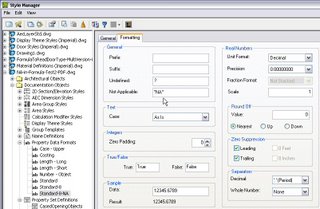
I have made a new reply to the previously mentioned thread which has a sample ZIP file attached that contains NA-in-Formula-Test2.dwg. This is a copy of the previously posted drawing file [2004 format], and contains all of the properties used for the original method, along with two new properties and a new Property Data Format. The Property Data Format is called Standard-8-NA, and is as depicted above. One of the new properties is an Automatic property referencing the Thickness property of doors, called ThicknessUnformatted2, and has the new Standard-8-NA Property Data Format applied. The other new property is a Formula property called ThicknessForSchedule2, and looks like this:
A direct test for "NA" in [ThicknessUnformatted2] worked when the value was Not Available, and therefore "NA", but did not work when the value was a real number, so I changed the test to simply determine whether the type was a string [the TypeName function always returns a string, so a comparison to another string should not cause a failure]. This alternate approach does not require the ThicknessForFormula Formula property that the original one did, but does require a custom Property Data Format. I would call it a draw and suggest you use whichever method seems best to you.
That workaround remains valid, but today it occurred to me that the same approach that Scott Arvin used for the "Cost" examples in his Property Data Enhancements Brain Dump might also work for NA. In the "Cost" example, the ? returned when a property is not attached to a scheduled object will also cause a formula that tries to evaluate it to crash. The ? character that is displayed for Undefined properties is specified in the Property Data Format assigned to the property, as is the NA for Not Applicable properties. You can avoid the crash in either case by creating a Property Data Format that assigns an explicit string to the Undefined and/or Not Applicable properties. You do that by typing in opening and closing double quotes around the text you enter into the associated edit box, as shown for the Not Applicable value in the Standard-8-NA Property Data Format shown in the image below.
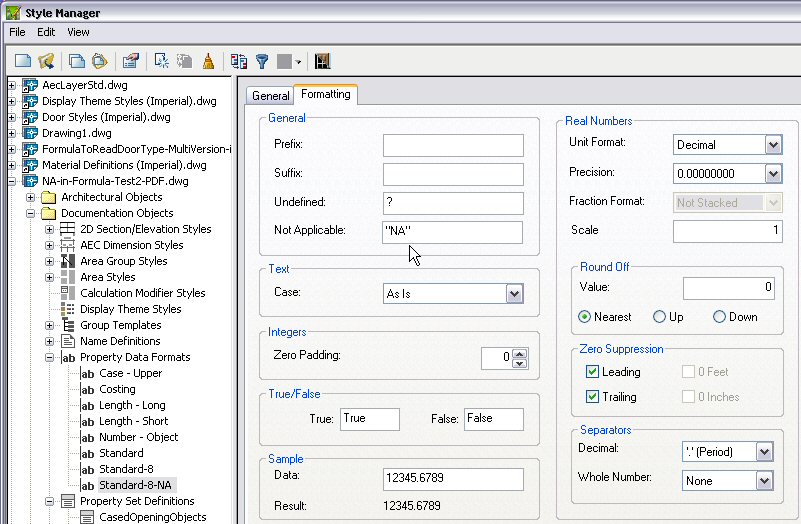
I have made a new reply to the previously mentioned thread which has a sample ZIP file attached that contains NA-in-Formula-Test2.dwg. This is a copy of the previously posted drawing file [2004 format], and contains all of the properties used for the original method, along with two new properties and a new Property Data Format. The Property Data Format is called Standard-8-NA, and is as depicted above. One of the new properties is an Automatic property referencing the Thickness property of doors, called ThicknessUnformatted2, and has the new Standard-8-NA Property Data Format applied. The other new property is a Formula property called ThicknessForSchedule2, and looks like this:
If TypeName( [ThicknessUnformatted2] ) = "String" Then
 RESULT = "--"
Else
 RESULT = CDbl( [ThicknessUnformatted2] )
End If
A direct test for "NA" in [ThicknessUnformatted2] worked when the value was Not Available, and therefore "NA", but did not work when the value was a real number, so I changed the test to simply determine whether the type was a string [the TypeName function always returns a string, so a comparison to another string should not cause a failure]. This alternate approach does not require the ThicknessForFormula Formula property that the original one did, but does require a custom Property Data Format. I would call it a draw and suggest you use whichever method seems best to you.
August 20, 2006
Structural Member Wizard
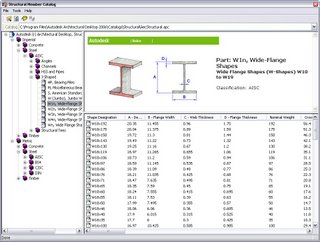
You may already be familiar with the Structural Member Catalog, a handy feature that has been available in Autodesk Architectural Desktop since at least the 3.3 release. The Structural Member Catalog provides an easy way to create Structural Member Styles based on real-world structural members. [Images here are from the 2006 release.]
But perhaps you have a need for a structural member style that is not in the catalog, whether to use it as a “generic” member, until the actual member is determined and you prefer not to use a real-world shape to make it easy to distinguish later; you have a special size not in the catalog; or you have some other need for a shape not in the catalog. For example, a while back, Brad Crouse had posted in the AUGI Forums [see this thread and this thread] that he was trying to create model in ADT at 1/16 actual size, in order to show, at full size, the “toy” buildings he intends to build.
One option would be to create custom structural member shapes, by drawing each outline as a closed polyline, and then using the -AecsMemberShape command to create the shapes. But if the shapes you need match “standard” structural shapes, with non-statndard size parameters, you may be able to save yourself some time and effort by using the Structural Member Wizard. You can access the Wizard from the pulldown menus, Format > Structural Members > Wizard…, or by invoking the _AecsMemberStyleWizard command.
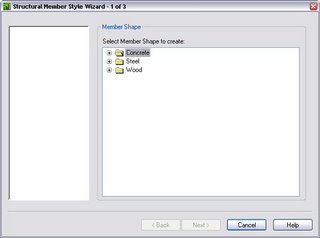
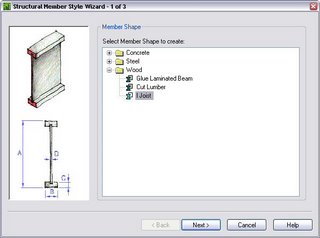
The Structural Member Wizard is a handy, dialog-driven utility that prompts you for the appropriate dimensional parameters for various types of concrete, steel or wood shapes, then generates a Structural Member Shape and Style for you to use. You can see the available options in the images below for concrete…
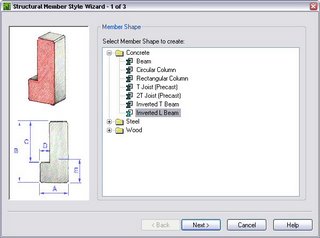
…steel…
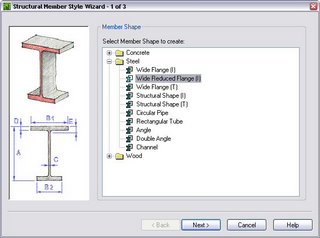
…and wood.
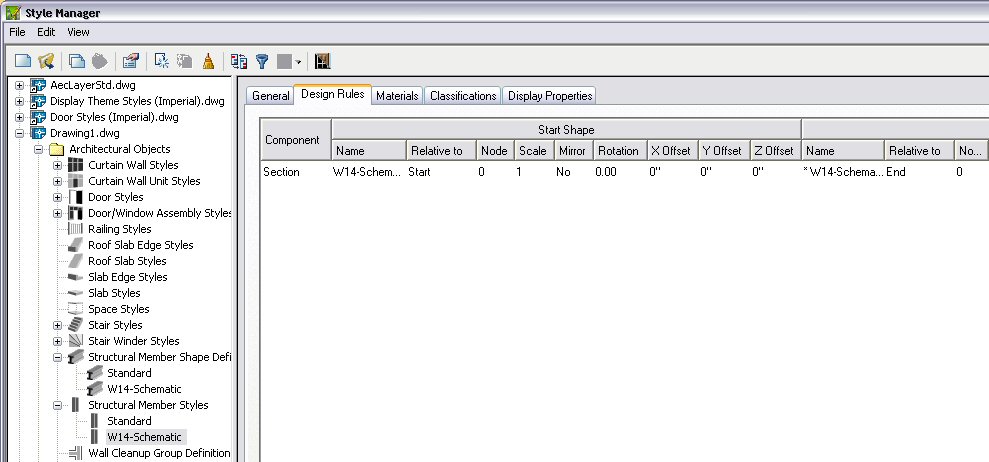
Let’s assume that our project is in the Schematic Design Phase, and we have managed to get the structural engineers to commit to using W14’s for the columns. We do not know the exact size for any of the columns, but the engineers have allowed that the largest column would be a W14x99. For schematic purposes, we want to make certain that our column enclosures can handle both the widest and deepest section, so we will use the Structural Member Wizard to create a “composite” structural member that combines the flange width of the W14x99, 14.656”, with the depth of the the W14x82, 14.31”, rounded up in case the final calculations sneak in a larger member or two. Our schematic column will have the following parameters:
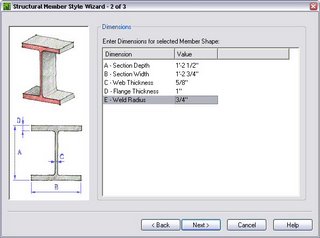
A – Depth: 14.5
B – Flange Width: 14.75
C – Web Thickness: 0.625
D – Flange Thickness: 1.00
E – Weld Radius: 0.75
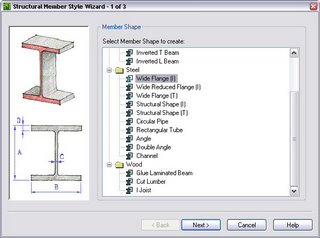
Start up the Structural Member Wizard and choose the Steel Wide Flange (I) option on “page” 1 of 3.
Select Next > to move to page 2 of 3, and enter the data noted above.
Select Next > and enter a style name, like “W14-Schematic” on page 3 of 3, then select Finish.
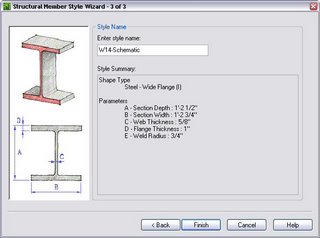
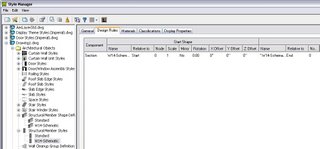
The Wizard then creates both a Structural Member Shape Definition and a Structural Member Style called “W14-Schematic”, ready for you to use.

But perhaps you have a need for a structural member style that is not in the catalog, whether to use it as a “generic” member, until the actual member is determined and you prefer not to use a real-world shape to make it easy to distinguish later; you have a special size not in the catalog; or you have some other need for a shape not in the catalog. For example, a while back, Brad Crouse had posted in the AUGI Forums [see this thread and this thread] that he was trying to create model in ADT at 1/16 actual size, in order to show, at full size, the “toy” buildings he intends to build.
One option would be to create custom structural member shapes, by drawing each outline as a closed polyline, and then using the -AecsMemberShape command to create the shapes. But if the shapes you need match “standard” structural shapes, with non-statndard size parameters, you may be able to save yourself some time and effort by using the Structural Member Wizard. You can access the Wizard from the pulldown menus, Format > Structural Members > Wizard…, or by invoking the _AecsMemberStyleWizard command.
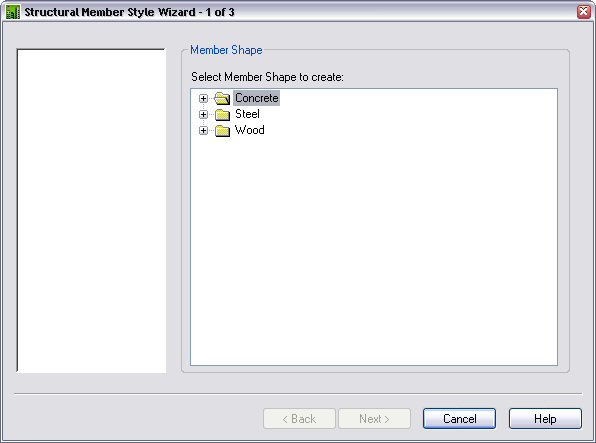
The Structural Member Wizard is a handy, dialog-driven utility that prompts you for the appropriate dimensional parameters for various types of concrete, steel or wood shapes, then generates a Structural Member Shape and Style for you to use. You can see the available options in the images below for concrete…

…steel…

…and wood.

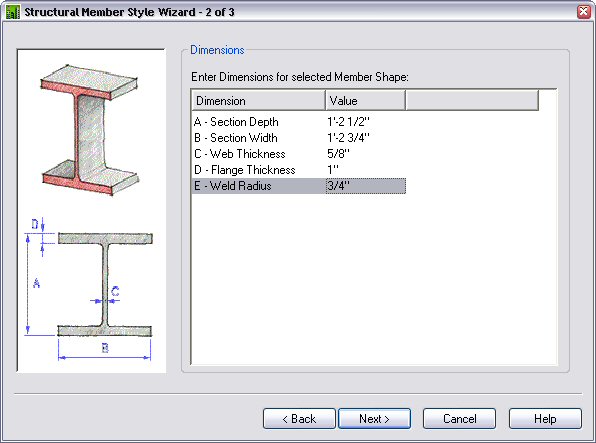
Let’s assume that our project is in the Schematic Design Phase, and we have managed to get the structural engineers to commit to using W14’s for the columns. We do not know the exact size for any of the columns, but the engineers have allowed that the largest column would be a W14x99. For schematic purposes, we want to make certain that our column enclosures can handle both the widest and deepest section, so we will use the Structural Member Wizard to create a “composite” structural member that combines the flange width of the W14x99, 14.656”, with the depth of the the W14x82, 14.31”, rounded up in case the final calculations sneak in a larger member or two. Our schematic column will have the following parameters:
A – Depth: 14.5
B – Flange Width: 14.75
C – Web Thickness: 0.625
D – Flange Thickness: 1.00
E – Weld Radius: 0.75
Start up the Structural Member Wizard and choose the Steel Wide Flange (I) option on “page” 1 of 3.
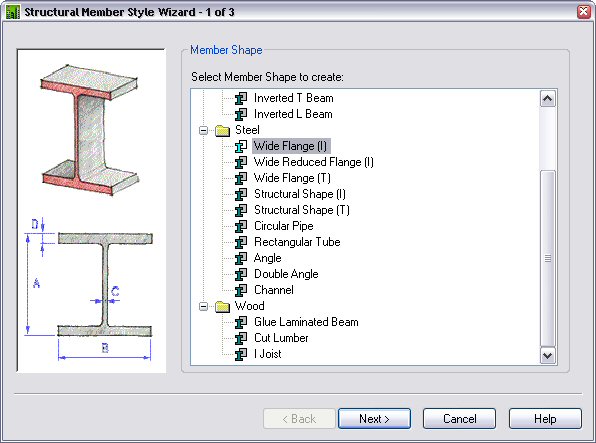
Select Next > to move to page 2 of 3, and enter the data noted above.
Select Next > and enter a style name, like “W14-Schematic” on page 3 of 3, then select Finish.

The Wizard then creates both a Structural Member Shape Definition and a Structural Member Style called “W14-Schematic”, ready for you to use.
Comic Relief
For those of you out there in the architectural profession who may be taking your job just a little too seriously, this site may help rebalance your outlook. At the very least, you may get a chuckle or two.
Thanks go out to Bryan L. Myers, in the AUGI ADT/ABS "Watering Hole" Forum for the link, in the "What they don't teach you in Architecture School" thread.
Thanks go out to Bryan L. Myers, in the AUGI ADT/ABS "Watering Hole" Forum for the link, in the "What they don't teach you in Architecture School" thread.
August 13, 2006
ADT Schedule Feature Resources
Here are some links to various resources that can help you understand the Scheduling Feature of ADT/ACD-A. Some are from some time back, so the specifics for more current releases may be slightly different, but all have something to offer. Do not forget to check out the ADT/ACD-A Help, too.
Brain Dumps 13, Schedule Basics and 15, Creating Schedule Tags, by Matt Dillon
Grab these from Chris Yanchar's Between the Walls ADT Weblog
or go to the original threads that were the basis of the Brain Dumps:
Brain Dump 13, Schedule Basics
Brain Dump 15, Creating Schedule Tags
9/1/2008 Update: The links to the Brain Dumps in Chris' blog appear to be dead, so you will have to go to the original threads.
Brain Dump 13, Schedule Basics, updated for ADT 2006
This is an update of Matt Dillon's classic, based on ADT 2006 means and methods.
Property Data Enhancements, by Scott Arvin
This "must read" covers the "new" property types that were added in ADT 2004, including formula properties.
NOTE: AUGI now has "levels" of membership, and access to the AUGI Training Program (ATP) materials is not part of the free membership level. In order to have access to the ATP materials noted below, you will have to join at one of the paid levels.
ATP071 Schedule Basics Course Materials, by David Koch
If you are a member of AUGI [its free], you have access to archived AUGI Training Program course materials. Download the materials for ATP071, which can be found by logging into the AUGI website and, from the Home page, clicking on the following links:
Education > AUGI Training Program > Archived ATP Courses
Scroll down to April, 2005 and download the course materials for ATP071. Then visit the archived Course Forum [click on the link] and look for the "Formula Property Exercise" thread. Download the supplemental exercise on formula properties that is attached to my first post in that thread.
Not an AUGI member yet? Sign up here.
ATP121 ADT Formula Properties Course Materials, by David Koch
This course was offered in June, 2006, and is also available in the ATP Archives.
Autodesk University 2007 - AB114-4 Get Fully Equipped in AutoCAD® Architecture Session Materials
Details on how to access the session handout and sample files can be found in this blog article.
Here are some previous articles in my blog, related to the Schedule Feature, that you may have missed:
11/25/2004 - Autodesk Architectural Desktop Tags
12/21/2004 - Overriding A Property Value Using A Formula
12/22/2004 - Clustering Spaces Within a Unit in a Space Schedule
12/24/2004 - Electrical Device Schedule Using Clustering
01/12/2005 - "Unformatted" Properties for Formulas
01/29/2005 - VBScript Operators for Formula Properties
03/21/2005 - ADT 2006 Tags Illustrated
04/03/2005 - Formula Property Interface Improved in ADT 2006
04/19/2005 - Scale-Dependent Tags in ADT
07/03/2005 - Structure/Flow in Formula Properties: If/Then/ElseIf/Else Construct
07/04/2005 - Multi-Line Room Name Formula Improvements
07/09/2005 - Multi-Line Room Name Formula Revisited
07/09/2005 - Structure/Flow in Formula Properties: Select Case Construct
07/16/2005 - Unformatted Properties and Numeric Precision
07/16/2005 - WxH Formula For Windows
08/03/2005 - Schedule Column Loss in "Old" Drawings
08/31/2005 - Rounding Up Property Data Values
08/31/2005 - Rounding Revisited
09/03/2005 - Rounding Redux
09/15/2005 - Rounding to Death
09/24/2005 - Scale-Dependent Tag Tools in ADT 2006
11/02/2005 - Filtering Objects in an ADT Schedule
11/14/2005 - Dealing with NA in Formulas
12/13/2005 - Sorting Schedules by Door Numbers with Suffixes
12/20/2005 - Underline in Tag But Not in Schedule
12/24/2005 - Schedule Table Placeholders
12/28/2005 - Schedule Basics Brain Dump for 2006
01/04/2006 - Residential Door Tags
01/12/2006 - Sorting Character Strings Like Numbers
01/14/2006 - Sorting Character Strings Like Numbers Image
01/14/2006 - Richard Binning: Auto Tagging With VBA
01/15/2006 - Door/Window Assembly Frame Depth in Window Schedule
01/25/2006 - Using System Variable Values in Formula Properties
01/28/2006 - Formatting Areas and Volumes in Schedules Using Drawing Setup
02/03/2006 - Underline in Tag But Not in Schedule II
03/11/2006 - Enhanced Property Data Features in ADT 2007, Part 1 [visibility and order]
03/21/2006 - Enhanced Property Data Features in ADT 2007, Part 2 [anchor and graphic properties]
03/24/2006 - Enhanced Property Data Features in ADT 2007, Part 3 [unit type]
03/31/2006 - Enhanced Property Data Features in ADT 2007, Part 4 [list definition]
04/08/2006 - Enhanced Property Data Features in ADT 2007, Part 5 [table title and header overrides; formula columns]
04/27/2006 - Stacking Properties in a Schedule Table
05/01/2006 - Using Property Data Formats to Force Real Number Interpretation
05/04/2006 - Retrieving the Door Type of a Door Style
05/23/2006 - Retrieving the Door Type of a Door Style 2
06/10/2006 - Tag for Polyline-based "Rooms"
06/17/2006 - Separating Structural Shape Names in a Complex Structural Member Style
06/24/2006 - Automatically Displaying a Viewport’s Scale
07/29/2006 - Room Name/Number PSD Heads Up in 2007
09/03/2006 - NA in Formulas Revisited
09/09/2006 - List Definitions and Multi-Line Room Names
01/09/2007 - Formula Property VBScript Help
01/10/2007 - List Definitions - Utility to Import/Export
01/20/2007 - Scale-Dependent Schedule Tags in ADT 2006 or 2007
02/16/2007 - Dealing "*Xxx not found*" Location Property Result
03/03/2007 - Adding a New Scale to a Scale-Dependent Block
03/20/2007 - Another Formula Property Override Example
04/01/2007 - ADT 2006 & Prior - Angular Automatic Properties
04/06/2007 - Annotative Tags With Leaders in ACA 2008
04/10/2007 - Multiple-Line Room Tags
04/15/2007 - ACA 2008/ADT 2007: Setting a Different Property Data Format in a Formula Property
04/26/2007 - Revising a Schedule Table Style
06/16/2007 - AU 2007
06/16/2007 - Rounded Values and the Quantity Column
07/01/2007 - Anchor Property Sample
07/25/2007 - Pasting Formulas
12/24/2007 - AB114-4 Class Materials and Webcast
05/01/2008 - Property Set Tools
06/16/2008 - Text Case and the Quantity Column
07/28/2008 - Copy/Paste and Formulas
09/15/2008 - On Error Resume Next
09/16/2008 - Z-Coordinates of Aec Objects
10/27/2008 - Zoom To from Schedule Table Fails
11/15/2008 - Creating Annotative Tags in AutoCAD Architecture
12/19/2008 - Non-Project Door Tag Using Room Number with Prefix and/or Suffix
04/10/2009 - Deleting Property Sets Using the Properties Palette
06/12/2009 - Copying a Schedule Table Between Drawings
08/28/2009 - Another Automatic Property Override Sample
11/25/2009 - ACA Scheduling by "Mark"
12/29/2009 - Space Schedule with Header Rows, sorted by Level and Building/Wing
11/25/2011 - Rounding and Column Totals
02/12/2012 - ACA: Extracting Text from a Style Name
03/27/2012 - ACA 2013 - Grouping and Subtotals in Schedule Tables
06/24/2012 - ACA: Occupancy Load Calculations and Division by Zero
06/26/2012 - ACA: Occupancy Load Calculations with a Column Total
03/26/2013 - ACA 2014: Property Set Defintion Auto-attach
12/10/2013 - ACA: Obtaining the Effective Name of a Dynamic Block in a Formula Property
12/12/2013 - ACA: Formula Property to Determine if a Block Instance is a Dynamic Block
02/12/2014 - ACA: Double Click a Tag to Edit Property Data
05/26/2015 - ACA/AMEP 2016: Property Visibility Override
06/29/2015 - ACA: Classification Definitions, Applies To and Tagging
12/04/2015 - ACA: Underline in Tag But Not in Schedule III
04/11/2017 - ACA: Property Set Definitions, Applies To - Just How Many Polyline Types Are There?
05/23/2017 - ACA: Wall Rotation Property
01/14/2019 - ACA: Accessing AEC Data in Formula Properties for Multiple Versions
09/11/2019 - ACA: Rotation Property for Multi-View Blocks
Brain Dumps 13, Schedule Basics and 15, Creating Schedule Tags, by Matt Dillon
Grab these from Chris Yanchar's Between the Walls ADT Weblog
or go to the original threads that were the basis of the Brain Dumps:
Brain Dump 13, Schedule Basics
Brain Dump 15, Creating Schedule Tags
9/1/2008 Update: The links to the Brain Dumps in Chris' blog appear to be dead, so you will have to go to the original threads.
Brain Dump 13, Schedule Basics, updated for ADT 2006
This is an update of Matt Dillon's classic, based on ADT 2006 means and methods.
Property Data Enhancements, by Scott Arvin
This "must read" covers the "new" property types that were added in ADT 2004, including formula properties.
NOTE: AUGI now has "levels" of membership, and access to the AUGI Training Program (ATP) materials is not part of the free membership level. In order to have access to the ATP materials noted below, you will have to join at one of the paid levels.
ATP071 Schedule Basics Course Materials, by David Koch
If you are a member of AUGI [its free], you have access to archived AUGI Training Program course materials. Download the materials for ATP071, which can be found by logging into the AUGI website and, from the Home page, clicking on the following links:
Education > AUGI Training Program > Archived ATP Courses
Scroll down to April, 2005 and download the course materials for ATP071. Then visit the archived Course Forum [click on the link] and look for the "Formula Property Exercise" thread. Download the supplemental exercise on formula properties that is attached to my first post in that thread.
Not an AUGI member yet? Sign up here.
ATP121 ADT Formula Properties Course Materials, by David Koch
This course was offered in June, 2006, and is also available in the ATP Archives.
Autodesk University 2007 - AB114-4 Get Fully Equipped in AutoCAD® Architecture Session Materials
Details on how to access the session handout and sample files can be found in this blog article.
Here are some previous articles in my blog, related to the Schedule Feature, that you may have missed:
11/25/2004 - Autodesk Architectural Desktop Tags
12/21/2004 - Overriding A Property Value Using A Formula
12/22/2004 - Clustering Spaces Within a Unit in a Space Schedule
12/24/2004 - Electrical Device Schedule Using Clustering
01/12/2005 - "Unformatted" Properties for Formulas
01/29/2005 - VBScript Operators for Formula Properties
03/21/2005 - ADT 2006 Tags Illustrated
04/03/2005 - Formula Property Interface Improved in ADT 2006
04/19/2005 - Scale-Dependent Tags in ADT
07/03/2005 - Structure/Flow in Formula Properties: If/Then/ElseIf/Else Construct
07/04/2005 - Multi-Line Room Name Formula Improvements
07/09/2005 - Multi-Line Room Name Formula Revisited
07/09/2005 - Structure/Flow in Formula Properties: Select Case Construct
07/16/2005 - Unformatted Properties and Numeric Precision
07/16/2005 - WxH Formula For Windows
08/03/2005 - Schedule Column Loss in "Old" Drawings
08/31/2005 - Rounding Up Property Data Values
08/31/2005 - Rounding Revisited
09/03/2005 - Rounding Redux
09/15/2005 - Rounding to Death
09/24/2005 - Scale-Dependent Tag Tools in ADT 2006
11/02/2005 - Filtering Objects in an ADT Schedule
11/14/2005 - Dealing with NA in Formulas
12/13/2005 - Sorting Schedules by Door Numbers with Suffixes
12/20/2005 - Underline in Tag But Not in Schedule
12/24/2005 - Schedule Table Placeholders
12/28/2005 - Schedule Basics Brain Dump for 2006
01/04/2006 - Residential Door Tags
01/12/2006 - Sorting Character Strings Like Numbers
01/14/2006 - Sorting Character Strings Like Numbers Image
01/14/2006 - Richard Binning: Auto Tagging With VBA
01/15/2006 - Door/Window Assembly Frame Depth in Window Schedule
01/25/2006 - Using System Variable Values in Formula Properties
01/28/2006 - Formatting Areas and Volumes in Schedules Using Drawing Setup
02/03/2006 - Underline in Tag But Not in Schedule II
03/11/2006 - Enhanced Property Data Features in ADT 2007, Part 1 [visibility and order]
03/21/2006 - Enhanced Property Data Features in ADT 2007, Part 2 [anchor and graphic properties]
03/24/2006 - Enhanced Property Data Features in ADT 2007, Part 3 [unit type]
03/31/2006 - Enhanced Property Data Features in ADT 2007, Part 4 [list definition]
04/08/2006 - Enhanced Property Data Features in ADT 2007, Part 5 [table title and header overrides; formula columns]
04/27/2006 - Stacking Properties in a Schedule Table
05/01/2006 - Using Property Data Formats to Force Real Number Interpretation
05/04/2006 - Retrieving the Door Type of a Door Style
05/23/2006 - Retrieving the Door Type of a Door Style 2
06/10/2006 - Tag for Polyline-based "Rooms"
06/17/2006 - Separating Structural Shape Names in a Complex Structural Member Style
06/24/2006 - Automatically Displaying a Viewport’s Scale
07/29/2006 - Room Name/Number PSD Heads Up in 2007
09/03/2006 - NA in Formulas Revisited
09/09/2006 - List Definitions and Multi-Line Room Names
01/09/2007 - Formula Property VBScript Help
01/10/2007 - List Definitions - Utility to Import/Export
01/20/2007 - Scale-Dependent Schedule Tags in ADT 2006 or 2007
02/16/2007 - Dealing "*Xxx not found*" Location Property Result
03/03/2007 - Adding a New Scale to a Scale-Dependent Block
03/20/2007 - Another Formula Property Override Example
04/01/2007 - ADT 2006 & Prior - Angular Automatic Properties
04/06/2007 - Annotative Tags With Leaders in ACA 2008
04/10/2007 - Multiple-Line Room Tags
04/15/2007 - ACA 2008/ADT 2007: Setting a Different Property Data Format in a Formula Property
04/26/2007 - Revising a Schedule Table Style
06/16/2007 - AU 2007
06/16/2007 - Rounded Values and the Quantity Column
07/01/2007 - Anchor Property Sample
07/25/2007 - Pasting Formulas
12/24/2007 - AB114-4 Class Materials and Webcast
05/01/2008 - Property Set Tools
06/16/2008 - Text Case and the Quantity Column
07/28/2008 - Copy/Paste and Formulas
09/15/2008 - On Error Resume Next
09/16/2008 - Z-Coordinates of Aec Objects
10/27/2008 - Zoom To from Schedule Table Fails
11/15/2008 - Creating Annotative Tags in AutoCAD Architecture
12/19/2008 - Non-Project Door Tag Using Room Number with Prefix and/or Suffix
04/10/2009 - Deleting Property Sets Using the Properties Palette
06/12/2009 - Copying a Schedule Table Between Drawings
08/28/2009 - Another Automatic Property Override Sample
11/25/2009 - ACA Scheduling by "Mark"
12/29/2009 - Space Schedule with Header Rows, sorted by Level and Building/Wing
11/25/2011 - Rounding and Column Totals
02/12/2012 - ACA: Extracting Text from a Style Name
03/27/2012 - ACA 2013 - Grouping and Subtotals in Schedule Tables
06/24/2012 - ACA: Occupancy Load Calculations and Division by Zero
06/26/2012 - ACA: Occupancy Load Calculations with a Column Total
03/26/2013 - ACA 2014: Property Set Defintion Auto-attach
12/10/2013 - ACA: Obtaining the Effective Name of a Dynamic Block in a Formula Property
12/12/2013 - ACA: Formula Property to Determine if a Block Instance is a Dynamic Block
02/12/2014 - ACA: Double Click a Tag to Edit Property Data
05/26/2015 - ACA/AMEP 2016: Property Visibility Override
06/29/2015 - ACA: Classification Definitions, Applies To and Tagging
12/04/2015 - ACA: Underline in Tag But Not in Schedule III
04/11/2017 - ACA: Property Set Definitions, Applies To - Just How Many Polyline Types Are There?
05/23/2017 - ACA: Wall Rotation Property
01/14/2019 - ACA: Accessing AEC Data in Formula Properties for Multiple Versions
09/11/2019 - ACA: Rotation Property for Multi-View Blocks
July 29, 2006
Room Name/Number PSD Heads Up in 2007
For those making the transition to Autodesk Architectural Desktop 2007 who are planning on migrating existing drawings to 2007 but who will be using the 2007 out-of-the-box content for room tags or who may want to use an existing custom tag with the 2007 out-of-the-box Property Set Definitions, be aware that there has been a change in the name of the Property Set Definition that holds the properties used for room tags.
In Autodesk Architectural Desktop 2006 and earlier, the RoomObjects Property Set Definition held these properties; in Autodesk Architectural Desktop 2007, the SpaceObjects Property Set Definition does. Autodesk Architectural Desktop 2006 had a SpaceObjects Property Set Definition, but it was identical to the SpaceStyles Property Set Definition, and contained automatic properties associated with Spaces.


If you migrate previous drawings to 007, be certain to rename the RoomObjects Property Set Definition to SpaceObjects if you want to use the 2007 out-of-the-box tags. If you migrate both old drawings and old content, you would not have to make the change, but keep in mind that other Property Set Definitions with Location properties may also reference the room properties, so either bring all of your old sets and content or be prepared to edit property references if you mix and match.
If you have a custom tag that you want to use with the 2007 Property Sets, make a copy of the content file for use in 2007 [unless you will never use a previous version ever again], and then edit the view blocks, changing the attribute tag names to refer to the SpaceObjects Property Set Definition, rather than the RoomObjects Property Set Definition.
Also note that the "Name" property is no longer a manual property but now references a newly added automatic property source, which can be filled in on the Design tab of the Properties palette, in the General subheading of the Basic category. You can assign a List Definition that applies to Space Names if you like, to make it easier to enter names in a consistent manner. If you prefer multi-line tags that use multiple attributes for multiple lines, you will have to add the needed properties and create/migrate your custom tag.
In Autodesk Architectural Desktop 2006 and earlier, the RoomObjects Property Set Definition held these properties; in Autodesk Architectural Desktop 2007, the SpaceObjects Property Set Definition does. Autodesk Architectural Desktop 2006 had a SpaceObjects Property Set Definition, but it was identical to the SpaceStyles Property Set Definition, and contained automatic properties associated with Spaces.
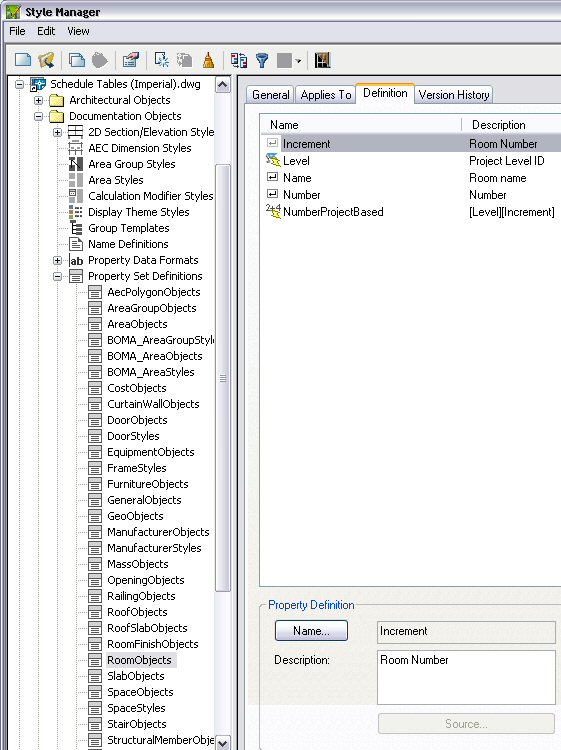
ADT 2006 Room Objects Property Set Definition
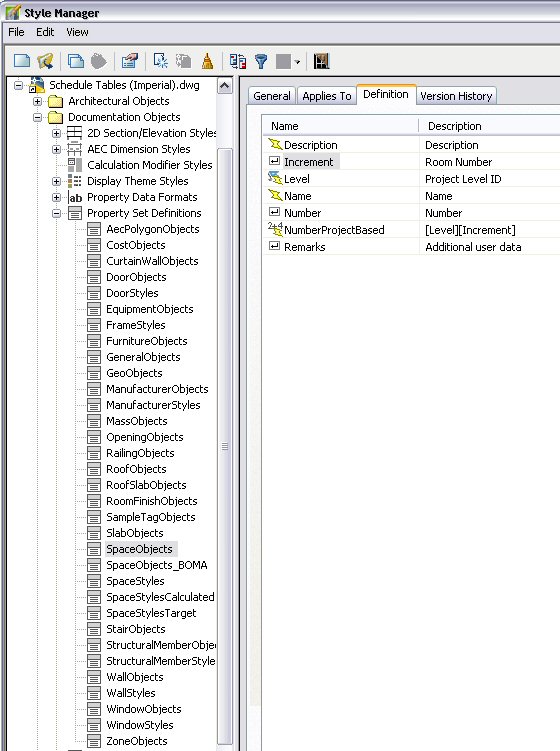
ADT 2007 Space Objects Property Set Definition
If you migrate previous drawings to 007, be certain to rename the RoomObjects Property Set Definition to SpaceObjects if you want to use the 2007 out-of-the-box tags. If you migrate both old drawings and old content, you would not have to make the change, but keep in mind that other Property Set Definitions with Location properties may also reference the room properties, so either bring all of your old sets and content or be prepared to edit property references if you mix and match.
If you have a custom tag that you want to use with the 2007 Property Sets, make a copy of the content file for use in 2007 [unless you will never use a previous version ever again], and then edit the view blocks, changing the attribute tag names to refer to the SpaceObjects Property Set Definition, rather than the RoomObjects Property Set Definition.
Also note that the "Name" property is no longer a manual property but now references a newly added automatic property source, which can be filled in on the Design tab of the Properties palette, in the General subheading of the Basic category. You can assign a List Definition that applies to Space Names if you like, to make it easier to enter names in a consistent manner. If you prefer multi-line tags that use multiple attributes for multiple lines, you will have to add the needed properties and create/migrate your custom tag.
July 01, 2006
More Updates & Service Packs

In addition to the updated tutorials, the following were recently added to the Autodesk Architectural Desktop Updates and Service Packs page for Autodesk® Architectural Desktop 2007:
Hotfix - Fatal Error During Save Published: 2006-06-14
Hotifx - Cut and Paste Published: 2006-06-30
Certified Hardware XML Database Update Published: 2006-06-12
Note that you need only update the acdb17.dll file from one of of the two Hot Fixes, as either currently provides version 17.0.103.50 of that file.
Revised Tutorial Files for ADT 2007
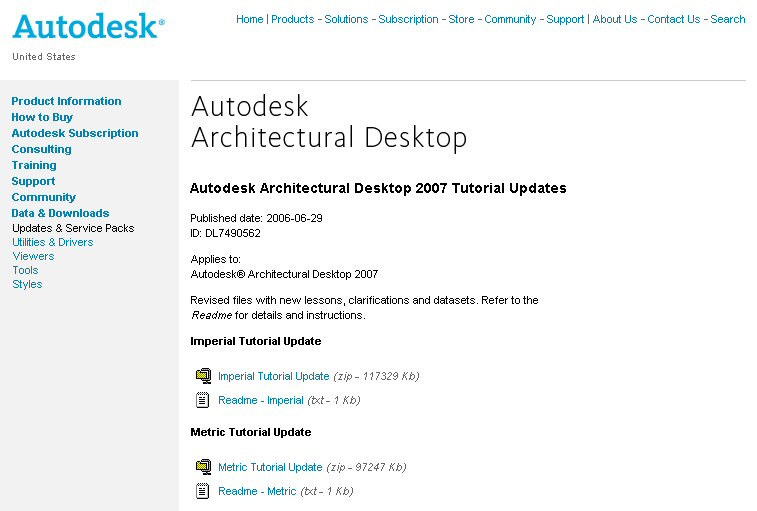
Revised Imperial and Metric tutorial files for Autodesk Architectural Desktop 2007 have been posted to the Autodesk website for downloading. According to the Imperial Readme file:
Autodesk Architectural Desktop 2007 Imperial Update Tutorials
Revised imperial tutorials with new lessons and exercises in printable PDF format.
Datasets for the new lessons included in the updated tutorials. Download the datasets to c:\Program Files\Autodesk Architectural Desktop 2007\ Tutorial\Architectural Desktop\Datasets.
Files included in this package:
- adt_imperial_tutorials.pdf - PDF file containing updated imperial Autodesk Architectural Desktop 2007 Tutorials.
- Getting Started_I.dwg - Getting Started tutorial dataset.
- A4A_I.exe - Autodesk Architectural Desktop: Making AutoCAD Better for Architects tutorial dataset.
- Small Office Building_I.exe - Small Office Building tutorial dataset.
- Steel-Framed Residence_I.exe - Creating a Steel-Framed Residence tutorial dataset.
If you customized file locations when installing ADT 2007, you would want to place the datasets in the same folder(s) as the original datasets.
June 30, 2006
Google Earth Extension for ADT 2007 Public Beta

Shaan Hurley has announced the availability of a new public beta on the Autodesk Labs site, the Google Earth™ Extension for AutoCAD 2007, Architectural Desktop 2007, Autodesk® Civil 3D® 2007, and Autodesk Map 3D 2007.
Subscribe to:
Posts (Atom)