Showing posts with label Wall. Show all posts

May 23, 2017

ACA: Wall Rotation Property

I came across a request today from someone who wanted to be able to set up a Display Theme based on the rotation of Walls, to graphically call out any that were close to, but not quite orthogonal. Rotation is not one of the automatic property sources for Walls, but it is a property of a Wall and that data can be extracted using a Formula property. The raw data is in radians, but you can apply the appropriate factor to covert that to degrees in the Formula property. Here are the formulas I created to make the Wall rotation value available as a property that could then be the basis of a Display Theme:

Radians
On Error Resume Next
Set acadApp = GetObject(,"AutoCAD.Application")
Set wallObj = acadApp.ActiveDocument.ObjectIDToObject( [ObjectID] )
RESULT = CDbl( wallObj.Rotation )

Degrees
On Error Resume Next
Set acadApp = GetObject(,"AutoCAD.Application")
Set wallObj = acadApp.ActiveDocument.ObjectIDToObject( [ObjectID] )
pi = 4 * Atn( 1.0 )
RESULT = CDbl( (wallObj.Rotation * 180.0) / pi)

In both cases, the formulas above assume that, in the same Property Set Definition, an automatic property called ObjectID has been added, referencing the ObjectID automatic property source. The reference to this property in the formula needs to be made by double clicking on that property in the lower left pane of the Formula Property Definition dialog, when creating the Formula property.

Please note that I have had issues with Formula properties that use the Set acadApp = GetObject(,"AutoCAD.Application") line to get the AutoCAD application object, when multiple versions of AutoCAD are open at the same time. Something to keep in mind, should you see Formula properties failing, particularly ones that had worked before. (I am not certain whether the same effect occurs if you have multiple instances of the same version running simultaneously; I rarely do that, but often have multiple versions running at the same time.)

November 12, 2016

ACA: WALL Command

I was asked a question about the various command line options for the WALL command in AutoCAD® Architecture, and was surprised to find that the online Help does not have an article on this command. I suppose that, in recent years, most people use the WALLADD command to add a new Wall, most likely through a Tool Palette tool, Ribbon tool or the Styles Browser, but the WALL command still exists. There are other ways to execute the other options as well. The heyday of the WALL command was most likely back in the early days, before Tool Palettes and the Styles Manager (let alone the Styles Browser), but if it is good enough to remain in the program, it should be covered in the Help.
For ease of future reference, here are my findings on the command line options:
  • Add: This option is the equivalent of running the WALLADD command, and allows you to create a new Wall.
  • COnvert: Use this option to select lines, arcs, circles, or polylines and convert them into Walls. You will be given the option to keep or delete the selected linework. Using this option appears to result in a Standard-style Wall, regardless of what the current drawing's default Wall Style is. You may be better served by right clicking on a Wall tool on a tool palette which references the desired final style and then choosing Apply Tool Properties to > Linework from the context menu. (Applying a style to linework is not available from the Styles Browser.)
  • Properties: Use this option to select one or more Walls and have the Properties palette open (if closed) and display the Wall's properties. Unless you do not keep the Properties palette open all the time, this option is fairly worthless. Even if you keep it closed, selecting the Wall, right clicking and choosing Properties from the context menu is faster than typing WALL and choosing the Properties command option. It is a relic from the bad old days before the modern Properties palette, when each AEC Object had its own Properties dialog.
  • Styles: Opens the Style Manager, filtered for Wall Styles.
  • CLeanup groups: Opens the Style Manager, filtered for Wall Cleanup Group Definitions.
  • Dimension: Allows you to select one or more Walls and have AutoCAD Dimensions (not AEC Dimensions) added to it/them. The dimensions will be oriented parallel to the first Wall selected, so choose wisely.
  • Interference: Allows you to add or remove a Wall interference. If you are going to add an interference, you will need to have the AEC object(s) that will be the interfering objects in the drawing and selectable prior to executing the command. Likewise, to remove an interference condition requires that the AEC Object(s) doing the interfering are selectable when the command is run, so if any are on layers that are Off or Frozen, you will want to turn those layers On and/or Thaw them and your display settings need to have an active Display Representation that has visible graphics for those objects.
  • Reverse: Reverses the direction of one or more selected Walls. More easily done for individual Walls with the flip grip in more recent versions of the program, but if you had a reason to reverse the direction of a large number of Walls at once, do not want to maintain the location of the justification line, dislike using tools on contextual ribbon tabs or right-click menus and would rather not click on all those flip grips, one by one, the Reverse option of the WALL command is the way to go.

April 08, 2016

ACA 2017: CReate type Command Option

Another new feature that some may find of use is the addition of a new command line option, CReate type when adding Walls, Curtain Walls, Railings, Slabs, Roof Slabs and Roofs.

Selecting the CReate type option results in a new command line prompt. The default action is to create a Rectangle shape (by picking the opposite corners of the rectangle). Other shape options are Circle, POlygon and PLine.
Command prompts for those options follow those of the AutoCAD object commands of the same name. While you may not have many occasions for wanting to draw Walls along the lines of a regular polygon, do check out the PLine option, particularly for the object types that do not offer Arc as a command line option (Railings, Slabs, Roof Slabs and Roofs) in the "regular" Add command. For Walls and Curtain Walls, the PLine option makes it much easier to create arc segments that are tangent to the previous segment. And an added bonus when creating Slabs and Roof Slabs, you do not have to explicitly close your shape, as you do when drawing segments under the "regular" Add command. Finally, when using the PLine option when creating a Roof object, you can use object snap tracking to align the next vertex with previous vertices, which you cannot do in the "regular" Add command. This makes it easier (possible) to align your last vertex with the starting vertex on initial placement, rather than having to edit it afterwards.

December 11, 2010

Displaying Windows Above the Cut Plane in ACA

Over the years, there have been a number of requests in the Autodesk Discussion Groups and the AUGI Forums on how to get a Window that is above the global cut plane to display in a plan view (Top view direction). There are a number of approaches to this, and which one you should use depends upon how you want to see the Window and whether any particular change has unwanted side effects. For the purposes of this investigation, I am going to assume that the Window in question really is meant to be above the global cut plane and is not simply misplaced vertically in the Wall. I am also assuming that you need to model the Window accurately, that is, draw it to the intended size and place it in the correct vertical position, so that it schedules and/or shows up in generated section/elevations correctly. I will be using imperial units, using the out-of-the-box global cut plane of 3'- 6", but the same display techniques will work in metric units as well.(As always, click on any image to see the image full size. Use the Back button on your browser to return to the article.)

First, you need to decide how a Window above the cut plane should display. If it is a clerestory Window that is well above the cut plane, you may want to indicate the Window in a plan view, but use different graphics than you would for one that is actually cut by the cut plane, so that it is apparent in the plan view that the Window is above the cut plane. On the other hand, you may want one that is not very far above the cut plane to appear just like others that do intersect the cut plane.

Different Graphics
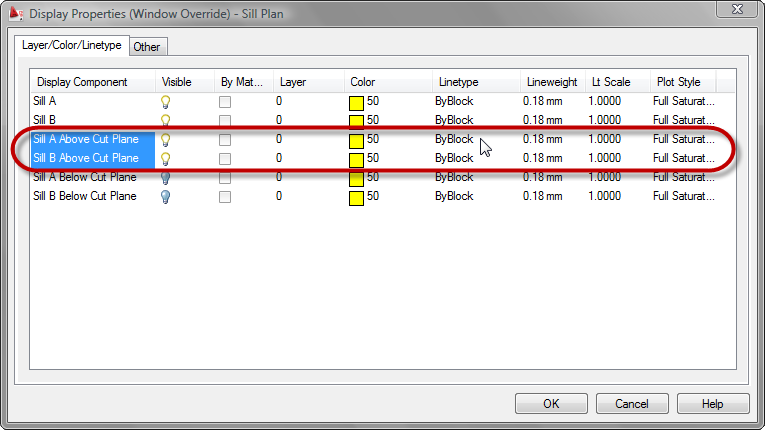
The out-of-the-box Plan Display Representation for Windows includes "Above Cut Plane" components for the Frame, Sash and Glass, but they are turned off. You can have above-cut-plane Windows display when the Plan Display Representation is active by turning on these components and setting the color, linetype and lineweight to suit your needs. This can be done at the Drawing Default, Style or Object level. Drawing Default settings are best edited in the Display Manager. Style-level settings are most easily edited through the Style Manager, or by selecting the object and editing its style. Object-level settings require selecting the object. Because we are making changes to several components, I will be showing the edits using dialogs.* I will also be applying the display settings as Object-level overrides, to allow me to keep a number of different conditions in the same drawing file; you will need to decide whether you should make the changes at the Drawing-Default level (affecting all Windows without a Style- or Object-level override), Style-level (affecting all instances of that Style that do not have an Object-level override) or at the Object-level (affecting just that instance).As shown above, I set an object-level override on the Plan Display Representation of the Window, and turned on the display of the above cut plane components for the frame, sash and glass. I also changed the color, lineweight and plot style to ByBlock and the linetype to HIDDEN2.

If you prefer not to have the Wall Component graphics run through the above-cut-plane Window graphics, you can edit the Plan Display Representation of the Wall, by checking the "Hide Lines Below Openings Above Cut Plane" toggle on the Other tab.
If you would like to have lines at the opening just at the face of the outer component of the Wall, you can turn on the Above Cut Plane component of the Wall. Make certain that the Display Inner Lines Above toggle is unchecked.**
Identical Graphics
If you can find a global cut plane level that will cut through all of your Windows and not adversely affect the display of other objects, the easiest way to get all of your Windows to display identically is to raise the global cut plane to that level.
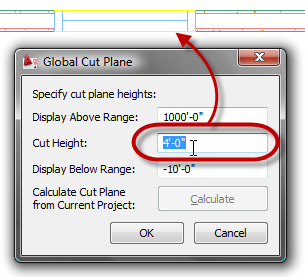
If there is no single global cut plane height that will cut through all Windows, or any such height has unwanted side effects on other objects, you can leave the global cut plane height at your standard height and override the cut plane on Walls. This is done on the Cut Plane tab, by checking the Override Display Configuration Cut Plane toggle, and then entering the desired Cut Plane Height, if you are editing the display settings via dialog, as shown below.
If you are editing on the Display tab of the Properties palette, in the Object Display Properties category, in the Cut Plane subcategory, change the Override cut plane property to Yes and then enter the desired value in the Height property.

If even limiting the cut plane adjustment to Walls with Windows above the global cut plane has unwanted side effects, or you would just prefer not to adjust the cut plane at all, you can still make Windows above the cut plane appear like Windows at the cut plane, by turning on the Frame Above Cut Plane, Sash Above Cut Plane and Glass Above Cut Plane components in the Plan Display Representation for Windows and making the display settings for these components match that of the Frame, Sash and Glass components, respectively.
Also turn on the Sill A Above Cut Plane and Sill B Above Cut Plane components and make the display settings match those of the Sill A and Sill B components, respectively.
Finally, edit the display settings of the Plan Display Representation of the Wall, checking the Hide Lines Below Openings Above Cut Plane toggle on the Other tab.

* - You can also make the edits using the Display tab of the Properties palette, but you will have to be able to both select the Window and have the Plan Display Representation active at the same time. To do this, you can either set the Top view direction active with a Display Configuration that uses the Plan Display Representation for the Top view, such as the Medium Detail Display Configuration and temporarily set the Cut Plane high enough to intersect the Window so you can select it, or you can split the Model "tab" into two viewports, setting one to one of the Isometric views in which you can select the Window and setting the other to the Top view direction. Select the Window in the Isometric viewport, then left click in the Top viewport to make it active, and you will have access to the Plan Display Representation and its components on the Display tab of the Properties Palette. You can then select the display level to which the changes are to be applied and then choose/edit each component.

** - The Above Cut Plane component, Display Inner Lines Above toggle and Hide Lines Below Openings Above Cut Plane interact in a similar fashion as the Below Cut Plan component, Display Inner Lines Below toggle and the Hide Lines Below Openings at Cut Plane toggles. See ACA Wall Display Settings at Openings for a detailed description of the interaction.

December 03, 2010

ACA Wall Display Settings at Openings

In preparing a post on the display of Windows that are above the cut plane (coming soon to a blog near you), I decided to investigate the various display options on the Other tab for the Plan Display Represenation for Walls. In particular, it seemed to me that the "Hide Lines Below Openings at Cut Plane" had no actual effect on the Wall's dipslay. It turns out I was wrong, there are conditions under which this toggle does have some effect. I have decided to document my findings here so that I do not have to go through this again in the future. For this article, I will focus on Windows that are cut by the cut plane, the Below Cut Plane component (Layer/Color/Linetype tab), the Display Inner Lines Below toggle on the Other tab and the Hide Lines Below Openings at Cut Plane on the Other tab. In all but the last of the images in this article, all of the Sill Plan components for the Window have been turned off, to avoid any confusion with Wall components. The Above Cut Plane component also is turned off.

The out-of-the-box Plan Display Representation for Walls has the Below Cut Plane component turned on, the Display Inner Lines Below toggle turned off, the Hide Lines Below Openings at Cut Plane toggle is turned on and the Hide Lines Below Openings Above Cut Plane is turned off. The result can be seen in the image below.
The first thing to understand is that if the Below Cut Plane component is turned off, then the settings for Display Inner Lines Below and Hide Lines Below Openings at Cut Plane toggles have no effect, since the Below Cut Plane component is turned off. The result is show below.*With the Below Cut Plane component turned on and the Display Inner Lines Below toggle turned off, the Hide Lines Below Openings at Cut Plane toggle has no effect; the Wall will display just like the out-of-the-box image (first image), with a line at the outer face of the outermost component on each side of the Wall and no inner lines displayed, no matter how the Hide Lines Below Openings at Cut Plane toggle is set.

The next thing to understand is that even though the toggle is called "Display Inner Lines Below", it does in fact refer to inner lines below openings. In the image below, the Below Cut Plane component is on, all of the Boundary and Hatch components are off, the Display Inner Lines Below toggle is turned on and the Hide Lines Below Openings at Cut Plane is turned off.As you can see, lines are drawn at the edges of each component, using the display settings for the Below Cut Plane component, but only below the opening itself. The line at the inner face of the brick component (or outer face of the Air Gap component) appears to break from this and extend a distance into the Wall. This is due to the Wall Endcap having the brick return to the face of insulation component, so the line extends through the depth of the return.

With the Boundary and Hatch components turned back on, the image below shows the effect of having the Below Cut Plane component, Display Inner Lines Below toggle and Hide Inner Lines Below toggle all turned on at the same time.
Strange at it may seem, in order to get all of the lines below turned off without turning off the Below Cut Plane component off, you have to turn the inner lines below on, then hide them. If you do not turn them on, then a line at the outer face of the outer component will remain on, as we saw in the out-of-the-box image above.

Why not just turn off the Below Wall Component? For Walls where each component runs from bottom to top, you could do that. But if you have a Wall that has a projecting component below the cut plane that you want to see in locations where there is no opening and you have a projecting Sill and you do not want to see any Wall lines below the Sill, you will need to leave the Below Wall Component turned on to see the projecting component and then turn on the toggles for both Display Inner Lines Below and Hide Lines Below Openings at Cut Plane to get the desired results (see image below).


I can not say I fully understand why things are set up the way they are, but at least now I have a better understanding of the effects of the various options.

*Oddly enough, you get the same result with the Below Cut Plane component turned on and the Hide Lines Below Openings Above Cut Plane toggled on (with or without the Hide Lines Below Opeings at Cut Plane toggle on or off, provided that Display Inner Lines Below toggle is not turned on). I would not have thought that the Hide Lines Below Openings Above Cut Plane toggle would have any affect on a Window Opening that is at the cut plane, but it does.

January 24, 2008

Extend Linework to Wall Component Edge

Thanks go out to Steve Bennett for his reply in this thread in the AUGI AutoCAD Architecture 2008 Forum, for reminding me of what I am missing while using Autodesk® Architectural Desktop 2004 for production work. A similar question came up in the Autodesk AutoCAD Architecture 2008 Discussion Group today, and I was able to pass on Steve's suggestion. I decided to document it here so that I will remember it when we move to 2008 for production.
As you are likely aware, the AutoCAD® EXTEND command can be used to extend linework to a wall. When doing so, however, the linework will be extended to the justification line of the wall, which may or may not be the part of the wall to which you wanted the linework extended. The AEC Modify Tools can be used to extend linework to the edge of any component in the wall. Select the linework you wish to extend and, with grips on but none hot, right click and choose AEC Modify Tools > Extend from the context menu, as shown below.
You will be prompted to Select a boundary edge on the screen:. Move your cursor over the edge of the wall component to which you wish to extend the linework. You should get a "Boundary Edge" tool tip as well as a red line extending beyond the drawn graphics of the edge. When you have the right boundary, left click to select that as the extend edge.
You will now be prompted to Select a point near the end(s) to extend:. Left click anywhere near the end of the linework to extend, on the side that you want extended...
...and, just like that, the linework extends!

You can also trim linework to the face of any component using the AEC Modify Tools - simply pick the Trim option, instead of the Extend option, from the context menu.

Part 2 - AEC Trim

December 27, 2006

Wall Corner Condition - Plan Modifiers


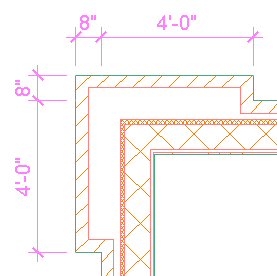
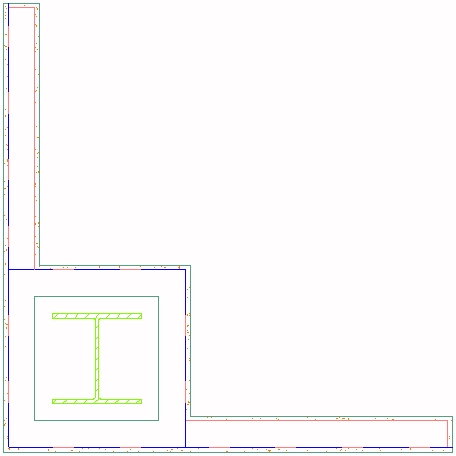
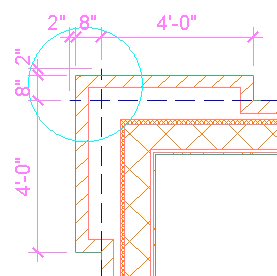
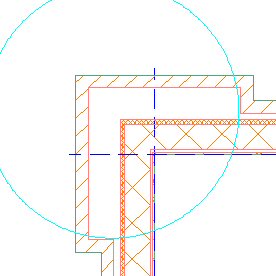
With some additional help from John Mumaw in a follow up reply to the Wall Corner Condition thread in the Autodesk Architectural Desktop Discussion Group, I was able to get wall modifiers to work in creating a projecting brick pier at an outside corner intersection of two walls. See this post for a description of another way to do it with Wall Endcaps. The image above shows the desired end result.

Here are some tips for using plan modifiers for achieving the results above. Credit goes to Mr. Mumaw for most of what follows.

  1. You will need to draw your walls so that the graph lines extend past their intersecting point, then use a cleaup radius to get the walls to clean up.

  2. Do not make the modifiers the exact size you need, as that results in the "interesting" results shown below. Notice the "leaking" brick hatch and extra Shrink Wrap/Component line.

  3. Instead, make the modifiers some distance longer that you need. You will then need to draw the walls that same extra distance beyond the projection, and the wall cleanup will take care of the "extra" length. I chose to use 2". The image below shows the two polylines I used to create the plan modifiers. Note that the modifiers have not yet been applied to the wall shown in this image, which was drawn from left to right, so the modifiers are at the start of this wall. The brick polyline starts at the outer face of brick, offsets up 8", runs 2" longer than the desired pier length, for a total of 4'-10" and runs back 8" to the brick face. The air gap polyline is offset 4" from the brick polyline, so that the 4" width of the brick is maintained and the start and stop points are at the outer face of the air gap component.

  4. If you apply the modifiers to a stand-alone wall, a cleanup error will result. This is not a cause for alarm, as this technique only works when the wall cleans up with another wall.

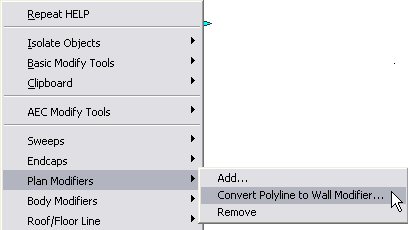
  5. To create the plan modifier from the drawn polyline, select the wall along which you drew the polylines, right click and choose Plan Modifiers > Convert Polyline to Wall Modifier... from the context menu.
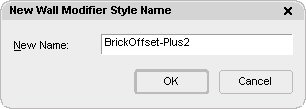
    Choose whether or not you want to save the polyline, then give the modifier a meaninful name.
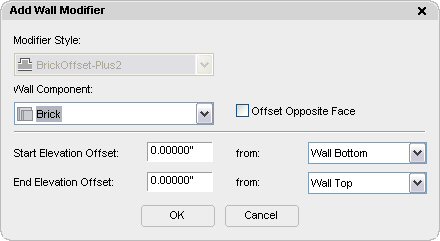
    Verify that the correct component is indicated in the Add Wall Modifier dialog, and make certain that the Offset Opposite Face toggle is NOT checked.

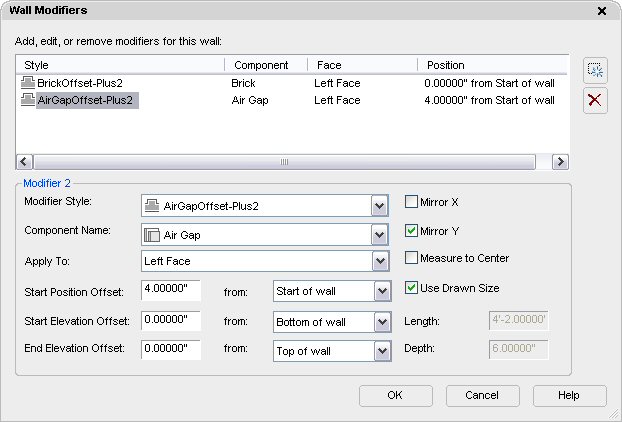
  6. The plan modifiers will be attached to the wall you selected. If this wall will be used as one of your corner walls, select the wall, right click and choose Properties. On the Design tab, in the Advanced category and Worksheets subcategory, click on the Plan Modifiers worksheet and check the settings for your modifiers. If your wall style is created like the out-of-the-box wall styles, with the first component at the outside component and the last component to the inside, then you will want the modifiers to be attached to the left face of your components, with the Mirror X and Measure to Center toggles unchecked and the Mirror Y and Use Drawn Size toggles checked. The Start Position Offset for the Brick component should be 0 from the start of wall; the Start Position Offset for the Air Gap component should be the width of the brick component from the start of wall, 4" in this case. If you drew your polylines at the end of a wall, rather than the start, the Air Gap Offset would be -4" from the end of wall.

  7. If your pier is symetrical, you can use the same plan modifiers for the other wall. Make note of what end of the wall you need the modifiers, start or end. Then select the wall, right click, choose Properties and open the Plan Modifiers Worksheet. Add the modifiers already created by choosing the appropriate name and component, then making certain to check the toggles as noted above. Use a positive offset for the Air Gap component when placing the modifier at the start of wall and a negative offset when placing the modifier at the end of wall.

  8. The image below shows two left justified walls. The vertical wall was drawn from bottom to top and the horizontal wall was drawn from left to right. The wall modifiers shown above have been added to the end of the vertical wall and the start of the horizontal wall. The Graph Display Representation is toggled on so you can see that the graph lines of the two walls were extended 10 total inches beyond their intersecting point, 8" for the brick offset plus 2" for the extra length at which the plan modifiers were drawn. A cleanup radius of 1'-6" was added to each wall at the intersection end so that the walls would clean up with each other, giving the desired result. The minimum cleanup radius here would be 10 times the square root of 2 inches, which you could get by using the grip to stretch each radius to the endpoint of the other wall's graphline.

  9. You can use other justifications besides left, but you will need to increase the cleanup radius accordingly. Keep in mind that the larger the cleanup radius, the greater the chance that there will be a problem with other walls close to the corner. The images below show baseline and right justified walls using the same modifiers, but with larger cleanup radii to compensate for the greater distance between the graphline endpoints. Note also that the graphline endpoints remain 10" beyond the outer face of the wall.

December 16, 2006

Wall Corner Condition

I was reading a thread titled Wall Corner Condition in the Autodesk Architectural Desktop Discussion Group in which "adtcad" posted an image of a multi-component wall where the brick offset at an outside corner on both walls, and asked how to achieve that result. The image below is similar to the one attached by "adtcad". (Click on any image to see a larger version.)


John Mumaw suggested using plan modifiers. Not having much opportunity to do so as part of my work, I took the opportunity to explore his suggested method and failed miserably. I am hoping that he or someone else with extensive plan modifier experience can post a working example of his approach so that I (and others) can reverse engineer what was done and add another weapon to my ADT arsenal.

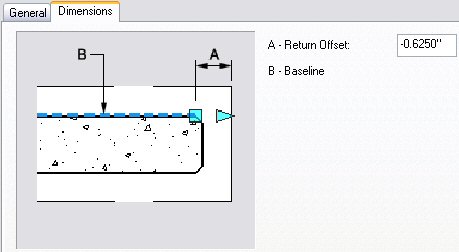
Undeterred, I fell back on a technique that I have had many occasions to use, wall endcaps. One feature of wall endcaps with which you may be unfamiliar is the option to set a "return offset" on the Dimensions tab when editing a Wall Endcap Style. If you provide a positive number, the endcap moves away from the end of the wall, toward the middle of the wall. A negative number, on the other hand, will move the endcap beyond the end of the wall, and is key to using wall endcaps to simulate cleanup or to get wall components to offset at wall ends, as endcaps are not shown at wall ends that clean up with another wall.

I posted a sample file as a reply in that thread, which includes the walls that generated the image above, as well as the polylines I drew to create the endcap, as shown in the following image.

Note that the polylines all start and end on a line drawn perpendicular to the length of the wall, and that all of the polyline segments have a width of zero, except for the ones along the 45-degree angle. Zero-width segments will be drawn as component edges, when those are set to display. Segments with a width will not be drawn, creating an open condition at the component which can be used to simulate cleanup between walls that have adjoining endcaps.

I used the wall context menu Endcaps > Calculate Automatically to generate the Wall Endcap Style from the polylines I drew, setting it to be an override, as I chose not to make this the style's default endcap condition.
This will create the endcap, but not the offset, and will extend the wall used to create the endcap so that the endcap appears on top of where the polylines were drawn.

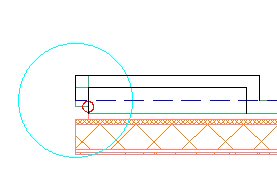
Then I opened the Style Manager and found my newly created Wall Endcap Style, under the Architectural Objects folder. In the sample file I posted, the Wall Endcap Style is called "CMU-8 Rigid-1.5 Air-2 Brick-4 Furring Four-Foot Brick Pier Open End Beveled - Projected 56 (End 1)". On the Dimensions tab, I set a Return Offset of -56", so that the entire endcap would project beyond the end of the drawn wall.
That much of a projection would not be necessary - if you keep the cleanup radii of both walls at zero, any negative projection would do - but I chose to do that so that the wall end has meaning, relative to the brick offset. If you look closely at the first image, you can see that I had the wall graph display toggled on, and the wall end occurs right where the brick offsets. The walls were drawn left justified, so the wall graph line occurs at the outside face of the brick.

Finally, I stretched the wall back down 56" to get the endcap back to its original position and added a second wall, applying the same endcap to the adjoining end.

Check out the Wall Corner Condition thread if you are interested in seeing the sample for yourself, or just to take a good, long laugh at my pathetic attempt to follow Mr. Mumaw's suggestion, as I left those in the file, as well.

April 28, 2006

Stud Size Offset

3/5/2009 UPDATE: If you are using ACA 2010 or later, you can achieve the same results using Wall Cleanup Edit in Place.

In order to avoid finished surface offsets within a room, a change of stud sizes is often made at the intersection of a perpendicular wall. When this is not possible, and you end up with two wall styles that are identical except for the stud size, with one finished face aligned, you will end up with a cleanup error, as shown below (Low Detail on the left, High Detail on the right). The problem is that the finish materials on the offset side do not align, and ADT does not know how to resolve that.

You could apply a wall merge to resolve the cleanup issue, and the Low Detail graphics are acceptable, but the High Detail graphics are not, as seen below.

If you want to have the wall appear cleaned up and have the components align, with the finish material wrapping the end of the wider stud and aligning with the finish material on the narrower stud, you will have to resort to a little "trickery". The first thing you need to know is that you can create an "open" endcap for a wall, by giving the defining polyline a non-zero thickness at any segment you wish to be invisible. The second thing you need to know is that you can specify a negative offset on an endcap, which pushes the endcap graphics out beyond the end of the wall graph line. This allows you to get the appearance of having the two walls meet WITHOUT having the graphlines touch, which would trigger a cleanup attempt, which would fail - and prevent the endcaps from showing.

The image below shows the two walls, with the endcaps applied, but separated so you can see what each end is doing. The left viewport shows Low Detail, the right viewport shows High Detail. I separated the polylines that make up the endcaps so you can clearly see each line. The narrower partition has a simple, straight-line open endcap, where the polylines are single-segment with a non-zero width. The left polyline at the wider partition projects the finish material on the side that aligns by the thickness of the finish material; the end segment has a non-zero width. The stud component polyline offsets by the difference in stud size, then projects forward by the thickness of the finish material. The segment that abuts the narrower stud has a non-zero thickness. The finish material that offsets wraps around the stud offset; the end is composed of two segments; the left segment is the width of the finish material and has a non-zero thickness; the right segment length is the difference in stud sizes and has a zero width, so that you get a line at that portion.

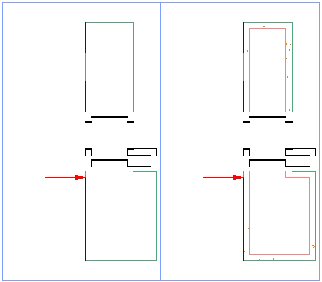
Simply drawing the polylines with the thickness of the finish material does NOT offset the endcap; if you use the Calculate Automatically option from the right-click context menu for walls, the graphline will initially extend to the end of the visible graphics. In the image above, the red arrow points to the end of the graphline, which is inset 5/8" from the end of the visible graphics. This was achieved by editing the Wall Endcap Style in the Style Manager after the endcap was created, and, on the Dimensions tab, setting a Return Offset value of -0.625", as shown below.

The final result can be seen below, with, as before, the Low Detail on the left and the High Detail on the right. Remember that the graphline of the narrower partition stops even with the finished face of the returning finish material; the graphline of the wider partition stops even with the end of the stud. The 5/8" gap keeps the walls from cleaning up, and the open endcaps make it look like they do clean up.

I initially tried doing the offset on the narrower partition, but got an undesirable result, as shown below. For some reason, the Shrink Wrap gets applied to the lateral offset of the narrower stud. This is particularly noticeable in Low Detail but is also present in the High Detail and would plot with the heavier Shrink Wrap lineweight. You can download a sample file that has the wall and endcap styles used to create the graphics in this article in the Cleanup at Stud Size Change thread in the Autodesk Architectural Desktop Wishes Discussion Group. Get the StudSizeOffset2.zip from my last post in that thread - Apr/27/06 - 23:34 (GMT) or 19:34 (EDT).

April 21, 2006

Wall "Bumpouts"

There are many ways to get a wall to "bumpout", whether for a column enclosure, a chase, or some other interruption. Each has its advantages and disadvantages, but my preferred way of dealing with this in metal stud and gypsum wallboard [GWB] construction is to have wall styles with GWB on only one side of the stud and "build" the bumpout just like it would be built in the real world.
This does add more walls to your drawing, including some short ones, but it offers great flexibility:
  • Draw the enclosure at any size.
  • Draw the enclosure in most any shape.
  • Position the enclosure anywhere along the length of a wall, including at the ends.
  • Edit the far ends of abutting walls without worrying whether the enclosure will be affected.
  • Edit the enclosure easily, on screen, without dialogs or in-place editing.
You can find the sample file that generated the image below in this thread in the Autodesk Architectural Desktop Discussion Group.

February 12, 2006

Links to the "Placing Walls on a Layer Other Than A-Wall..." Series

To make it easier to refer to all three articles in the Placing Walls on a Layer Other Than A-Wall... series, this post has links to all three articles:
Part 1 of 3: Placing Walls on a Layer Other Than A-Wall...
Part 2 of 3: Placing Walls on a Layer Other Than A-Wall...
Part 3 of 3: Placing Walls on a Layer Other Than A-Wall...

Do not forget that while the example deals with walls, the same principles can be applied to other object types, as well.

February 09, 2006

Part 3 of 3: Placing Walls on a Layer Other Than A-Wall…

In Part 3, we will wrap up the series on placing a wall on the layer you want it by looking at the second option of the second case, where you want most of your walls to use the layer specified by the WALL Layer Key, but have some walls use a different layer. In Part 2, the use of tool-based temporary Layer Key Overrides was examined, and it was noted that the override only changes the name, not the layer attributes [color, linetype, etc.]. To have Autodesk Architectural Desktop create an alternate layer with the desired attributes, you can create a new Layer Key and have your wall tool reference that key. Keep in mind, if a layer of the name specified by your new Layer Key already exists in the drawing, the wall will be drawn on that layer, but the layer attributes will remain as set in the drawing, even if the Layer Key specifies other values. This is true for the out-of-the-box WALL Layer Key as well, so it should not be a surprise, but is worth mentioning here before we get started.

Using a Tool to Change the Layer – Alternate Layer Key

If you need different layer settings for your alternate wall layer, and you do not want to include the layer in your template file or rely on the end user remembering to run a script or standards check, you can add a new Layer Key, with the desired layer settings, to your Layer Key Style, then set up a wall tool that uses the new Layer Key.

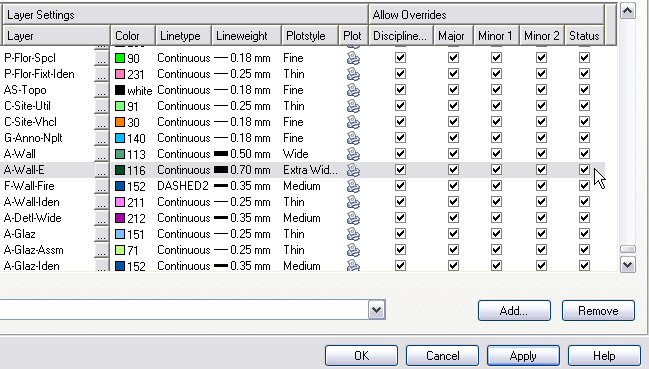
  1. First, decide the layer name and the attributes you wish to assign to that layer. In keeping with the example from the previous installment, the example here will set up a layer named A-Wall-E for use by existing-to-remain walls. The following attributes will be assigned:
    • Color: 116
    • Linetype: Continuous
    • Lineweight: 0.70 mm
    • Plotstyle: Extra Wide Screened
    • Plot: Yes
    • Allow Overrides: Yes for all


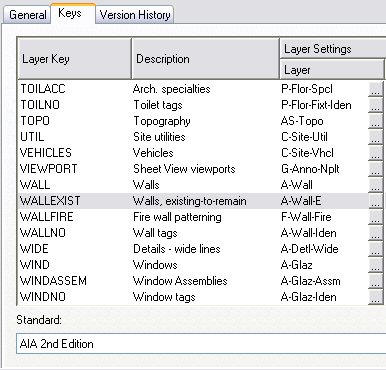
  2. You will also need to select a name and description for your new Layer Key. For our example, WALLEXIST and “Walls, existing-to-remain” will do. As before, I would recommend working on a renamed copy of your Layer Key Style in a local file while making your edits and only copying it back to your Auto-Import file [see the first article for more on that] once you are satisfied it works. Open the Style Manager, make a copy of the Layer Key Style if desired, and edit the style. On the Keys tab, select the Add… button and enter the name of your new Layer Key in the Name dialog box.


  3. Scroll in the Keys tab, if needed, to find your newly added key. Left click in the Description column next to your key and add your description.


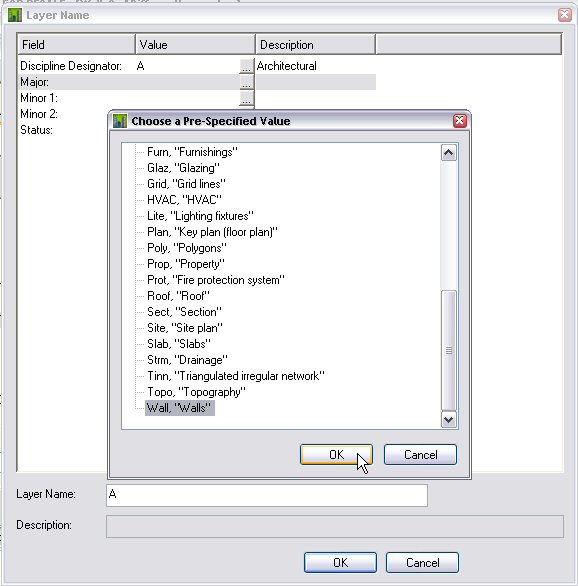
  4. If your layer name can be built from predefined values for the various Descriptive Components, you can click on the ellipsis button [“…”] and use the Layer Name dialog to build your layer name. In the Layer Name dialog, select the ellipsis button next to each Field to choose from a list of pre-specified values for that field. Otherwise, you can click in the Layer column and type in the layer name.


  5. Enter the layer parameters for your new Layer Key. You will notice that the Allow Overrides toggles are grayed out. In 2006, click on the Apply button to “register” the new key and enable the toggles. In 2004 and 2005, you will need to select OK, then edit the Layer Key Style again to enable the toggles. OK out to the drawing, and save the drawing file.


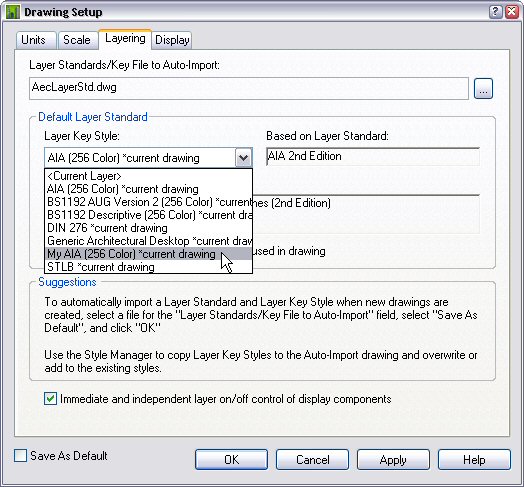
  6. Set your new Layer Key Style current, by opening the Drawing Setup dialog [one way is to select Format > Drawing Setup… from the pulldown menus] and selecting the Layering tab. In the Default Layer Standard area, choose your new Layer Key Style from the Layer Key Style dropdown list. Select OK to set that style current.


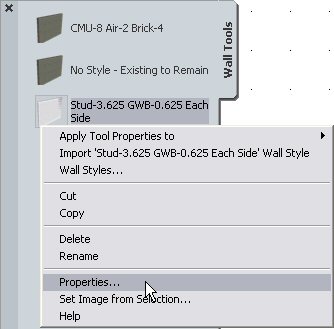
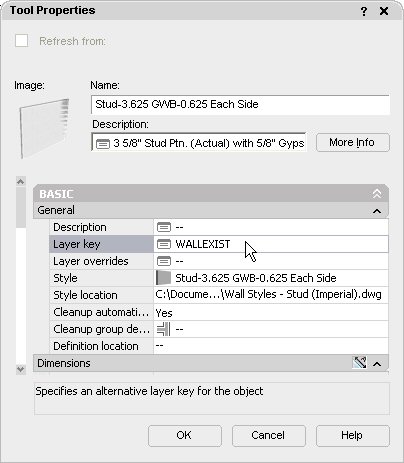
  7. Now that you have created a new Layer Key, you need to make use of it. On an editable Tool palette, create a wall tool that references a style that you would like to have placed on your alternate layer. Right click on the tool, and choose Properties… from the context menu.


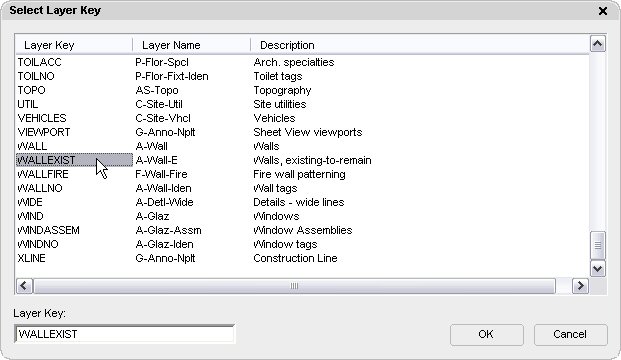
  8. In the Basic category, General subcategory, the second property is “Layer key”.Left click on the worksheet icon to the right of the Layer key property name to open the Select Layer Key Dialog, which will display a list of the Layer Keys in the current Layer Key Style, along with the layer names and descriptions assigned to each key. Scroll down, if necessary, to find your new Layer Key on the list and select it. The Layer Key Name will appear in the Layer Key edit box at the bottom of the dialog. You can, if you like, also type the name directly into the edit box, but be aware that any entry will be accepted, so if you want to be certain you specify a Layer Key that exists in the current Layer Key Style, find and select the Layer Key from the list. When the desired Layer Key is displayed in the Layer Key edit box, select OK to return to the Tool Properties dialog.


  9. Note that your new Layer Key has been assigned to the tool. Select OK to accept the change and close the Tool Properties dialog


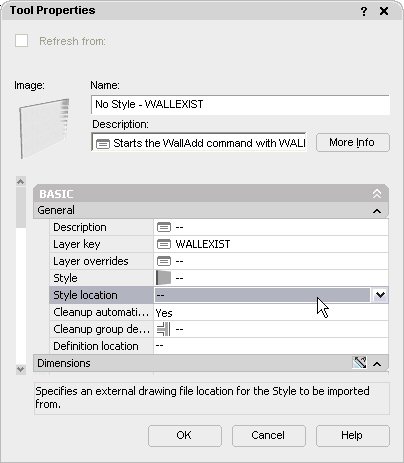
  10. As with the Layer Override tool, if you expect to have many different walls styles using your new layer key, you may not want to create second set of tools that use this key. [For the current example, if you display components in your plans, you may want to have parallel styles for existing-to-remain walls so that you can assign Material Definitions that display as proper existing walls – even if that means turning off the components. In that case, you would need a new tool for each new style.] You can create a generic wall tool, with no style or style source assigned, then use that tool to start the WallAdd command, choosing a style on the Properties palette, or right click on the tool and choose Apply Tool Properties to > Wall to move a previously drawn wall to the layer specified by the Layer Key set in the wall tool.


That wraps up this series on putting walls on the layer on which you want them. If you still have questions, a good place to get an answer is in the Autodesk Architectural Desktop Discussion Groups.