January 30, 2007

Save the Markers!!!


Thanks to Shaan Hurley for calling my attention to this dire cause. If you are like me, you spent many hours and countless dollars [yen, pounds, insert your local currency here] creating colored presentation drawings by applying felt-tip markers to your drawings while in school or on the job. Those were good times, and now that those fondly remembered markers are endangered, we owe our full support to them!

Be certain to sign the petition, or simply click here to see what all the fuss is about.

January 20, 2007

Scale-Dependent Schedule Tags in ADT 2006 or 2007

The introduction of Schedule Tag tools and the Define Schedule Tag wizard certainly were welcome and made creating single-scale tags ever so much easier. But since the tag tool was set up to always apply annotation scaling – my preferred method for single-scale tags – the scale-dependent tags do not work properly, as they want to be inserted at a scale factor of one.

One way to get a Tool palette tool to properly insert a scale-dependent tag would be to do it the old-fashioned way, by creating a custom-command type AEC Content file using the _AecAnnoScheduleTagAdd command. The old-fashioned infrastructure for doing so, including the ever-popular PropertySetDefs.dwg, is no longer there. And do you really want to have two source files for your Property Set Definitions? The new setup for ADT 2006 and 2007 has a single source file [Schedule Tables (Imperial).dwg, Schedule Tables (Metric).dwg or Schedule Tables Styles.dwg (Metric D A CH)] that holds the out-of-the-box Property Data Formats, Property Set Definitions, Schedule Table Styles and Multi-View Block Definitions, and that file is NOT in the AEC Content folder structure, when content is installed in the default folders.

In order for the _AecAnnoScheduleTagAdd command to work, you need to be able to specify a source file for the Property Set Definitions referenced by the Schedule Tag, and that file needs to be in the same folder as the tag or one folder above. The tag needs to be in the AEC Content folder structure. Unless you are starting a brand new deployment, moving the source file is not an option, as that would break all of the current tools that reference the current location.

There is a solution – use a Windows Shortcut somewhere in the AEC Content folder structure to “include” the folder of the source file, and then place your scale-dependent AEC Content files for your tags in one or more folders below that folder. Create a Tool palette tool by dragging the AEC Content file from the AEC Content tab of DesignCenter onto an editable tool palette.
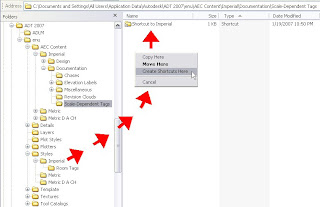
The image above shows the Room Tags folder that I created in the C:\Documents and Settings\All Users\Application Data\Autodesk\ADT 2007\enu\Styles\Imperial\, and illustrates the creation of a Windows Shortcut of the C:\Documents and Settings\All Users\Application Data\Autodesk\ADT 2007\enu\Styles\Imperial\ folder in the C:\Documents and Settings\All Users\Application Data\Autodesk\ADT 2007\enu\AEC Content\Imperial\Documentation\Scale-Dependent Tags folder that I added to the out-of-the-box default installation folders.

To create the AEC Content file, I started a new file “from scratch”. Creating AEC Content is just about the only time I will use that option, and the reason is to create the leanest possible content file. If there are unnecessary block definitions, dimensions styles, and other items in the AEC Content file, they will come along for the ride when inserting the tag. I used the Style Manager to copy the Aec7_Room_Tag_Project_Scale_Dependent Schedule Tag Multi-View Block from the C:\Documents and Settings\All Users\Application Data\Autodesk\ADT 2007\enu\Styles\Imperial\Schedule Tables (Imperial).dwg source file. I inserted an instance of the Aec7_Room_Tag_HiDtl_P view block used by that tag in model space of the file stared from scratch to serve as the icon graphics. Then I ran the PURGE command to get rid of the extra stuff that came along for the ride when copying the Multi-View Block. Finally, I fired up the AEC Content Wizard, which can be found on the Format pulldown, and filled out the three “pages” as shown in the images below. [Click on any image in this blog to see a larger version – excepting those images that were small enough to show full size.]
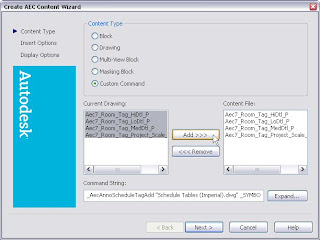
"Page 1": Adding the Multi-View Block and its view blocks to the Content File and specifying the Command String. See the image below for the full string. Be certain to specify the correct Property Set Definition source file name, and, if the name includes any spaces, to enclose the name in double quotation marks.
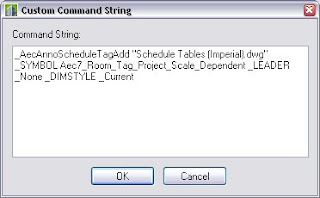
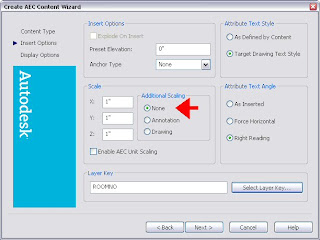
"Page 2": You may prefer different settings, but be certain to specify "None" for additional scaling. Select the appropriate layer key.
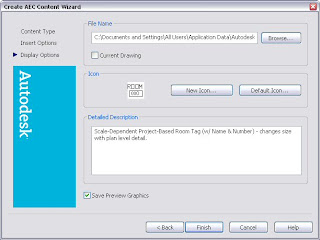
"Page 3": Specify the file location and name for the content file (see details in images below) and provide a detailed description. This description will appear in the bottom-right pane of the DesignCenter when the content file is selected, and will also become the default description for the Tool palette tool.
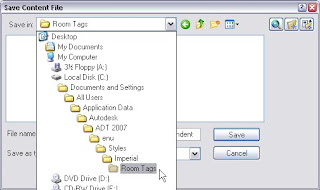
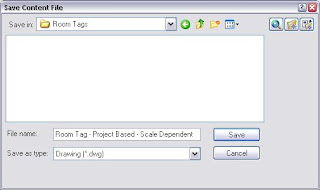
After all your settings are as you like, select the Finish button on the third "page" to create the AEC Content file. The new file shows up in Windows Explorer…
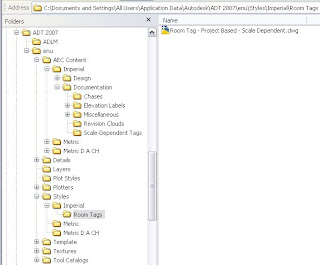
…as well as in the AEC Content tab of the DesignCenter. Note that the Scale-Dependent Tags folder I created under the Imperial Documentation folder now sports a "Shortcut to Imperial" folder within it [the Windows Shortcut], and that has a sub-folder called Room Tags, where I put my new AEC Content file. If you already had DesignCenter open to the Scale-Dependent Tags folder, you will need to collapse the Documentation folder by clicking on the "-" sign in front of it, then re-expand the Documentation folder by clicking on the "+" sign in from of it, to get the new content to show.
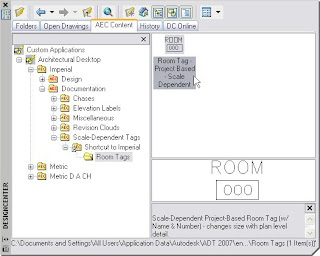
You could use the tag right from DesignCenter, but if you want to have your scale-dependent tag on your tool palette, you can now simply drag-and-drop the AEC Content file from the AEC Content tab in DesignCenter onto an editable tool palette.
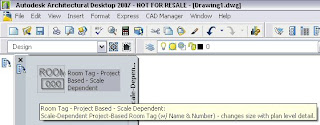
Using either the tool or the content file directly from DesignCenter, you can now place the scale-dependent tag with scale factors of one…
…and get your tag to display properly when the Low Detail…
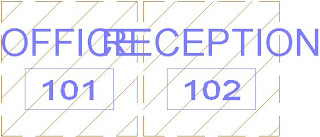
…Medium Detail…
…and High Detail Display Configurations are set current.
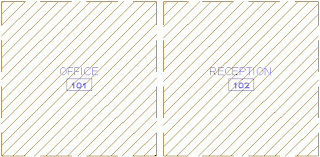
And it was all done without creating a second source file for Property Set Definitions or moving a source file and breaking any existing tools that reference it.

January 14, 2007

Hidden Feature Revealed: The Wall Style Components Browser

The other day I needed to create a new wall style, with double studs with an air space between. I started with an out-of-the-box style that had the right GWB and stud, and adjusted the offset of the "far side" GWB and copied the stud component. Then I remembered that I could copy the air space from another wall style using the Wall Style Components Browser. It occurred to me that I have not read much discussion about this feature, added with the 2004 release, and wondered if it had become "forgotten". If you have forgotten about this feature, or were never introduced to it, read on and add another tool to your Autodesk Architectural Desktop arsenal.

The Wall Style Components Browser allows you to easily add components to a wall style that match the way that component is set up in another style. That can help you maintain consistency across all of your wall styles. Ordinarily, when creating a new wall style, I would suggest starting with a copy of the existing wall style that is closest to what your new wall style needs to be, but for the purposes of illustration, I will create this one from scratch. The partition type I need is an interior metal stud partition that has good acoustic properties as well as a three-hour fire-resistance rating. The image below, taken from the USG Acoustical Assemblies catalog SA200, shows the partition we want to create
  1. Start a new drawing using an Autodesk Architectural Desktop template file. I am using the 2007 release for this exercise, and started with the out-of-the-box Aec model (imperial stb).dwt template. Open the Style Manager (one way, Format > Style Manager… from the pulldown menus). Expand the Architectural Objects folder under your new drawing in the left pane, right click on Wall Styles and choose New from the context menu.
  2. Give the new wall style a name, I chose Stud-1.625 GWB-0.500 3 Layers Each Side to match the out-of-the-box style-naming convention. In the right pane, select the General tab and add a description of 3 5/8" Stud Ptn. (Actual) with 3 Layers 1/2" Gypsum, again matching the format of the shipping content. If your office has a different convention, by all means follow that.
  3. Select the Components tab. You should have a default component, called "Unnamed". We will be deleting that later, but only after we add another component, as you always need to have at least one component. Click on the Wall Style Components Browser button [the tool tag reads "Wall Style Browser"], the bottom button of the four at the right side of the Components tab.
  4. The Wall Style Components Browser window opens.
  5. There is not much to pick from at this point, since there are no other wall styles in our drawing. We could have used the Style Manager to copy some other styles into our file first, but if we do not need them, why clutter the file with them? Just as you can "open" a file in the Style Manager without actually opening the file, you can "open" a file in the Wall Style Component Browser and access the styles within. Click on the Open drawing icon at the upper left corner, then browse to the location of the file containing the wall style(s) from which you want to copy components. I chose the out-of-the-box Wall Styles – Stud (Imperial).dwg as the source file.

  6. None of the wall styles in the 2007 version of that file have a half-inch thick GWB component or a 1 5/8" deep stud, but we can bring in a 5/8" thick GWB component and a 2 1/2" stud and modify them. I chose the Stud-2.5 GWB-0.625 2 Layers Each Side wall style. Clicking on this in the left pane displays the components in that wall style and their properties in the top right pane, and a preview of the wall style in the lower right pane.
  7. Select the Index 1 GWB component in the top right pane, right click and choose Copy from the context menu.
  8. Now click back in the Style Manager to make that the active window, right click in the right pane under the default component and select paste from the context menu.This will paste the component you copied in the Wall Style Component Browser into your wall style, with the same properties as it had in the source style. If you like, click on the Materials tab and note that the Material Definition assigned to the copied GWB component was also brought along into our style. Not too shabby for a single cut and paste.
  9. Now we can delete the Unnamed component, by selecting it and clicking on the Remove Component button, second from the top at the left. Edit the GWB component, changing the Priority to 1220 (remember, we have three layers of GWB each side), the Width to 1/2" and the edge offset to 1". Select the edited component, right click, choose Copy from the context menu and finally right click and choose Paste from the context menu, twice, to add two more GWB components. Edit the Index 2 component, changing its Priority to 1210 and Edge Offset to 1/2". Edit the Index 3 component, changing the Priority to 1200 and Edge Offset to 0".
  10. Go back to the Wall Style Component Browser and copy the Stud component and paste it into the Components tab. Change the Width to 1 5/8" and the Edge Offset to -1 5/8".


  11. We are in the home stretch now. Select the Index 3 GWB component, right click, Copy, select the Index 4 Stud component, and then right click and Paste. Change the Edge Offset of the Index 5 GWB component to -2 1/8". Select the Index 2 GWB component, right click, Copy, select the Index 5 GWB component, right click and Paste. Change the Edge Offset of the Index 6 GWB component to -2 5/8". Select the Index 1 GWB component, right click, Copy, select the Index 6 GWB component, right click and Paste. Change the Edge Offset of the Index 7 GWB component to -3 1/8".
By taking advantage of the Wall Style Component Browser, we were able to build a new wall style that matches the settings in existing wall styles with a few simple Copy and Pastes. How much easier could it be?

January 10, 2007

List Definitions - Utility to Import/Export

Jimmy Bergmark of JTB World fame has made available a free utility program that will allow you to import and export List Definitions in ADT 2007 or ABS 2007. I have not yet had time to download this and try it out, but thought I would pass this along for those using the 2007 releases and List Definitions, as you may not want to wait until I find time to do so.

January 09, 2007

Formula Property VBScript Help

It has just dawned on me that I have never published a link to the Microsoft Developer Network VBScript page, from which you can drill down and find all sorts of help on the syntax for VBScript commands. [Click on the image for a larger view.]

Note also that users of ADT 2006 and 2007 can access the help for a specific command "directly" when writing a formula by finding the command in the lower right pane, right clicking on the command and choosing VBScript Help: from the context menu.

January 02, 2007

Printing STB and CTB Files II

Long-time readers (both of you) may recall this post from nearly two years ago. It contains a link to a page on the Autodesk website from which you could download a utility program (tableprint8.exe) that would export the content of a Plot Style file (STB or CTB) to a comma-delimited text file, suitable for printing or opening with a spreadsheet program such as Excel. For those who prefer the challenge of finding that page from the Autodesk home page, you can start there, then click on each of the following links to hop from one page to the next to get there: Home > Building > Products & Services > Autodesk® Architectural Desktop > Training > How-to Articles > Routines, Tools and Add-ons > Plot Tool: CTB and STB Printing.

If you use one of the 2004-format versions of ADT (2004, 2005 or 2006), that is the file you want, and if you have not already downloaded it, you may want to do so soon, as there is not telling when the version on that page will be replaced with the current, 2007 version, tableprint9.exe. If you are already using ADT 2007 (or any other AutoCAD-2007-based product, you can grab tableprint9.exe on this page. For those who like to navigate on the Autodesk site, you can start at the home page and follow these links: Home > Building > Products & Services > Autodesk® Architectural Desktop > Data & Downloads > Utilities & Drivers > CTB and STB Printing Tool for AutoCAD 2007 under the Autodesk® Architectural Desktop 2007 section.

Whichever version you use, be certain to read and follow the installation instructions. The EXE file will need to be copied to the same folder as the acad.exe file.

There are a lot of other interesting items on the intermediate pages, so while clicking on the direct link here will speed you on your way, you may want to explore the other items available when you have a spare moment or two.

December 27, 2006

Wall Corner Condition - Plan Modifiers


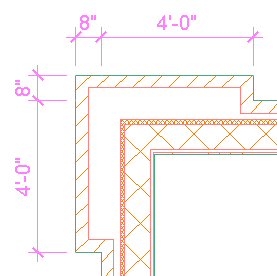
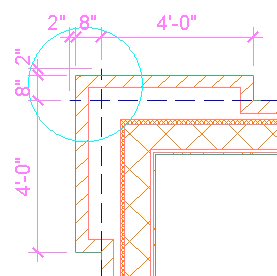
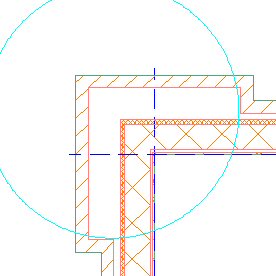
With some additional help from John Mumaw in a follow up reply to the Wall Corner Condition thread in the Autodesk Architectural Desktop Discussion Group, I was able to get wall modifiers to work in creating a projecting brick pier at an outside corner intersection of two walls. See this post for a description of another way to do it with Wall Endcaps. The image above shows the desired end result.

Here are some tips for using plan modifiers for achieving the results above. Credit goes to Mr. Mumaw for most of what follows.

  1. You will need to draw your walls so that the graph lines extend past their intersecting point, then use a cleaup radius to get the walls to clean up.

  2. Do not make the modifiers the exact size you need, as that results in the "interesting" results shown below. Notice the "leaking" brick hatch and extra Shrink Wrap/Component line.

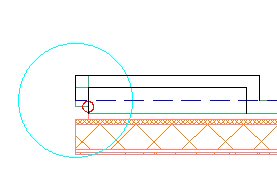
  3. Instead, make the modifiers some distance longer that you need. You will then need to draw the walls that same extra distance beyond the projection, and the wall cleanup will take care of the "extra" length. I chose to use 2". The image below shows the two polylines I used to create the plan modifiers. Note that the modifiers have not yet been applied to the wall shown in this image, which was drawn from left to right, so the modifiers are at the start of this wall. The brick polyline starts at the outer face of brick, offsets up 8", runs 2" longer than the desired pier length, for a total of 4'-10" and runs back 8" to the brick face. The air gap polyline is offset 4" from the brick polyline, so that the 4" width of the brick is maintained and the start and stop points are at the outer face of the air gap component.

  4. If you apply the modifiers to a stand-alone wall, a cleanup error will result. This is not a cause for alarm, as this technique only works when the wall cleans up with another wall.

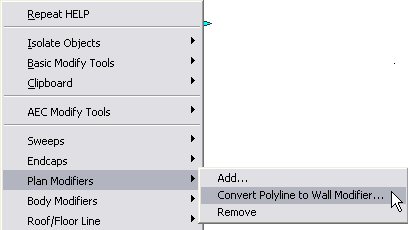
  5. To create the plan modifier from the drawn polyline, select the wall along which you drew the polylines, right click and choose Plan Modifiers > Convert Polyline to Wall Modifier... from the context menu.
    Choose whether or not you want to save the polyline, then give the modifier a meaninful name.
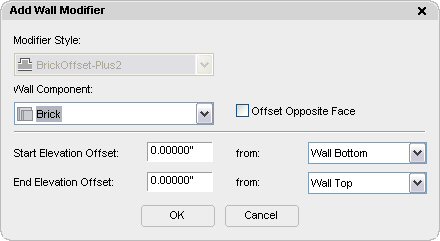
    Verify that the correct component is indicated in the Add Wall Modifier dialog, and make certain that the Offset Opposite Face toggle is NOT checked.

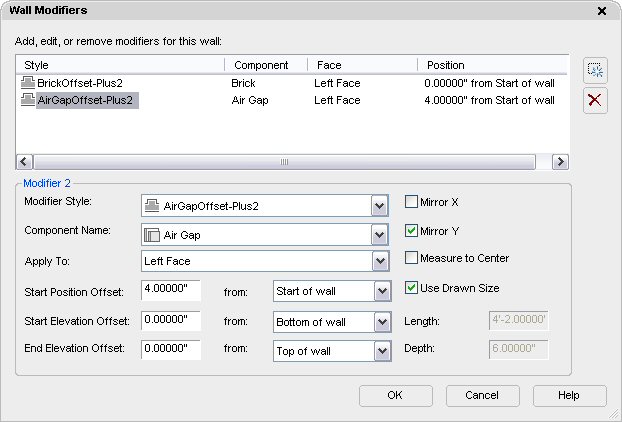
  6. The plan modifiers will be attached to the wall you selected. If this wall will be used as one of your corner walls, select the wall, right click and choose Properties. On the Design tab, in the Advanced category and Worksheets subcategory, click on the Plan Modifiers worksheet and check the settings for your modifiers. If your wall style is created like the out-of-the-box wall styles, with the first component at the outside component and the last component to the inside, then you will want the modifiers to be attached to the left face of your components, with the Mirror X and Measure to Center toggles unchecked and the Mirror Y and Use Drawn Size toggles checked. The Start Position Offset for the Brick component should be 0 from the start of wall; the Start Position Offset for the Air Gap component should be the width of the brick component from the start of wall, 4" in this case. If you drew your polylines at the end of a wall, rather than the start, the Air Gap Offset would be -4" from the end of wall.

  7. If your pier is symetrical, you can use the same plan modifiers for the other wall. Make note of what end of the wall you need the modifiers, start or end. Then select the wall, right click, choose Properties and open the Plan Modifiers Worksheet. Add the modifiers already created by choosing the appropriate name and component, then making certain to check the toggles as noted above. Use a positive offset for the Air Gap component when placing the modifier at the start of wall and a negative offset when placing the modifier at the end of wall.

  8. The image below shows two left justified walls. The vertical wall was drawn from bottom to top and the horizontal wall was drawn from left to right. The wall modifiers shown above have been added to the end of the vertical wall and the start of the horizontal wall. The Graph Display Representation is toggled on so you can see that the graph lines of the two walls were extended 10 total inches beyond their intersecting point, 8" for the brick offset plus 2" for the extra length at which the plan modifiers were drawn. A cleanup radius of 1'-6" was added to each wall at the intersection end so that the walls would clean up with each other, giving the desired result. The minimum cleanup radius here would be 10 times the square root of 2 inches, which you could get by using the grip to stretch each radius to the endpoint of the other wall's graphline.

  9. You can use other justifications besides left, but you will need to increase the cleanup radius accordingly. Keep in mind that the larger the cleanup radius, the greater the chance that there will be a problem with other walls close to the corner. The images below show baseline and right justified walls using the same modifiers, but with larger cleanup radii to compensate for the greater distance between the graphline endpoints. Note also that the graphline endpoints remain 10" beyond the outer face of the wall.

December 16, 2006

Wall Corner Condition

I was reading a thread titled Wall Corner Condition in the Autodesk Architectural Desktop Discussion Group in which "adtcad" posted an image of a multi-component wall where the brick offset at an outside corner on both walls, and asked how to achieve that result. The image below is similar to the one attached by "adtcad". (Click on any image to see a larger version.)


John Mumaw suggested using plan modifiers. Not having much opportunity to do so as part of my work, I took the opportunity to explore his suggested method and failed miserably. I am hoping that he or someone else with extensive plan modifier experience can post a working example of his approach so that I (and others) can reverse engineer what was done and add another weapon to my ADT arsenal.

Undeterred, I fell back on a technique that I have had many occasions to use, wall endcaps. One feature of wall endcaps with which you may be unfamiliar is the option to set a "return offset" on the Dimensions tab when editing a Wall Endcap Style. If you provide a positive number, the endcap moves away from the end of the wall, toward the middle of the wall. A negative number, on the other hand, will move the endcap beyond the end of the wall, and is key to using wall endcaps to simulate cleanup or to get wall components to offset at wall ends, as endcaps are not shown at wall ends that clean up with another wall.

I posted a sample file as a reply in that thread, which includes the walls that generated the image above, as well as the polylines I drew to create the endcap, as shown in the following image.

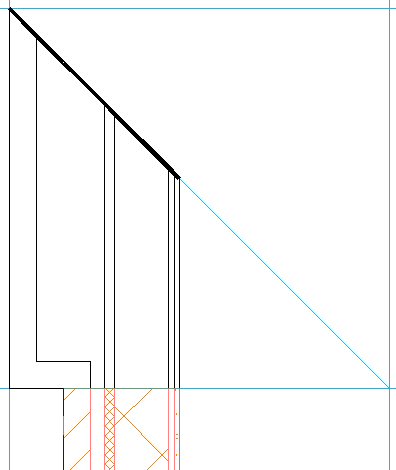
Note that the polylines all start and end on a line drawn perpendicular to the length of the wall, and that all of the polyline segments have a width of zero, except for the ones along the 45-degree angle. Zero-width segments will be drawn as component edges, when those are set to display. Segments with a width will not be drawn, creating an open condition at the component which can be used to simulate cleanup between walls that have adjoining endcaps.

I used the wall context menu Endcaps > Calculate Automatically to generate the Wall Endcap Style from the polylines I drew, setting it to be an override, as I chose not to make this the style's default endcap condition.

This will create the endcap, but not the offset, and will extend the wall used to create the endcap so that the endcap appears on top of where the polylines were drawn.

Then I opened the Style Manager and found my newly created Wall Endcap Style, under the Architectural Objects folder. In the sample file I posted, the Wall Endcap Style is called "CMU-8 Rigid-1.5 Air-2 Brick-4 Furring Four-Foot Brick Pier Open End Beveled - Projected 56 (End 1)". On the Dimensions tab, I set a Return Offset of -56", so that the entire endcap would project beyond the end of the drawn wall.
That much of a projection would not be necessary - if you keep the cleanup radii of both walls at zero, any negative projection would do - but I chose to do that so that the wall end has meaning, relative to the brick offset. If you look closely at the first image, you can see that I had the wall graph display toggled on, and the wall end occurs right where the brick offsets. The walls were drawn left justified, so the wall graph line occurs at the outside face of the brick.

Finally, I stretched the wall back down 56" to get the endcap back to its original position and added a second wall, applying the same endcap to the adjoining end.

Check out the Wall Corner Condition thread if you are interested in seeing the sample for yourself, or just to take a good, long laugh at my pathetic attempt to follow Mr. Mumaw's suggestion, as I left those in the file, as well.

December 12, 2006

Not Quite 7500...

...but really close. The official tally is in - 7447 total in attendence at Autodesk University 2006. That number includes 5166 attendees, 311 instructors, 648 Autodesk employees and 1322 investors, media, guests, exhibitors (from 89 companies), staff, and other attendees.

December 03, 2006

Agents of Change - Autodesk University 2006

I had the good fortune to attend Autodesk University 2006 as a last-minute substitute for someone else at my firm who was unable to go. AU returned to Las Vegas for 2006, but at a new venue, The Venetian. Despite a record-breaking number of participants - 7500 was the last number I heard announced - the facility was up to handling it, making an exception for Tuesday's lunch, when the exhibit hall was not yet open to help spread out the arrival time. No one seemed to miss the long haul that had to be made at previous Vegas AU's between the hotel and conference center at the MGM.

This year's theme was "Agents of Change", based on the idea that AU attendees tend to be early adopters of Autodesk's anually-changing software as they deal with the ever-changing challenges and opportunities in the world in general and their particular industries in specific.

This year not only the curriculum, but the physical location of most classes was broken up into industry-specific campuses. For example, the Building campus was located at one end of Level 3, and a lounge dedicated to the Building campus was located directly opposite the classrooms and staffed by Autodesk BSD employees armed with computers to demonstrate the BSD program offerings during the time that classes were offered. This made it much easier to find others in your discipline, both those you already knew and those you wanted to meet.

The Building Industry Main Stage presentation was held Wednesday morning. While I was glad to hear a renewal of the promise to continue developing both the Architectal Desktop and Revit platforms, I was annoyed at the ongoing marketing spin that equates "2D", "CAD drafting" and "AutoCAD for Architects" with Architectural Desktop and "3D" and "Building Information Modeling (BIM)" with Revit. I say that without any animosity toward the Revit product. The class schedule I inherited had mostly Revit or Revit-based classes and I came away impressed with Revit's capabilities. The main stage example for how you can leverage the Revit Building BIM model was the ability to link to 3ds Max and import the cameras and materials, then do renderings and light level analyses in 3ds Max. What a pity that "2D" Architectural Desktop can not do the same. I suppose they forgot that Architectural Desktop files can also be linked to Viz and Max and that, since the 2004 release, Architectural Desktop has shipped with VIZ Render.
Each industry group had its own reception in various venues on Wednesday evening. The Building reception was held at the JET Nightclub in the Mirage, billed on the invitation as "one of the coolest hotspots" and "architecturally stunning". I found it dark (save for pulsating lights on the main floor), loud, crowded and no more architecturally interesting than most any other night club I have visited. Everyone else seemed to be enjoying themselves, so it is probably safe to say the problem was with me, not the event.

The Thursday evening entertainment was fantastic. Engineer/comedian Don McMillan was every bit as funny as he was two years ago, and the Blue Man Group performance was excellent. Autodesk's Shaan Hurley was chosen from the audience to "participate"; you can see photos in this article in his blog. You can find additional photos from AU 2006 in Shaan's AU 2006 Photo Gallery.

Overall, I had a great time at AU 2006 and came away with a lot of valuable knowledge. I was able to meet many people that I only "know" from the Discussion Groups or AUGI forums and chat with some of the people at Autodesk who help produce the software I use at work, Architectural Desktop. If you have a passion for one or more Autodesk products, I would highly recommend attending Autodesk University. At the Thursday night event, Lynn Allen announced that AU 2007 would also be held at The Venetian in Las Vegas, November 26 - 30, 2007. Mark your calendars and start working on a way to get there!