Showing posts with label 2015. Show all posts

October 30, 2016

ACA 2015 & 2016: Missing Tools in Layer Properties Manager

If you are using AutoCAD® Architecture 2015 or 2016, you may find that the New Property Filter, New Group Filter, New Standards Filter and Layer States Manager tools in the Layer Properties Manager are missing from the tool bar at the top.
As noted in this Autodesk Knowledge Network article, if you collapse the Layer Filter Tree, the missing tools will appear.
You can then expand the Layer Filter Tree, and the tools will remain visible.

Here is a brief Screencast showing this in action.

10/31/2016 UPDATE: The same issue can arise in the 2017 release, and the same workaround will bring the missing tools back there, as well.

May 28, 2015

Revit: 2015 R2 UR8 Available (Subscription Customers)

Update Release 8 for Autodesk® Revit® 2015 R2 was released yesterday. Subscription customers who have installed the Revit 2015 R2 mid-year update can apply this update if they currently have Update Release 7 for R2 installed, or R2 without any updates. See the full details in the Read Me. A list of the improvements can be found here.

It appears that the same download also works for the "Non-R2" Revit 2015.

January 05, 2015

ACA: AEC Modify Tools, Part 5, AEC Obscure

First post in series [AecLineworkExtend].
Previous post in series [AECLineworkSubtract].

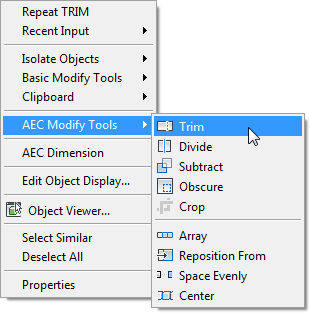
The AecLineworkObscure command can be found on the Home ribbon tab, on the Modify panel flyout, by selecting the Obscure tool from the Obscure/Crop flyout. If the Obscure tool is not the displayed tool on the Obscure/Crop flyout, select the right side of the split button (down arrow icon) to deploy the flyout and choose the Obscure tool. Or, with no command active, you can right click in the drawing window, and choose AEC Modify Tools > Obscure from the context menu.

The AecLineworkObscure command is used to change the parts of linework, AEC Polygons, Mass Element Extrusions that have an embedded profile, Spaces and Hatches as well as Block References which contain any of these objects that fall within a user-defined obscuration area, replacing the linework or boundaries of the other items with linework placed on the layer defined by the HIDDEN Layer Key in the current Layer Key Style. This layer typically has a dashed linetype assigned. In the out-of-the-box Imperial content, using the AEC Title Case - NCS 256 Color Layer Key Style, this layer is G-Detl-Hidd, color Red and linetype HIDDEN2.

As with the AecLineworkSubtract command, there are two options for specifying the extents of the obscuration area:
  • Select one or more items in the drawing, which form at least one closed loop. Any single closed item will work (closed Polyline, Circle, Ellipse, AEC Polygon, Mass Element or Space), as will any combination of objects that, combined, form at least one closed loop.
  • Press the ENTER key when prompted to select items to be obscured, and then define an obscuration rectangle by selecting opposite corners of a rectangle. The rectangle will have sides parallel to the X- and Y-axes of the current UCS.
The primary use of this command is to make it easy to show parts of Detail Components that, for the detail at hand, occur behind another item, with a hidden linetype, without having to explode or manually break linework. It will work on linework and block references generated by other means.
Here are some additional notes regarding the AecLineworkObscure command:
  • MText, Text, Ellipses and Ellipse Arcs cannot be added to the selection set of objects to be obscured.
  • Ellipses and Ellipse Arcs can be selected as (part of) a boundary defining the area to be obscured.
  • Mass Elements with a shape other than "Extrusion" and Mass Element Extrusions that have an external Profile can be selected as objects to be obscured, but will not affected by the AecLineworkObscure command. These types of Mass Elements can be used to define the area to be obscured.
  • If a Block Reference is selected as an object to be obscured, only those nested objects within the block on which the AecLineworkObscure command works will be affected.
  • Attributes within a Block Reference will not be affected by the AecLineworkObscure command.
  • If a Block Reference is selected as an object to be obscured, it has obuscurable nested elements and it is the only instance of that Block Reference in the drawing, then the original block definition will be redefined to include the effects of the obscuration. If at least one instance of the Block Reference remains unaffected by the obscuration, then the original block definition will remain unchanged and the affected instance(s) will become instance(s) of new, anonymous block definition(s).
  • Multi-View Blocks can be selected as an object to have a part obscured, but will not be affected by the command.
  • If the active View Block of a Multi-View Block contains linework that forms a closed boundary or contributes to a closed boundary, it can used to define the area to be obscured.
  • Unlike the AecLineworkTrim, AecLineworkDivide and AecLineworkSubtract commands, use of the AecLineworkObscure command on a closed Polyline or Circle does not result in one or more closed Polylines.
  • A Line or Arc, freestanding or within a block reference, that is in the selection set of the AecLineworkObscure command is replaced with one or more Polylines.
  • A Circle, freestanding or within a block reference, that is in the selection set of the AecLineworkObscure command is replaced with one or more Polylines for the portion(s) outside of the area being obscured and one or more Arcs for the portion(s) within the area being obscured. The Polyline(s) and/or Arcs will have vertices/endpoints at the World Coordinate System 0-degree and 180-degree locations on the original Circle.
  • A closed Polyline, freestanding or within a block reference, that is in the selection set of the AecLineworkObscure command is replaced with one or more Polylines for the portion(s) outside of the area being obscured and Lines/Arcs for the portion(s) within the area being obscured.
  • An open Polyline, freestanding or within a block reference, that is in the selection set of the AecLineworkObscure command is replaced with one or more Polylines for all portions, whether within or outside of the area being obscured.
  • If a hatch object is to be obscured, the hatch will be removed from the from the obscuration area, but no hidden graphics will be generated.
  • Obscuring an associative Hatch will result in a non-associative Hatch, regardless of whether or not the boundary of the Hatch is included in the obscuration.
  • Associative Spaces, Walls, Doors, Windows and Door/Window Assemblies can be selected as items to be obscured, but will not be affected by the command. Non-associative Spaces do work with the AecLineworkObscure command.
  • If you obscure an AEC Polygon, the Exterior Edge components of the AEC Polygon that fall with in the obscuration area will be replaced with "hidden" lines or arcs. Interior Edge components of the AEC Polygon, if present, are removed, but not replaced with "hidden" linework. New Exterior Edges and, if present, Interior Edges are created when the AEC Polygon extends beyond the obscuration area, but these new edges are "invisible" - no linework is drawn on screen. If Interior or Exterior Hatch or Fill components are turned on, they will, however, change to fill in the modified AEC Polygon extents, which does not give a true obscuration effect.
  • If the area to be obscured effectively splits an object into two or more separate pieces, the result depends upon the selected object. Hatches, Mass Element Extrusions (embedded Profiles), AEC Polygons and Spaces will result in one object, with two (or more) separate, non-contiguous regions. See above for note on how new AEC Polygon Edges will not have any visible graphics.
  • If an object (or nested object, in the case of a block reference) in the obscure selection set is entirely within the obscuration boundary, it will be completely replaced with hidden linework.
  • Unlike the AecLineworkSubtract command, if you select one or more objects to define the extents to be obscured, you are not prompted as to whether the boundary objects are to be erased.
  • Even though Mass Element Extrusions (with embedded profile) are 3D objects and Spaces can be 3D objects, the hidden linework is only 2D, in the current X-Y plane. The removal of portion of these objects in the obscuration area does affect the object in 3D.

As with the AecLineworkDivide and AecLineworkSubtract commands, there are object types and combinations of objects within a Block Reference that I did not test. If you are thinking of using the AecLineworkObscure command in a situation that you have not previously encountered, you may want to use the Mark option of the UNDO command to place one or more UNDO Marks prior to using the command, so that you can easily UNDO Back to the point before the command was used if you get unexpected results.

Next post in series [AECLineworkMerge]

November 30, 2014

ACA: AEC Modify Tools, Part 4, AEC Subtract

First post in series [AecLineworkExtend].
Previous post in series [AECLineworkDivide].

The AecLineworkSubtract command is available on the Home ribbon tab, on the Modify panel flyout, by selecting the Subtract tool from the Merge/Subtract flyout. If the Subtract tool is not the displayed tool on the Merge/Subtract flyout, select the right side of the split button (down arrow icon) to deploy the flyout and choose the Subtract tool. Or, with no command active, you can right click in the drawing window, and choose AEC Modify Tools > Subtract from the context menu.

The AecLineworkSubtract command can be used to subtract (delete) parts of linework, AEC Polygons, Mass Element Extrusions that have an embedded profile, Spaces and Hatches as well as from Block References which contain any of these objects. There are two options for specifying the extents of the subtraction area:
  • Select one or more items in the drawing, which form at least one closed loop. Any single closed item will work (closed Polyline, Circle, Ellipse, AEC Polygon, Mass Element or Space), as will any combination of objects that, combined, form at least one closed loop.
  • Press the ENTER key when prompted to select items to subtract, and then define a subtraction rectangle by selecting opposite corners of a rectangle. The rectangle will have sides parallel to the X- and Y-axes of the current UCS.
If you select objects to specify the subtract border, you will asked if you want to erase the selected items. The default response is No. The Screencast embedded below shows the AecLineworkSubtract command in use on various object types. As with the AecLineworkTrim and AecLineworkDivide commands, if the original object was a closed object, a closed obejct will result, with Circles becoming closed Polylines.
Here are some additional notes regarding the AecLineworkSubtract command:
  • MText, Text, Ellipses and Ellipse Arcs cannot be added to the selection set of objects from which to subtract a portion.
  • Ellipses and Ellipse Arcs can be selected as (part of) a boundary defining the area to subtract.
  • Mass Elements with a shape other than "Extrusion" and Mass Element Extrusions that have an external Profile can be selected as objects from which to subtract, but will not affected by the AecLineworkSubtract command. These types of Mass Elements can be used to define the area to subtract.
  • If a Block Reference is selected as an object from which to subtract, only those nested objects within the block on which the AecLineworkSubtract command works will be affected.
  • Attributes within a Block Reference will not be affected by the AecLineworkSubtract command.
  • If a Block Reference is selected as an object from which to subtract, it has subtractable nested elements and it is the only instance of that Block Reference in the drawing, then the original block definition will be redefined to include the effects of the subtraction. If at least one instance of the Block Reference remains unaffected by the subtraction, then the original block definition will remain unchanged and the affected instance(s) will become instance(s) of new, anonymous block definition(s).
  • Multi-View Blocks can be selected as an object to have a part subtracted, but will not be affected by the command.
  • If the area to subtract effectively splits an object into two or more separate pieces, the result depends upon the selected object. Closed Polylines and Circles will result in two (or more) separate Closed Polylines. Hatches, Mass Element Extrusions (embedded Profiles), AEC Polygons and Spaces will result in one object, with two (or more) separate, non-contiguous regions.
  • Associative Spaces, Walls, Doors, Windows and Door/Window Assemblies can be selected as items from which to subtract, but will not be affected by the command. Non-associative Spaces do work with the AecLineworkSubtract command.
  • Subtracting from an associative Hatch will result in a non-associative Hatch, regardless of whether or not the boundary of the Hatch is included in the subtraction.
  • If an object in the subtract selection set is entirely within the subtraction boundary, it will be deleted.

As with the AecLineworkDivide command, there are object types and combinations of objects within a Block Reference that I did not test. If you are thinking of using the AecLineworkSubtract command in a situation that you have not done so previously, you may want to use the Mark option of the UNDO command to place one or more UNDO Marks prior to using the command, so that you can easily UNDO Back to the point before the command was used if you get unexpected results.

Next post in series [AECLineworkObscure].

November 23, 2014

ACA 2015: Cannot invoke (command) from *error* without...

Several people in the Autodesk AutoCAD® Architecture General Discussion Group have experienced problems when trying to run AutoLISP routines in which an error condition is encountered. Instead of the usual, often helpful, error message at the Command: line, this error shows up, instead:
Cannot invoke (command) from *error* without prior call to (*push-error-using-command*).

This appears to happen even when the first thing you do in a drawing is evaluate a LISP expression with an error, for example, by typing (alert 1) at the Command: prompt and then pressing ENTER.

If you were hoping for a more informative error message, so you could try to work out what went wrong, you will want to reset the initial definition of the *error* function to what it should be:
(defun *error* (msg) (princ "error: ") (princ msg) (princ))

One way to get this code loaded into every drawing you open would be to include it in your ACADDOC.lsp file (if you have one; if not, you can create one). This file needs to be somewhere in the AutoCAD Search path (and be the first on of that name found); if your firm has a standard ACADDOC.lsp file and you do not have rights to edit it, you may want to discuss having this code added to it with your CAD Manager. You will also want to have the folder in which the ACADDOC.lsp is placed be designated as a Trusted Path (Files tab of Options dialog) if you have SECURELOAD set to 1 to avoid the nag dialog about loading it. If SECURELOAD is set to 2, you have to have the ACADDOC.lsp file in a Trusted Path folder, or the file will not load at all.

There are other ways to get this code loaded with each file, if using ACADDOC.lsp does not work for your situation. The easiest would be to open Notepad and paste the code above into it, then save the file with a name of your choosing and a LSP extension, again, to a folder that has been designated as a Trusted Path. Then add that file to your Startup Suite in the Load/Unload Applications dialog (APPLOAD command).

I am not sure why the *error* function is not properly initialized, but running the above code when opening a drawing or creating a new drawing will resolve this issue and give you the expected error messages.

November 09, 2014

ACA: AEC Modify Tools, Part 3, AEC Divide

First post in series [AecLineworkExtend].
Previous post in series [AecLineworkTrim].

I decided not to wait six years between posts on the AEC Modify tools this time. Today's featured command is the AecLineworkDivide command. This command can be accessed on the Home ribbon tab, on the Modify panel flyout or from the right-click context menu (no command active), by choosing AEC Modify Tools > Divide.

The Screencast embedded below shows the AecLineworkDivide command in action. As shown in the Screencast, the command works on linework, Mass Element Extrusions that have an embedded profile, AEC Polygons, Spaces and Block References that contain at least one of the previously mentioned objects. 11/23/2014 Update: "Linework" includes Hatches.

You can specify the dividing line in two ways (just as you could do so for the AecLineworkExtend and AecLineworkTrim commands), either by selecting two points, as was done in the Screencast, or, by pressing the ENTER key when prompted for the first point, and then hovering over an existing line in the file and left clicking when the desired dividing line is highlighted. No matter which method you choose, the dividing line is treated as being infinite in length; the endpoints need not be outside the extents of the selection set.

When a closed item is divided by the AecLineworkDivide command, the resulting objects are also closed, whether the objects are main objects or nested within a Block Reference. A divided circle results in two closed Polylines. A closed Polyline results in (at least) two closed Polylines. An open Polyline results in at least two polylines, and possibly many more, if the dividing line crosses the Polyline multiple times, as it does in the example in the Screencast.

Here are some additional things of which to be aware when using the AecLineworkDivide command:
  • MText, Text, Ellipses and Ellipse Arcs are not dividable and cannot be added to the selection set for the AecLineworkDivide command.
  • Mass Elements with a shape other than "Extrusion" and Mass Element Extrusions that have an external Profile assigned are not dividable. If you include these types of Mass Elements in the selection set of the AecLineworkDivide command, the entire object will be duplicated, even if the dividing line does not intersect the Mass Element.
  • If you divide a Block Reference with dividable nested objects that has just one instance in the file, then the original block definition will be redefined as the objects on one side, and an anonymous block will be created for the objects on the other side. If there are other instances of a Block Reference that are not in the selection set, then the original definition will be left as is, and anonymous block definitions will be created for both sides of the divided Block Reference.
  • When undividable items are present in a block reference that is being divided, the undividable elements will be included in the block definition of both of the newly created blocks.
  • Weird things happen when you divide an attributed block. If there are no dividable objects, the attributed block may be "replaced" with an anonymous block, which may not be annotative even if the original block was. If there are dividable items in the attributed block, then you will likely get two blocks, with the attributes in both, although in my tests the actual instance in the file of one of the blocks did not have the attributes, but inserting another instance of it did result in attributes.
  • Multi-View Blocks are selectable, but will not actually divide, even if the underlying view block contains dividable graphics. The Multi-View Block will duplicate, however (in place), even if it is not cut by the dividing line. This is actually quite handy in the case of a Multi-View Block Space tag, where you are dividing the Space as well. If you include both the Space and the Tag in the same AecLineworkDivide command selection set, then each of the two Spaces created by the divide will be tagged by one of the two Tags generated. You will still have to manually separate the two Tags.
  • In some cases where the object to be divided is irregularly shaped, the divide may create more than two potential objects, for example, a U-shaped closed Polyline or Space divided across the arms of the "U". For the Polyline, you will get three closed Polylines. For the Space, you will only get two Spaces, one of which will have two non-contiguous sub-areas.
  • Walls, Doors, Windows and Door/Window Assemblies do not work well with the AecLineworkDivide command. These items will not be split (not even Walls), but they will duplicate in place, creating, in the case of Walls, cleanup nightmares, and duplicate objects in the other cases. I would not recommend including these items in the selection set of the AecLineworkDivide command.
  • Associative Spaces are also not good candidates for the AecLineworkDivide command. The entire Space will be duplicated, and both will be associative to the same boundaries. I cannot think of a scenario where that would be the desired end result. Non-associative Spaces work just fine, as seen in the Screencast.
  • 11/23/2014 Update: If you select the boundary of an associative Hatch, select the Hatch as well, if you want the Hatch to remain associative and to be associative to the trimmed boundary. Otherwise, the Hatch will become non-associative and retain its extents.

I am sure I have missed some object types or some combination of objects nested inside a Block Reference that have unexpected results when the AecLineworkDivide command is applied. I suggest using the Mark option of the UNDO command to set one or more UNDO Marks prior to using the AecLineworkDivide command in unfamiliar situations, so that you can easily UNDO Back to the Mark if things are not to your liking. That said, there are cases where this command can be handy, when used appropriately.

Next post in the series [AECLineworkSubtract].

September 04, 2014

ACA 2015 - Highlighting and Selection Preview

Long-time users of Autodesk® AutoCAD® and Autodesk® AutoCAD® Architecture are likely familiar with the HIGHLIGHT system variable, which enables/disables highlighting of selected objects. Back before grips, enabling it was the only way to visually keep track of what objects were currently selected. The 2015 release adds a new effect to both selection highlighting and selection preview - the "glowing line" - along with the traditional dashed line (dashed and thickened for selection preview). Hardware acceleration has to be enabled in order for the glowing line effect to be displayed. The SELECTIONEFFECT System Variable allows you to choose between the two options (see below for details).
Selection Highlight with Glowing Lines

Selection Highlight with Dashed Lines


Selection preview allows you to see what object would be selected if you completed the current selection action. So, the object under the cursor that would be selected if you left clicked will get the selection preview as you move your cursor around the screen. If you start a selection rectangle or lasso (window or crossing) or a selection fence, the selection preview is applied to all objects that would be selected if you ended the selection method at that moment. The PRESELECTIONEFFECT System Variable (see below for details) allows you to choose between glowing lines and dashed/thickened lines. When glowing lines are enabled, you can distinguish already selected items from selection preview items by the color of the glow: a selected item will have a blue glow whereas an item that has selection preview applied have a gray glow.
Selection Preview with Glowing Lines

Selection Preview with Dashed and Thickened Lines


Depending upon your viewing preferences, machine capabilities and drawing size and complexity, you may find selection preview disruptive to your workflow. You do, however, have more control over this feature than just on or off. Selection preview can be globally turned on or off independently for two different conditions: when a command is active and when no command is active. This is controlled by the SELECTIONPREVIEW system variable (see below) or by using two of the toggles in the Options dialog, on the Selection tab, Preview area in the lower right corner, immediately under Selection preview. (The toggle settings reflect the current value of the SELECTIONPREVIEW system variable; checking or unchecking the toggles will modify the system variable accordingly.)
Control Selection Preview in the Options Dialog, Selection Tab

An additional level of control is provided by the PREVIEWFILTER system variable (see below for more details). This allows you to exclude certain types of objects from receiving the selection preview highlighting: objects on locked layers, external references, tables, groups, multiline text and hatches. In addition to assigning a value to the system variable directly, you can control this from the Options dialog, on the Selection tab, in the Preview area, by selecting the Visual Effect Settings button. This opens the Visual Effect Settings dialog; the Selection Preview Filter area on the right side contains toggles for excluding each of the previously listed object types (checked = no selection preview).
Exclude Object Types from Selection Preview in the Visual Effects Settings Dialog


Details on the system variables that affect highlighting and selection preview follow. The variable names are linked to the 2015 Online Help topic for that variable.

HIGHLIGHT (not saved; initial value 1)
0 - Turns off object selection highlighting
1 - Turns on object selection highlighting
(No effect on preselection highlighting, just selection highlighting.)

SELECTIONEFFECT (saved in registry)
0 - Dashed lines and no solid fill for faces.
1 - When hardware acceleration is on, displays glowing line highlighting effect and solid fill for faces.

SELECTIONPREVIEW (saved in registry; bitcoded sum of the following values)
0 - Off
1 - On when no commands are active
2 - On when a command prompts for object selection

PRESELECTIONEFFECT (saved in registry)
0 - Dashed and thickened lines, no solid fill for faces.
1 - When hardware acceleration is on, displays glowing line highlighting effect and solid fill for faces.

PREVIEWFILTER (saved in registry; bitcoded sum of the following values)
0 - Excludes nothing
1 - Excludes objects on locked layers
2 - Excludes objects in xrefs
4 - Excludes tables
8 - Excludes multiline text objects
16 - Excludes hatch objects
32 - Excludes objects in groups

HIGHLIGHTSMOOTHING (saved in registry)
0 - Turns off anti-aliasing effect on object selection highlighting.
1 - Turns on anti-aliasing effect on object selection highlighting.
(Hardware acceleration must be on. Affects both preselection and selection highlighting. On my computer at home, there was little to no effect on AEC objects, as seen in the image below; on my computer at work, the effect was more noticeable on AEC objects, and for all objects the stair-stepping effect had much shorter steps than the image below for lines without hightligh smoothing.)

Lines with HIGHLIGHTSMOOTHING Set to 0 [Left] and 1 [Right]

Walls with HIGHLIGHTSMOOTHING Set to 0 [Left] and 1 [Right]

August 30, 2014

ACA 2015: Restoring AecCameraAdjust to Ribbon

I do not do a lot of rendering or visualization (changing to a non-orthographic view direction and setting the Visual Style to Shaded is about as far as I usually go), but those who do may make frequent use of the Adjust Camera position dialog.

Since the 2010 release, this dialog was accessible from the Render ribbon tab, on the flyout of the Camera panel, by selecting the Adjust tool, as seen below in its 2014 incarnation.

In AutoCAD® Architecture 2015, the Camera panel got a makeover, and the button styles of the Create Camera and Show Cameras tools were changed from Large with Text (Vertical) to Small With Text and stacked one above the other instead of being side-by-side. A blank third row was included, and the flyout eliminated, removing the Adjust tool with it.

Seems to me that the blank row is just crying out to have the Adjust tool placed there. The AECCAMERAADJUST command is still available in 2015; only the ribbon tool was omitted. Adding it back is quite easy, as can be seen in the Screencast below. Here is an outline of what I did - watch the video to see the specifics:
  1. Open the Customize User Interface dialog. [One way - type CUI and press the ENTER key at the Command: prompt; I selected Customize from the Workspace Switching tool pop-up menu on the Application Status Bar.]
  2. In the upper left pane, under the ACA node, expand the Ribbon node.
  3. Expand the Tabs node.
  4. Scroll down and expand the Render - ACA node. Make note that the actual name of the Camera panel is Render Camera - ACA. "Camera" is the display text.
  5. Expand the Panels node.
  6. Scroll down to the Render Camera - ACA node and expand it and the subnodes below it to examine its contents.
  7. Select the Render Camera - ACA node and verify the panel preview shows the correct panel. [There are often several similarly-named panels; checking for the actual panel name and verifying the preview can help prevent editing the incorrect panel.]
  8. In the lower left Command List pane, type adjust in the search box.
  9. Select the Adjust command from the list of search results.
  10. Verify that this is the correct command [AECCAMERAADJUST].
  11. Left-click, hold and drag the Adjust tool from the lower left pane up onto the upper left pane and drop it just below the Ribbon Control - Empty Row Aligner item under Row 3 of the Render Camera - ACA panel. Note that I find if I drag straight up to the upper left pane, the pane scrolls in unpredictable ways as the bottom boundary is crossed. That is why I take a somewhat circuitous route over the right panes, crossing over to the upper left pane from its right side. Also note that as you drag across the upper right pane, you will see blue markers to help indicate when you should drop the command. You want to have a blue line with short vertical lines at either end, right under the Ribbon Control - Empty Row Aligner item when you release the left mouse button.
  12. Select the Ribbon Control - Empty Row Aligner item, right click and choose Remove from the context menu.
  13. Select Yes when the alert dialog asks if you want to delete the element.
  14. In the upper left pane, select the newly added Adjust item.
  15. In the lower right pane, edit the properties of the Adjust tool. I chose to duplicate the properties that the 2014 version had. Refer to the image below the embedded Screencast if you do not have a previous version available.
  16. Select OK to dismiss the Customize User Interface dialog and ratify your edits.
  17. Wait for the program to process your changes, and then select the Render tab. You should see the amended Camera panel, with the added Adjust tool.
  18. Select the tool and verify that the Adjust Camera Position dialog opens.


Here are the properties of the Adjust tool in 2014.
As always, click on any reduced-size image to see the image full size; use the back arrow on your browser to return here, if necessary.

August 13, 2014

ACA 2015: Tool Palettes Reverting to AutoCAD Palettes

If you have experienced the loss of the out-of-the-box tool palettes in AutoCAD® Architecture 2015, finding them replaced with the AutoCAD out-of-the-box palettes and you use the Drawing Management system (Project Navigator, etc.) and you leave the Project Navigator palette open when you close out of AutoCAD Architecture, you will want to read this post in the Autodesk Discussion Groups, by Bill Glennie (along with the entire thread, for context).

Others have reported a repair installation will fix the problem (back up your customizations first); Bill suggests that by closing the Project Navigator prior to closing the program, you can avoid a recurrence of the issue while waiting for Autodesk to come up with a solution.

July 12, 2014

Controlling Did You Know Balloon Notifications Revisited

Here is a quick update on this post from three years back. The InfoCenter area and Balloon Notifications button remain on the System tab of the Options dialog, but in the 2014 and 2015 releases, have moved up to the middle of the right column. I made a brief Screencast to show users at my firm how to avoid having to manually close the "Did You Know" messages in the 2014 release, and have decided to share that here, also:

July 06, 2014

ACA: AEC Modify Tools, Part 2, AEC Trim

The AutoCAD® Architecture AEC Modify Tools provide some handy extensions to the modification tools provided in the base AutoCAD® product. Since I have previously written about the AEC Extend tool (AecLineworkExtend command), this article will be "Part 2" and it will focus on the AEC Trim tool (actual command name, AecLineworkTrim).

As you might expect from the name, the AEC Trim command's function is similar to the TRIM command, but the order in which you do things is different. Rather than selecting cutting edges, and then items to be cut, as in the TRIM command, when using AEC Trim command, you select the items to be trimmed first, then define a cutting edge by selecting two points on the screen or by pressing ENTER and then selecting an on-screen line segment that is then used to define an "infinite" line that is used as the cutting edge. Linework to be trimmed does not have to intersect the selected line segment. In addition to lines and polyline segments, you can use lines from ACA objects, such as Wall Component Boundary lines or AEC Polygon lines. While it will allow you to select an arc, circle or polyline arc segment, in my experience it has deleted the entire item to be trimmed when a curved segment is chosen.

There are a few other differences. One major difference is you can trim block references. No change is made to the original block definition** and any untrimmed block references remain unchanged. Instead, the trimmed block references are replaced with new "anonymous" block definitions where the defining linework has been trimmed at the cut line, where possible, as shown in the following images.

Two block references, on left side, selected for trimming.

Line in drawing selected as boundary edge for trim.

Side to trim selected.

Result of block reference trimming.

** - 2014-11-09 UPDATE: If there is only one instance of a block definition in your file, and you trim that instance, then the original block definition WILL be modified, and an anonymous block definition will not be created.

Note that the linework on the side to be trimmed highlights in red (only when hardware acceleration is enabled), to help you visualize the trim results. Note also that in the fourth image, the layer of the trim line has been frozen, and that there is a line along the trim line location in each of the trimmed blocks. This is because the blocks contained two closed objects: a circle (magenta) and a pentagonal polyline (blue). Unlike the TRIM command, when trimmable closed objects are trimmed using the AEC Trim tool, the result remains a closed object.

AecLineworkTrim on Closed Polyline, Circle and AEC Polygon.

AecLineworkTrim Results on Closed Polyline, Circle and AEC Polygon.

Trimming the closed polygon (top pentagon) results in a closed polygon, although the closing line does not pick up the segment width of the original segments, if any. The TRIM command would have left an open polyline. Trimming the circle results in a closed polyline, rather than the arc that the TRIM command would have left. Trimming the AEC Polygon results in an AEC Polygon, rather than the open polyline that the TRIM command produces.

NOTE: There appears to be a bug in the 2015 version that results in the wrong side of AEC Polygons being kept after the trim, as can be seen in the image above. The command works properly in the 2014 release.

Elipses and elipse arcs cannot be trimmed using the AEC Trim tool, and will not be included in the selection set. Walls, Doors, Windows, Door/Window Assemblies and Multi-View Blocks also will not be trimmed, even though they can be selected and, if the trim line crosses them, will show the red highlighting implying that they will be trimmed. There are likely other non-trimmable items; I have not tried to test every single object type with the command. I believe the intent of these tools was to work with the items generated by the Detail Components feature, so other objects will not necessarily play nicely.

If an untrimmable object is nested within a block definition, it will not be trimmed if you trim an instance of that block. Any trimmable items will, however, be trimmed.

You can also access the command from the right-click context menu, which can be handy if you want to select multiple objects first, before choosing the command.

Next article in the series [AecLineworkDivide].

April 24, 2014

AutoCAD 2015 - Cursor Badges

A minor, but useful change introduced in AutoCAD® 2015, and thereby available to AutoCAD® Architecture and AutoCAD® MEP users as well, is improved cursor graphics. The crosshairs no longer extend into the pickbox, making it easier to see what you are selecting.

A number of contextual cursor "badges" have been added, as a reminder of the task at hand. A badge appears when using the Window, Crossing Window, Window Polygon and Crossing Polygon selection methods, as well as the new Lasso and Crossing Lasso methods.
When selecting individual objects, after selecting the first, when the cursor hovers over additional objects, a "+" badge appears to let you know selecting that object will add it to the selected objects. If you hold the SHIFT key down and hover over a selected item, a "-" badge appears to indicate that selecting the object will remove it from selection. (Both cases assume PICKADD is set to 1 or 2.)

When using an inquiry command, such as LIST, ID, DIST, AREA or MEASUREGEOM, the inspection badge is displayed.

When being prompted for an angle input, a rotation badge will appear; the badge indicates the direction of positive rotation based on the current value of the ANGDIR System Variable (0 = counterclockwise; 1 = clockwise).

A magnifying glass badge appears for the ZOOM command, with variants for the Window and Object command options.
The PAN command "hand" cursor is also augmented, with fingers spread wide when the left mouse button is not pressed down, and fingers clenched when the left mouse button is pressed down.

ERASE and TRIM display a red "X" icon to indicate deletion.

Many other commands display a badge, such as the COPY, SCALE and MOVE.

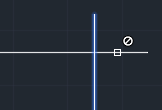
If you hover over an object that does not apply to the command at hand, you will get a slashed circle icon.

On a day when the interruptions have interruptions, the new cursor badges, which join old favorites such as those for Match Properties, Selection Cycling and Annotative Object, may just help get you back on track by gently reminding you of the command in progress.

April 10, 2014

ACA 2015 - Visual Comparison

A means to quickly get a visual comparison of geometry changes between two different versions of a drawing is now available whether or not you are working in the project management environment (Project Browser/Project Navigator), and without requiring a parallel folder structure. The comparison is only for visual changes; changing the Door Style of a Door will not be flagged if the on-screen graphics remain the same.

Outside of the drawing management environment, you can use the AECVCOMPARE command to compare an open drawing to any other file that you select using the standard file navigation dialog. (At the Command prompt, type VCOMPARE if you have AutoComplete turned on; if you include the "AEC" prefix, you will only be offered the related system variables noted below.)

If one of the drawings you are using is an earlier version and the other a later version, the command works best if you have the more recent version of the file open, and compare it to a previous version, as it will treat items in the open drawing that differ from those in the selected drawing as "new" and differing items in the selected drawing as "old".

The image below shows a sample "original" file, with Walls, Doors, Spaces, Schedule Tags and some AutoCAD®objects.

The next image shows a copy of that file, with some edits made. The vertical interior Wall has been moved to the right, increasing the size of Office 101, decreasing the size of the other two Spaces and moving Doors 02 and 04. The text and linework at the bottom of the plan has been deleted, and some new text and linework has been added above the plan, at the left side.
After running VCOMPARE with the revised version of the file as the current file, and selecting the original file as the comparison file, the screen display is changed to show you the changes, as shown in the following image.

As you can see on the Command line prompt, "old" items that no longer exist in the same location are shown in red, "new" items that did not exist in the same location are shown in green, and items that are the same in both files are shown in grey, using the out-of-the-box settings. Changes to the text are properly classified, but are shown using the txt.shx font, so the new and unchanged text will not completely overwrite the text in the current file if it uses a different font, as can be seen in the image, where the text uses the Arial font.

Five System Variables support the VCOMPARE command, and allow you to control the generated comparison graphics.
  • AECVCOMPARENEWCOLOR - This variable determines the color in which "new" geometry (added items or items not in the same location in the file selected for comparison) is highlighted.
  • AECVCOMPAREOLDCOLOR - This variable determines the color in which "old" geometry (items in the file selected for comparison which are either not present or not in the same location in the current file) is highlighted.
  • AECVCOMPAREUNCHANGEDCOLOR - This variable determines the color in which geometry that is the same in both files is highlighted.
  • AECVCOMPAREIGNOREHATCH - This variable determines whether differences in hatching are included in the comparison results. This includes the hatching in AEC objects, such as the Spaces in the image above, where this variable was set to OFF.
  • AECVCOMPAREIGNORETEXT - This variable determines whether differences in text are included in the comparison results. This includes the attributes in Schedule Tags, but does not include other linework in the tags. In the image above, this variable was set to OFF.
The values of the color variables are strings in the format rrr,ggg,bbb, where rrr, ggg and bbb are integers in the range of 0 to 255, inclusive, and represent the red, green and blue values of the desired color, respectively, in RGB format. The values of the "ignore" variables are either ON or OFF. When set to ON, the corresponding hatch or text is ignored in the comparison; when set to OFF, it is included in the comparison graphics. 1 for ON or 0 for OFF are also acceptable values.

While a comparison is active, you can use the options noted on the Command line to alter the comparison graphics. The "Old" option will show just the items in the file to compare that are either missing from or changed in the current file, along with unchanged objects in gray (turning off the green, new items). This can be helpful as the "New" graphics will cover the "Old" graphics when viewing both simultaneously.

The "New" option will show just the items in the current file that are either newly added or changed from what they were in the file to compare, along with unchanged objects in gray (turning off the red, old items).
The "Unchanged" option turns off both the "Old" and "New" highlights, leaving just the grey highlighting on unchanged items, along with the balance of the current drawing shown in the "normal," pre-VPCOMPARE colors.

You can use the "All" option at any time to return to the original display showing all of the comparison colors. When you are done comparing the files, you can press the ENTER key to exit the command. Pressing ENTER twice immediately after exiting the command (before executing another command) will repeat the command with the same comparison file.

If you are working in the drawing management environment, the process of initiating the comparison is somewhat streamlined, but the end results are the same. You can compare a previous version to the current version or you can compare two previous versions on the Check-In History pane. In both cases, the BAK file of the previous version(s) has/have to be available (not deleted due to exceeding the maximum number of backups). To compare a previous version to the current version, right click on the previous version and choose Visual Compare from the context menu. The current version will open, and a visual comparison to the old version will be generated. To compare two previous versions, select one, hold down the CTRL key and select the other, then right click and choose Visual Compare from the context menu. The more recent version will be opened, and a visual comparison to the older version generated. This can provide a quick way to identify what was changed between versions and may aid in making a decision on whether or not a file should be rolled back to a previous version.

April 05, 2014

ACA 2015 - Version Management in Project Navigator

Version Management has been added to the Drawing Management feature (Project Browser/Project Navigator) in the 2015 release of AutoCAD® Architecture. The newly added Check In/Check Out feature, available when right-clicking on a file in the Project Navigator, drives the Version Management process. A new version will be created every time that you check a file back in.

Before using the feature on a project, be certain to check the Project Properties, under the ADVANCED Category, File Check In Options, to verify that they are set as desired. The Maximum Backups property controls the maximum number of previous versions that will be saved. Once exceeded, the oldest previous backup will be deleted. You will have to determine the appropriate number of backups taking into consideration the likelihood of needing to revert to a previous version and the amount of network storage space you have available. The Comments property determines whether you will be able to add a comment when checking the file back in ("Yes") or not ("No"). You can set the User Profile Type to either "Local Profile" or "User Name Only". Typically, this would be set to Local Profile, unless you are working on a computer that is in a different network domain from the domain in which the project files are stored, in which case you will want to select User Name Only.


With the Project Properties set to your liking, you are ready to make use of the Version Management feature. You can right-click on any file in the Project Navigator and use the context menu to Check Out a file.
When you check out a file, you are the only person who can edit the file. Other users will continue to have read-only access to the last-saved version of the file prior to check out. This allows you to edit the file and save your changes without everyone else working on a file that externally references your file getting a balloon notification that the file has been updated. On a larger project with multiple team members, that can save a lot of distraction. It also allows you to work through a revision, which may involve temporary changes or refinements of the change through several iterations without other users seeing the current, not-yet-final results at each save. Files that you have checked out are identified by a green check mark on the Project Navigator file icon; files that others have checked out will have a red check mark on the icon.

When the revisions are complete and you want to make them available to the rest of the project team, you do so by saving the file and then right clicking on the file in Project Navigator and selecting Check In. This automatically creates a new version of the file. If the revisions were "experimental" in nature and the experiment "failed," you also have the option to Undo Check Out, in which case the previous version of the file remains current and the checked-out copy of the file will be deleted.
If you have enabled comments, when you check in a file the File Check In Comment dialog will appear, allowing you to type a comment to be associated with this check in.
After check in, you can select the file in the Project Navigator and use the Check-In History option for the lower pane to review the history of the file. The Detail and Preview options for the lower pane from previous releases remain available as well; the tools at the right side of the lower pane title bar control which option is displayed.
Once you reach the maximum number of backup versions for a given file (as specified in the Project Properties), checking that file out and back in again will create a new version, and the oldest back up will be deleted. If you find that you need to go back to a previous version, you can do so, provided that the desired version has not been deleted. Right click on the version to restore, and select Rollback to this version.
You will receive a warning dialog, noting the effects of your choice and asking you to confirm.
If you say yes, then the current version of the drawing file gets overwritten with the selected prior version, and that prior version also becomes a new backup version. Note that the previous version as well as any other intermediate versions created after the restored version will remain in the Check-In History, and, to the extent that the maximum number of backups is not exceeded, will remain available for restoration and will continue to count against the number of backups.
The comment for the roll back is automatically generated and lists both the version number and the date/time of that file.

Here is a look at what is happening in your project folders. At the time the screen capture below was made, 00 Interior.dwg was checked out.
When you check out a file, Project Navigator will not allow anyone else to open the file and the current version of the file gets marked as read only, so others cannot open it for editing outside of Project Navigator.
  1. A copy of the current file is created, with ".co" appended to the file name (00 Interior.co.dwg in this example), and is made hidden, to reduce the odds that anyone else would find and open it outside of Project Navigator. When you open a file through Project Navigator that you have checked out, the ".co" version is what is being opened.
  2. If you make changes and save the checked out file, a ".co.bak" is created (not shown in the image).
  3. When you check files back in, the previously current file is renamed, with a date-time added to the file name, and the extension is changed to ".bak". There are five of these in the image above, including 00 Interior.2014-04-02-00-48-04.bak.
  4. The XML file of the same name as the drawing file, which Project Navigator has always generated as a means of storing the project information for that drawing file, now has an additional section called CheckInRecords, where the Check-In History data is stored.
    Even after the maximum number of backups is reached and the BAK files for the older versions are deleted, the Check-In History data remains in the XML file and can be viewed in the Project Navigator. The rollback option for previous versions that exceed the maximum number of backups will be grayed out, since the BAK file is no longer available. (While not an intended or supported workflow, if you make archival copies of the BAK files before they get deleted, you can manually copy the archival file to the project folder and, because the Check-In History data remains in the XML file, restore that version. You may want to bump up the allowable number of backup files temporarily while doing this, to avoid losing any of the current backup files. Use this knowledge at your own risk.)
  5. Finally, the system generates a file with the drawing name and a ~co extension. I do not know exactly what the function of this file is, but suspect it aids in identifying which files have been checked out; do not delete these files.
If you often edit external references in place when working in Project Navigator and want to do so on a checked out file, the recommended procedure is to first check out both the drawing with the external reference and the externally referenced file. Next, open the file with the external refernce, and then reload the external reference, before initiating the edit-in-place. It may just be easier to check out the externally referenced file and open in directly from the Project Navigator, but if you want to make changes to the file that references the other file that are dependent on changes to be made to the external reference file, and you do not want to check in the external reference file, following the stated procedure should allow you to see the changes to the externally referenced file.

Keep in mind that you are not required to use the check-out feature; files have not been checked out can still be opened, edited, saved and closed, as in previous releases. But you will not get the benefits of being able to work on the checked out file without generating external reference balloon notifications and you will not get backup versions that can be restored.

The Check-In History and currently available backup files can also be used with the new Visual Comparison feature. More on that in a future article.