Showing posts with label AMEP. Show all posts

February 28, 2021

AMEP: Plumbing Line "Label" with a Leader

A question came up the other day, concerning Plumbing Lines and the "Label Curves" that AutoCAD MEP provides to label those Plumbing Lines. The request was to be able to be able to label a short Plumbing Line - one shorter than the label itself - by offsetting the label and connecting the label back to the Plumbing Line with a leader.

The results of some quick research suggested that Label Curves do not have a leader option, when offset from the Plumbing Line that they are labeling. I am not sure if there is some inherent limitation here, or it just was never part of the specification for the object. They certainly have many useful features, like masking the Pluming Line, if desired, and repeating at a specified distance or a specified number of times - but no leader.

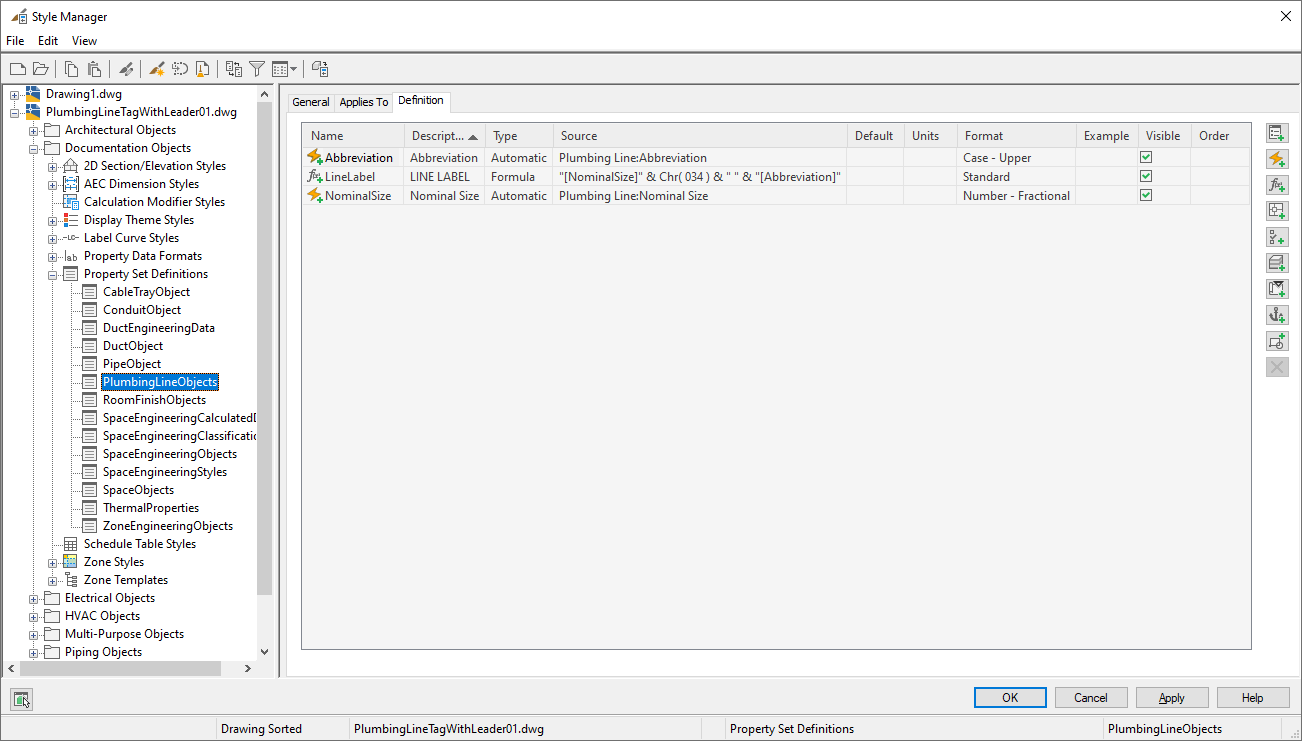
It occurred to me that, for the stated case of a short Plumbing Line, that the masking and repeating features were not necessary, and that a Schedule Tag, which can have an integral leader, could be created that looks just like the Label Curve, if the data displayed by the Label Curve was available in Property Data. It turns out that, at least for the Standard - Pipe With System Label Label Style, which shows the Object Props. and Abbr. System Name, Plumbing Lines have corresponding Automatic Property sources: Nominal Size and Abbreviation. I was able to create a Property Set Definition that applies to Plumbing Lines and includes three properties:
  • Abbreviation, created from the Abbreviation automatic property source. The Case - Upper Property Data Format was applied to this property.
  • NominalSize, created from the Nominal Size automatic property source. Since I was working in imperial units (it is one of my habits), I applied the Number - Fractional Property Data Format to this property.
  • LineLabel, a formula property, creates the string that is to be displayed in the Schedule Tag. It is a simple concatenation of the text equivalent of the NominalSize property, an inches symbol [via Chr(034)], a space and the Abbreviation property. The Standard Property Data Format was applied to this property.

A Schedule Tag can then be created to display the value in the LineLabel property, a Schedule Tag tool can be created for that Schedule Tag, the tool properties can be edited to include a leader and then the tool can be used to place a tag with a leader. The result can be seen in the image below, where the short Plumbing Line segment has both an offset Label Curve and a Schedule Tag with a leader, so you can compare the two.

August 11, 2017

Multiple Plug-ins Ribbon Tabs...

...instead of one Add-ins ribbon tab, in AutoCAD® Architecture 2018. I found this Autodesk Knowledge Network article on the topic, indicating it was for AutoCAD® Map 3D, 2014/2015, but also applying to AutoCAD® and other verticals, for the 2014, 2015, 2016 and 2017 releases. The instructions worked just fine in AutoCAD Architecture 2018.

As noted, I did not need to do Steps 2, 3 and 4, but I did check to see that was all in place prior to proceeding with the balance of the steps. After unloading the partial customization files for the two plug-ins that I had installed and then closing and restarting the program, the individual panels for the plug-ins showed up on a single Add-ins tab. I did have to turn on the display of the Add-ins ribbon tab, but that was easily done by right-clicking on a blank area of the ribbon and choosing Show Tabs > Add-ins from the context menu.

Oddly, it all came in on one Add-ins tab for AutoCAD® MEP 2018, on the same machine.

May 21, 2017

ACA-AMEP 2018: ByLayer Values in Objects in External References

5/30/2017 UPDATE:
On 5/26/2017, AutoCAD® Architecture 2018.0.1 Update and AutoCAD® MEP 2018.0.1 Update (in both 32-bit and 64-bit versions) were released, and are supposed to resolve this issue. I have not yet had an opportunity to install this to verify. You can read the full release notes here.


There is a bug in the 2018 release of AutoCAD® Architecture and AutoCAD® MEP that affects how the "ByLayer" property value of an AEC object in an external reference is being resolved. If a component is assigned to Layer 0 and then the Color, Linetype, Lineweight, Plot Style, etc. is set to ByLayer, the value assigned to the layer of the parent AEC object should be assigned. When the object is directly in the current file, that works. But if that file is externally referenced into another file, the property value of the layer of the external reference is assigned, rather than the property value of the layer of the parent AEC object. In the image below, the left side shows a Door that has been placed on a layer called A-Door-Demo. The visible components are assigned to Layer 0, with ByLayer Color and Linetype. Layer A-Door-Demo has Color set to 32 and Linetype set to HIDDEN2. On the right side, that file has been externally referenced into another file, and placed on a layer called A-Anno-Refr, which is set to Color 212 and Linetype Continuous. As you can see, the Door components have picked up the Color and Linetype from the layer on which the external reference is placed, not from the layer of the parent Door object.
The suggested workaround, changing "ByLayer" to "ByBlock" works, but would be a major undertaking if you have many components assigned to Layer 0 with ByLayer attributes. We will hold off on deploying 2018 until this is fixed.

As noted in this Autodesk Knowledge Network article, Autodesk is aware of the problem and working on a fix. Keep an eye on that article; I suspect that when a fix is released, the article will be updated to reflect that.

April 25, 2017

ACA/AMEP 2018: New Features Part 2

File Navigation Dialogs
The dialogs for commands that ask for a file to be selected or a folder for a file to be saved, such as the OPEN, ATTACH and SAVEAS commands, will now retain any column sort order you set from one use to the next. Each "type" of file dialog has a separate sort setting. SAVE and SAVEAS will share the same sort, but ATTACH can be different, and must be set separately. The sorting is remembered across sessions of AutoCAD, also.

Drafting Settings Dialog
This dialog is now resizable.

Quick Access Toolbar and the Layer Control
The Layer Control has been added to the list of tools that can be added to the QAT by using the drop-down list at the right end of the toolbar. It is turned off initially, but is there on the drop-down list, waiting for you to select it, if desired.

System Variable Monitor on the Status Bar
The System Variable Monitor tool will appear in the tray at the right end of the Status Bar when a System Variable that is being monitored is changed from its preferred value. In previous versions, you could left click on this tool, and the System Variable Monitor dialog would open, allow you to review the settings and status, and reset all monitored variables to their preferred values. You can still do that in 2018; new is the ability to right click on the tool to get a context menu with three choices:
  • Configure System Variable Monitor: Selecting this is the same as left clicking on the tool.
  • Reset System Variables: Reset all monitored System Variables to their preferred values without opening the dialog.
  • Display Notification: Balloon notification of changes to monitored System Variables is turned on if there is a check mark in front of this item. Select this item from the context menu to remove the check mark, if present, or to add the check mark, if absent.

Off-screen Selection
If you start a selection window when zoomed in, and have to either pan or zoom out/zoom in to another section of the drawing to select the opposite corner, such that your first corner is now off screen, the off-screen objects encompassed by the selection window will now be selected.

Linetype Gap Selection Improvements
The ability to select objects with a non-continuous linetype, or have the gaps in the linework of such objects be recognized by commands like EXTEND has now been extended to both complex and DGN linetypes. Complex linetypes are those that have text or shapes embedded into the linetype. This feature also now works for all object types, including Splines and Polylines with non-zero width.

Share Design View Enhancements
Introduced with the 2017 release (on the A360 ribbon tab, on the Share panel, select the Share Design View tool to start the process for the current drawing, which must be saved), this feature allows you to upload a drawing file to an anonymous location in the Autodesk A360 cloud, and then share views of the drawing with others, who only need to have a supported browser (Chrome, Firefox and other browsers supporting WebGL 2D graphics) to view the file. The actual DWG file is not made available, just the ability to view it. By default, uploaded files expire in 30 days; newly added is the ability to find previous uploads and to extend the expiration date, if desired.

April 22, 2017

ACA/AMEP 2018: New Features Part 1 - External Reference Improvements

I usually start out my first "new features" article for a given release by remarking that I have been busy, and apologizing for the delay in preparing the article. While I am indeed busy this year as well, and that has contributed to the tardiness of this article, another contributing factor is my lack of enthusiasm over the lack of new AutoCAD® Architecture and AutoCAD® MEP features in the 2018 release. My understanding is that you all (meaning, all of you end users out there) have been telling Autodesk that you would rather have them fix things that need fixing in the existing features, rather than adding new features. While I like fixing bugs or adjusting the design of a feature to better suit typical industry workflows as much as the next person (maybe more so), in my mind most of that effort should be in the province of a service pack or hotfix, unless it truly is a major change from the original feature design and the original feature design more or less worked as designed. This is particularly upsetting given that the pain of a new file format is being inflicted, without any offsetting new features that required a new file format to implement.

So, a number of items that had been reported as not working as expected have been fixed. Support for 4k monitors has been integrated for AutoCAD Architecture and AutoCAD MEP dialogs, palettes, etc. (I do not have 4k monitors, so I am taking their word on that.) And, all of the wonderful new things added to the core AutoCAD feature set have been integrated into AutoCAD Architecture/MEP. The balance of this article will look at the improvements made to external references.

External Reference Improvements
  • Relative path is the new default when attaching an externally referenced file to a drawing. Use the REFPATHTYPE System Variable to set a different default path type: 0 = No Path, 1 = Relative Path and 2 = Full Path.
  • Use of a relative path for an externally referenced file no longer requires that the host file be named/saved. Instead, the full path will temporarily be shown in the Saved Path column, with a preceding "*" and, in the Details section, the Pending Relative Path property will show as "Yes". Once the file is saved, any pending relative paths will be resolved and show the relative path in lieu of the temporary full path.
  • If you save a file to a new location and that file has relatively pathed external reference files attached, you will be prompted as to whether or not the relative paths should be updated for the new location. If you only plan to save this one file to the new location and you want the relatively pathed external references to be found, you will most likely want to update the relative paths. If you eventually intend to move (or copy) the relatively referenced files such that they will be in the same relative location, then not updating the paths may be the appropriate choice.
  • There are two new right-click contextual menu choices when dealing with an externally referenced file that is "not found".
    • Select New Path: This option provides the opportunity to browse to a new location (path) for the "not found" file. If there are additional "not found" external references, you will be asked if the new path should be applied to those, as well.
    • Find and Replace: This option allows you to select one or more external references and then specify a target path (Find saved path) and specify a replacement path (Replace with). For ONLY the external references that were selected when you right clicked and chose Find and Replace, AutoCAD will look for any that have the target path and will replace that path with the replacement path.

      If all of the selected external references currently have the same path, that path will be offered as the initial default in the Find saved path edit box. If you select external references with different paths, you will have to supply both the Find and the Replace paths. Note that if you use the ellipsis button at the right side of either edit box, you will get the full path of the selected folder, regardless of the path type shown in the Find edit box, or the path type used for the selected external references. You can manually edit that path to be a relative path, if desired. If the external reference uses a relative path, providing the equivalent full path in the Find box will not result in a match. In limited testing, providing the full path as the Replace path for an external reference that is currently set to relative path did result in the relative equivalent to that full path being applied.

      Find and Replace also appears on the right click context menu when selecting "found" external references and can be used to repath multiple references at one time (provided that the current and replacement paths are the same for all selected external references). Note also that the text entered in both edit boxes has to be an actual path. You cannot just enter the text you want to replace in the Find edit box and the text that you want to substitute in the Replace edit box; the complete path must be used in both (whether a full path or a relative path).

  • When right clicking on one or more selected references and using the Change Path Type context menu item, if all of the selected items currently have the same path type, that path type will be disabled in the cascading contextual submenu. If there are multiple path types in the selected references, then all three options will be enabled.
  • The Open option right click context menu option is no longer disabled for unloaded external references.
  • If you rename an unloaded external reference on the External References palette, it will no longer automatically be reloaded. You will need to reload the reference in a separate action if and when you want it reloaded. Note: As in previous versions, using the RENAME command, and the Rename dialog, to rename an unloaded external reference will leave the external reference unloaded. New in 2018, if you use the Rename dialog or the CLASSICXREF command's Xref Manager to rename an external reference, that change will show immediately in the Reference Manager palette, without the need to reload the renamed reference.
  • There has also been a minor change to the dialog that appears when opening a drawing with external references that cannot be found. Instead of referring to these files as "missing", they are now noted as "Not Found". The text on the button that opens the Reference Manager has also been simplified.

September 02, 2016

ACA/AMEP: PASTEBLOCK Observation

I have been working on files that were created by others recently, and they contain a large number of Block References created using the PASTEBLOCK command, and left with the random name that gets assigned to the Block Definition by the PASTEBLOCK command. The names all start with A$C, followed by eight characters that appear to be a hexadecimal number. I find this very annoying, as you have no idea what is in any of these blocks, whereas you might if a meaningful name had been given.

Part of my current task required me to find things inside these annoying Block References, so I have been WBLOCKing them out to separate files and then opening those files to view the contents in isolation from all of the other things in the original file. I made an interesting discovery: when opening these files, the file name does not appear in the title area of the AutoCAD window and, in AutoCAD Architecture 2014 and 2016 (and, I suspect, all other versions that have File tabs), a file tab is not generated for these files. They are listed by the Switch Windows tool on the View ribbon tab, on the Windows panel, and they also appear in the Application Menu's Recent Documents list. So why do they not have drawing tabs or have their names in the title bar?

I thought there might be something wrong with my installation, so I did some admittedly brief searching on the Internet and in the online Help, and did not find any mention of this "situation." Surely I cannot be the first person to try this; perhaps I am the only one who thought it was odd.

It does not appear to be anything inside the WBLOCKed file itself. If I save the file under a different name, that does not follow the format of A$C followed by a hexadecimal number, and open that file, the file name will appear in the title area and a drawing tab will be generated. If I manually create a file and save it with a name that does follow that format (the length of the hexadecimal number does not appear to matter; so long as all of the characters that follow the initial A$C are taken from the numerals 0-9 and the letters A-F), when opened, the file name will not appear in the title area and a drawing tab will not be created.

This is not that big of a deal; I am writing this so that when I come across this in five years, having forgotten about it in the mean time, there will be at least one Internet source that discusses it.

July 29, 2016

ACA/AMEP: "BIND" Bound External Reference Named Object Naming

Whenever possible, I try to avoid binding External References with the BIND option; I prefer to use the INSERT option when I cannot leave the references as external. In cases where the "root" layer (for example, A-Door) has the same layer attributes and is treated the exact same way, whether as a "live" layer in the host file or a layer within one or more external references, using the INSERT option simply combines all of the various layers with the same root name into one layer (A-Door in the example here). But there are times when one has to work on a project done by others (perhaps, many others, over a long period of time), where the various layers with the same root name (A-Door, External01|A-Door, External02|A-Door, etc.) are not treated the same way, in particular, with regard to on/off, freeze/thaw and/or viewport freeze/thaw status. If A-Door is on, thawed and viewport thawed, External01|A-Door is globally frozen and External02|A-Door is viewport frozen, using the INSERT option of the BIND command will not preserve what is seen in the sheet. (Or, maybe it does, if nothing on that layer is visible in the viewports on that sheet - but if you are tasked with preparing hundreds of files for turnover at the end of a project on which you did not work, including disciplines other than your own, you will likely not have time to carefully note what is visible in each viewport on each sheet and then reproduce that.) Using the BIND option of the BIND command may be the best course in this case.

I have been involved in such an effort lately, and in the course of that have come to a clearer understanding of how named objects are renamed when using the BIND option of the BIND command. I knew that the named objects in each external reference were renamed, using the external reference name as a prefix, with the vertical bar (|) delimiter being replaced with, typically, $0$. So, External01|A-Door would become External01$0$A-Door. A long time ago, when all this was new to me, I (erroneously) thought that the "0" in the delimiter was the layer name on which the external reference resided, as back then most, if not all, of our external references were placed on Layer 0. At some point, I did a "bind-bind" on an external reference on a different layer, and still got $0$ as the delimiter, and realized that the "0" was not the layer name on which the external reference was at the time of binding, but did not give it a whole lot of additional thought.

In my current effort, I am writing AutoLISP code to help automate certain processing tasks which involve being able to specify layer attributes for the root layer name, and have those applied to all variations of that root layer name, whether or not the layer has a prefix/delimiter from having been "bind-bound". I wanted my code to be able to identify the final delimiter in a layer name, so that the root name could be extracted. I made a very brief attempt to find something in the Help that described how the delimiter is determined, without any success. (It may be in there, and I just did not have enough patience to find it.) So I played around with some test files, with a very small number of layers, to figure out if the delimiter could ever be anything but $0$. As it turns out, it can, but, at least for the way we work, it will almost always be $0$. Your experience may vary, as your workflow may differ from ours.

When you bind-bind an external reference, AutoCAD® will create unique names for all of the named objects in the external reference, whether or not there is a named object of the same type and name in the host file. It does this as previously noted, by starting with a prefix that is the same as the external reference name (which may or may not be the same as the external file name), adding a delimiter consisting of a $ character followed by an integer followed by a $ character, and finally the root name of the named object. The first time you bind-bind an external reference of a given name, that integer will be 0. Should you later add an external reference of that same name (having renamed the bound block -OR- exploded the bound block and purged the definition), and then bind-bind that reference, AutoCAD will see that there already are named objects using the $0$ delimiter, and will increment the integer to "1" - $1$. Do all of that again, and the delimiter will be $2$. Do it eleven times, and the delimiter becomes $10$.

Armed with that knowledge, I was able to write code that would examine the layer names character-by-character, starting at the right end, and would collect the root name in a variable. Once a $ character was found, if it is preceded by one or more integers and then another $ character, that delimiter was saved and the routine then had both the root layer name and the last delimiter in the layer name, allowing the routine to be able to process things accordingly. (If you externally reference a file that has itself had an external reference bind-bound, and then bind-bind the reference, you can get named objects with multiple delimiters, such as External01$0$PreviouslyBound01$0$A-Door.)
November 07, 2015

Exception in mc3.dll / mc3d.dll ARX Command

If you are running AutoCAD® Architecture 2016 or AutoCAD® MEP 2016, and get this error message after working in the program for a few minutes
then you have a damaged WHITELIST.XML file, which is used in connection with the Desktop Analytics and Customer Involvement Program features.

This Autodesk Knowledge Network [AKN] article describes the issue and provides a procedure to fix the problem. In brief, with the program closed, you delete the damaged WHITELIST.XML file, reboot your computer, and then restart AutoCAD Architecture or AutoCAD MEP. Turn Desktop Analytics and the Customer Involvement Program features back on, if you turned them off, by selecting the right side (down arrow icon) of the Help split button, and choosing the Desktop Analytics and Customer Involvement Program items (one at a time). After several minutes, the WHITELIST.XML file should be downloaded from the Autodesk website (if you have an active internet connection). This file should not be damaged, and you should not experience the Exception in mc3.dll / mc3d.dll ARX Command error message.

An alternative solution to stop the crashing is to use those menu items to turn off both Desktop Analytics and the Customer Involvement Program. The AKN article describes how to do so via editing the registry if you are unable to open the program and get to the Help Menu.

NOTES:
  1. In order to get the full Help drop-down menu, you need to have at least one drawing file open. Just having the Start tab open will result in a truncated menu that does not include the Desktop Analytics and Customer Involvement Program items.
  2. As of November 7, 2015, the AKN article lists this folder as the location of the WHITEPAPER.XML file for AutoCAD Architecture 2016:
    C:\Users\[user]\AppData\Roaming\Autodesk\ARCHDESK\2016\{5783F2D7-F004-0409-2102- 0060B0CE6BBA}\7.8.44.0\MC3
    I had that folder, but there was not a WHITEPAPER.XML file in it. I found it in this folder, instead:
    C:\Users\[user]\AppData\Roaming\Autodesk\ARCHDESK\2016\{5783F2D7-F004-0409-2102-0060B0CE6BBA}\7.8.106.0\MC3
    The difference between the two is the product version number folder. I had SP1 for AutoCAD Architecture 2016 installed, and 7.8.106.0 is the version number after SP1 is installed. You may want to check the About AutoCAD Architecture 2016 dialog (last item on the Help drop-down menu) to see what your version number is, and look for the WHITEPAPER.XML file in the folder with that number.
  3. After not finding the WHITEPAPER.XML file in the ...\7.8.44.0\MC3 folder, I tried searching my entire C: drive for WHITEPAPER.XML. Windows will apparently not search inside all (any?) of the User folders when the search is started at the root of C: drive, as I got no hits when doing so. After I saw the file in the ...\7.8.106.0\MC3 folder, I tried searching from the C:\Users\[user]\AppData\Roaming\Autodesk folder and then it found the file.

July 20, 2015

ACA/AMEP: Adding a Properties Ribbon Panel

The ACA.cuix and MEP.cuix that ship with AutoCAD® Architecture and AutoCAD® MEP do not contain a Properties ribbon panel. This was done intentionally, to encourage you to control the display of AEC objects via the Display System. (This is also why AEC objects do not have many of the basic object properties exponsed on the Design tab of the Properties palette.) I understand the thinking here, and agree that the Display System should be the first place you go to control how AEC objects look. But there are times when you just want to apply a linetype to an AEC object and really do not want to set an object-level or style-level display override for just that - particularly as that makes all of the other display settings an override, and will not be affected by changes made at the drawing default level (or style level, for object overrides). Do not get me started on "other" people who accidentally set the default object properties to something other than ByLayer; having to clean up that mess without being able to quickly see what properties are set on an object is frustrating. And while you can select one or more AEC objects, right click and choose Edit object display from the context menu and then use the General Properties tab of the Object Display dialog, some prefer the immediacy of a ribbon panel tool, especially those who have been users long enough to have used the control tools on the old properties toolbars.

The good news is that the ribbon controls are still defined in the ACA.cuix and MEP.cuix and that it is relatively easy to add whichever ones you like to a ribbon panel and add that panel to the ribbon tab of your choice. I made a Screencast to show just how easy it is. I do not have a good setup for adding narration to the Screencast (and I am not particularly skilled at talking and doing at the same time, either), so I will include some notes here on the process, in case it is difficult to see on the Screencast. You can click on the double diagonal arrow icon in the lower right corner of the embedded Screencast to go to full-screen mode, or you can hover over the Screencast and click on the title in the upper left corner to view the Screencast on the Screencast website. You will be able to see the command timeline on the Screencast website.
Notes:
  1. The examples shown in the video are just that, examples to demonstrate the techniques. Want a different arrangement, or want to add and/or remove commands and controls? Go for it - it is, after all, your customization.
  2. Creating a new ribbon panel requires using the Customize User Interface dialog. You can type CUI at the command prompt, or use the Workspace Switching tool on the Application Status Bar, and selecting Customize on the pop-up menu. The Screencast shows the latter method.
  3. I prefer, and recommend, that customizations be created in a separate customization file other than aca.cuix or mep.cuix, even if you eventually intend to add the customizations to those files. This makes it easier to back up your customizations and to move to later releases without having to drag the old main CUIX file along with you, possibly missing out on new features added to the new aca.cuix or mep.cuix. To do so, I use the Transfer tab to create a new customization file, which I then load as a partial customization file on the Customize tab, in the upper left pane.
  4. After loading the new partial customization file, the upper left pane will show just that file, and you will note that there are no commands shown in the lower left pane, because this CUIX is currently "empty".
  5. To get a list of commands and controls to add to our new file, change the setting of the upper left pane to show All Customization Files, using the drop-down list. Scroll down in the upper left pane, if necessary, and expand the following nodes: Partial Customization Files, your customization file name and Ribbon.
  6. Select the Panels node, right click and choose New Panel from the context menu. Give the panel a name, such as Properties.
  7. Right click on Row 1, and choose New Sub-Panel. Repeat this a second time, to add a second sub-panel. You could just add rows, and stack things up that way, but creating two sub-panels to handle two columns of controls builds in some flexibility, as you will see later in the Screencast.
  8. Right click on Sub-Panel 1 and select New Row to add a second row to the Sub-Panel. (Commands and Controls are always added to rows, so each panel and sub-panel will always start with one row when created.) Add a third row to this panel, and then add two additional rows to Sub-Panel 2.
  9. The framework is now in place for the first ribbon panel, and we need to add the Commands and/or Controls we want. In this example, all of the items are Controls, so the first thing to do is, in the lower left pane, change the selection in the drop-down list from All Commands Only to All Commands and Controls.
  10. Using the search feature in the lower left pane, search for the Command or Control you want to add. (You can scroll the list, but it will be easier and faster if you type in a key word or two to narrow the list.)
  11. When you find the item you want, such as the Object Color Gallery, left click, hold, and drag it to the upper left pane. I find that if I take the direct route, straight up, that the upper left pane will usually scroll away from the place I want to put the item, so I usually swing over to the right side and then up and back over to the upper left pane, entering it from its right side. There will occasionally still be some scrolling, but generally not enough to move the destination beyond the visible part.
  12. Hovering over the destination row in the upper left pane, release the left mouse button to add the control to that row. To see a preview of the results so far, select the panel name, or any part of its "structure," such as a row or sub-panel. The preview will show in the upper right pane.
  13. Repeat the previous three notes for each additional Command or Control you want to add to your panel. I added the Layer List Combo Box, Ribbon Combo Box - Linetypes, Ribbon Combo Box - Lineweight, Transparency Method Drop-down (changing the button style from Small Without Text to Small With Text and Transparency ribbon controls in the example). See below for additional observations on the Transparency Method Drop-down.
  14. Now that the panel is completed, it needs to be added to a ribbon tab, so that it can be displayed in the workspace. I chose to create a Test 01 panel in the newly created partial customization file. You may want to add it to an existing tab in another CUIX file that you have loaded. If you do so, note that this will copy the panel into that CUIX file, so any future changes would need to be made in both places. Right click on the Tabs node (under the Ribbon node) and choose New Tab from the context menu and then give the new tab a name.
  15. Left click and hold the Properties panel node under the Panels node, and drag it up to the destination tab. In this example case, there are no other panels on the Test 01 tab, but if there are panels on the tab where you are trying to place a panel, you can drag the mouse (with the left button still held down) to the desired position (indicated by a blue horizontal line) relative to the other panels where you want the new panel placed. When you have the right position, release the left mouse button to add the panel to the tab.
  16. If you created a new ribbon tab, select the tab to see its properties. If the Default Display property is set to Add to workspaces, when you load the partial customization file, this tab should be automatically added to all Workspaces in the main CUIX. This will not occur now, because we added the ribbon tab after we loaded the partial customization file.
  17. Select the OK button to close the Customize User Interface dialog. Note that the new ribbon tab did not appear in the interface. (If you added your panel to an existing tab that was already in the current Workspace, you can skip the next few steps.)
  18. Re-open the Customize User Interface dialog. Under the main customization file (ACA in this example, as I did the Screencast using AutoCAD Architecture 2016), in the upper left pane, expand the Workspaces node, if necessary, and select the current Workspace. In the upper right pane, expand the Ribbon Tabs node and note that the Test 01 tab is not on the list.
  19. Select the Customize Workspace button at the top of the upper right pane. Note that all the items in the upper right pane turn blue. This indicates that you are in the Workspace editing mode.
  20. In the upper left pane, find and expand the customization file that has the ribbon tab with your new panel. Expand the Ribbon node and then expand the Tabs node. Note the toggles in front of the items that can be added to a Workspace while you are in Workspace editing mode. In the Screencast, I clicked on the toggle in front of the Tabs node to add all of the tabs to the current Workspace, since there was only one tab in that customization file. If you have multiple tabs, and you do not want to add all of them to the current Workspace, use the toggles in front of each individual tab to control which ones are in the current Workspace.
  21. Back in the upper right panel, notice that the Ribbon Tabs node expanded itself and the newly added tab is shown, in black type. You can drag the tab to a different position in the listing if you do not want the new tab at the end; I chose to leave it at the end.
  22. Select the Done button in the upper left pane to ratify the changes made to the Workspace, and to exit the editing mode. Select the OK button to close the Customize User Interface dialog and to confirm the changes made. Give the program a few moments to process the change and display the new tab in the interface.
  23. Those who added the new panel to an existing ribbon tab can jump back in at this point. Select the tab with the new panel to make it current, and check out the Commands and Controls you added, to verify that they work as expected. You have successfully created a new panel, with properties-related controls, and had it displayed in your Workspace.
  24. The balance of the Screencast shows the creation of a second panel, this time with just one "column" of controls, placing those beyond the third row in the "Slideout". These can be seen by selecting the panel title (which will feature a downward pointing arrow icon to let you know there are more tools). It also shows the benefit of having used sub-panels in the first example, as we can copy those to the new panel to get that panel started.
  25. Reopen the Customize User Interface dialog, and, in the upper left pane, find and expand the node for the new partial customization file created for the Properties panel. Expand the Ribbon and Panels nodes.
  26. Expand the Properties panel node, and the Row 1 node beneath it.
  27. Create a new panel by right clicking on the Panels node and choosing New Panel. Provide a name for the panel; in the Screencast, I used Properties 2.
  28. Rather than start this version of a Properties panel from scratch, I chose to copy the sub-panels from the previously created one. Select Sub-Panel 1 under Properties (under Row 1), right click and select Copy from the context menu.
  29. Select Row 1 under the Properties 2 panel, right click and select Paste from the context menu. A copy of the panel will appear.
  30. Select the Properties 2 panel and add a new row. Notice that since Row 1's sub-panel fills all three rows that are always visbile, Row 2 appears under the SLIDEOUT item.
  31. Copy Sub-Panel 2 from the Properties panel, and paste it to Row 2 under the Properties 2 panel.
  32. I chose to add two additional rows to the sub-panel under Row 2, and add the Locked layer fading and Xref fading Controls to them.
  33. In order to test the new panel, I added it to the Test 01 ribbon tab, and then selected the OK button to ratify the changes and return to the drawing.
  34. The Properties 2 panel now appears on the Test 01 ribbon tab. The three Controls from the original Sub-Panel 1 appear on the panel, and the Properties 2 title bar has a downward-pointing arrow icon adjacent to the panel name.
  35. Selecting the panel title expands the panel and displays the balance of the Controls. Selecting the pin icon at the left side of the expanded panel title pins the panel in the expanded position. (Press again to un-pin the panel.)

I did not look at the vanilla AutoCAD Properties panel (ACAD.cuix) prior to creating this video. This version stacks all of the controls in one "column", but includes a large button for the Match Properties command, which could easily be added to the Properties 2 panel I created, by placing it on Row 1, before the Sub-Panel on that Row. I also failed to include the Plot Style Gallery Control. This could easily be added to Properties 2 by adding another row to the Row 2 Sub-Panel. A third Sub-Panel would be required to add another Control to the Properties panel, provided that you want all the controls to be visible all the time for that version. The vanilla AutoCAD version also includes a dialog launcher (indicated by the open arrow icon at the far right side of a panel title bar) for the Properties palette. This can be added to either of the panels created in the Screencast by dragging the Properties command (from the ACA or MEP customization files; choose the one with the Element ID of ID_Modify) up to and drop it on the Panel Dialog Box Launcher item. The image below shows the Properties and Properties 2 panels, with the Properties 2 panel pinned open. The Plot Style Gallery Control and the Properties dialog launcher have been added to the Properties 2 panel in the image below. The Match Properties tool was not added, as that is available on the ACA and AMEP Home ribbon tab, Modify panel.

You may have noticed that there were two Transparency Method Drop-down ribbon controls, and that I selected the one further down on the list, rather than the first one. I tried using both, and found that the "upper" tool would not allow me to set the drawing default transparency (with no object selected) and would not change the displayed value when the drawing default setting was changed, whereas the "lower" tool did both. I cannot promise that these two controls will always maintain that repsective relationship, but if you make certain that the current drawing default value is set to ByLayer before you open the Customize User Interface dialog to begin creating your panel, the "right" control will display the ByLayer icon (three stacked parallelograms, top one blue, other two white). The "wrong" control will show the "Use Current" icon (thin blue square around what looks like closely packed blue dots) and text, if you change the button type to Small With Text.

April 14, 2015

ACA: -EXPORTTOAUTOCAD and the EXPERT System Variable

The EXPERT system variable can be used to suppress certain command prompts. The initial default value for EXPERT is 0 (all prompts are issued), and any change only applies to the current drawing session; it is not saved in either the drawing or the registry.

I suppose some may use this to avoid what they consider to be useless warning prompts while actually working (I benefit from being asked "Are you sure?" often enough to leave it at 0); I find it is most valuable when trying to automate a task with AutoLISP®. For example, if my routine saves the current drawing file with a different name, a drawing file with the same name may or may not exist in the specified location. While the routine could check to see if such a file exists and then adjust the command input accordingly, if I always want to overwrite the file and want to minimize the amount of code I have to write, setting EXPERT to 2 will suppress the "A drawing with this name already exists. Overwrite it?" prompt, so the same command input will work whether or not a file of that name already exists.

I was working on a routine to automate the -EXPORTTOAUTOCAD command in a particular situation. Unlike the SAVE, SAVEAS or WBLOCK commands, I discovered that there is no value to which EXPERT can be set to suppress the prompt about overwriting an existing file. Fortunately, in this particular case, I know there will be a file of that name, and I can add "_Y" to the command input to tell AutoCAD® Architecture to go ahead and overwrite the file.

September 03, 2014

AutoCAD: Resetting a User's Profile

Sometimes things "go south" and the program, or some part of it, stops working the way it is supposed to work. Trying to figure out the precise thing that is wrong can often take more time than it is worth, particularly if the issue is not one that has presented itself to you before. The usual suggestion is to run a repair on the installation, to see if that fixes the issue, and, if not, to do a reinstallation and, failing that, a clean uninstallation and reinstallation. (I usually jump straight from the repair installation to the clean uninstall/reinstall, as I have found few issues that a repair installation would not fix that did not require the clean uninstallation.)

One thing you can do before doing a clean uninstall/reinstall, is to see if the problem persists when a different user logs into the computer. If the problem does not occur for the new user, the issue may lie with user-specific files or settings. After backing up any and all customizations that user may have made, you can "reset" the user's profile (deleting it and letting AutoCAD® recreate it by re-running the secondary installer for that user) by following this procedure.

September 30, 2013

ActiveX and AutoLISP Programming Tip 2

In this previous post, I provided the code for getting the AecArchBaseApplication object. This object provides access to a number of values that I previously obtained through DXF access to the dictionaries (which is no longer exposed). Assuming that you have saved the AecArchBaseApplication object to a variable called archBaseApp, the following code examples show how to obtain the noted objects and values:
;;; To get values from the currently active document, you need to get that
;;; object, which is stored in a property of the AecArchBaseApplication:
(setq docActive (vlax-get-property appAecArchBase 'ActiveDocument))

;;; With the active document in hand, you can get the AecArchBase 
;;; Preferences object:
(setq objAecArchBasePref
        (vlax-get-property docActive-AecArchBase 'Preferences)
)

;;; The AecArchBase Preferences object contains a number of values of
;;; interest, including those shown below.

;;; Model "tab" drawing scale:
(vlax-get-property objAecArchBasePref 'DatabaseScale)

;;; The auto-import Layer Standards/Layer Key Style file:
(vlax-get-property objAecArchBasePref 'LayerFile)

;;; The currently active Layer Key Style:
(vlax-get-property objAecArchBasePref 'LayerStandard)
;;; Yes, the property is named "LayerStandard", but the value stored
;;; is the current Layer Key Style, not the associated Layer Standard.

;;; The annotation plot size:
(vlax-get-property objAecArchBasePref 'TextHeight)

;;; Whether or not a DIMSCALE override is automatically created
;;; when you change scales and the current dimension style is not
;;; annnotative:
(vlax-get-property objAecArchBasePref 'CreateDimscaleOverride)

;;; The various units settings can be accessed through the Preferences
;;; object also, such as the current linear unit:
(vlax-get-property objAecArchBasePref 'LinearUnit)

Use vlax-dump-object on the AecArchBase Preferences object to see a list of all of the properties stored there.

In some cases, the values returned will be self-explanatory, such as the DatabaseScale, which is the scale factor associated with the current scale. For example, if the current model tab drawing scale is set to 1/4" = 1'-0", the DatabaseScale value will be 48.0. For items that are yes/no toggles, such as CreateDimscaleOverride, the value will be an integer. No (or false, or unchecked) is 0 (zero). Yes (or true, or checked) could be any other number, but is generally (always?) returned as -1 (negative one). Other values, such as LinearUnit, will seem more cryptic. If the current linear unit is set to "Inch", LinearUnit will return an integer value of 31. Properties such as LinearUnit return "enumerated values" (or "enums"), where each possible value is assigned a numeric value which may or may not have anything to do with the meaning it represents. The AutoCAD® Architecture Developer Help has a section that lists several of the enums used by AutoCAD Architecture and AutoCAD. Expand the AEC Base Automation Reference node and then the Enums node below that, and select the AecBuiltInUnit Enum for a listing of the various values and their meaning. As indicated in the image below, 31 is the enum for Inch.

July 16, 2013

ActiveX and AutoLISP Programming Tip 1

When trying to make use of the AutoCAD® ActiveX® access to the object model through the AutoLISP® "VL" commands, the vlax-dump-object function will likely become one of your best friends. The Help sections on the object model are certainly useful, but as you test bits of code to verify that they work, I have found the vlax-dump-object function invaluable in helping me to understand exactly what properties are available for a given object.

For example, I was trying to update a subroutine I had written some years back that returned certain information about the current AutoCAD® Architecture drawing, including the drawing scale. This was before drawing scale had been added as a feature to the "vanilla" AutoCAD® software, and I had been using a DXF "hack" to get the current drawing scale from (namedobjdict) > AEC_VARS dictionary > AEC_VARS_DWG_SETUP dictionary > 40 group. In more recent releases, the CANNOSCALEVALUE system variable will give you the current annotation scale in a drawing. When Model Space is active in a Layout Viewport, however, it is possible for the viewport scale (magnification relative to Paper Space, which is presumed to be 1:1 when plotted) to be different from the annotation scale, and I wanted to be able to report both scales. By using the vlax-dump-object function in the Visual LISP Console for the ActivePViewport object, I was able to quickly see which properties changed when I changed settings in the drawing, which helped me to understand that the inverse of the CustomScale property of the ActivePViewport object would give me the scale factor for the viewport magnification, and also allow me to sidestep dealing with the enum values reported by the StandardScale (Viewport magnification) and StandardScale2 (viewport annotation scale).

Another thing that I was able to discover by using the vlax-dump-object function was that the Paper Space Viewport does not report all of the properties that other Layout Viewports report. For example, a Layout Viewport object scaled to 1/4" = 1'-0", saved to variable objVpA, might have the following properties, which can be examined using vlax-dump-object:
_$ (vlax-dump-object objVpA)
; IAcadPViewport: IAcadPViewport Interface
; Property values:
;   Application (RO) = #
;   ArcSmoothness = 10000
;   Center = (17.8157 11.25 0.0)
;   Clipped (RO) = 0
;   CustomScale = 0.0208333
;   Direction = (0.0 0.0 6889.41)
;   DisplayLocked = 0
;   Document (RO) = #
;   GridOn = -1
;   Handle (RO) = "E84"
;   HasExtensionDictionary (RO) = -1
;   HasSheetView (RO) = 0
;   Height = 22.5
;   Hyperlinks (RO) = #
;   LabelBlockId = 0
;   LabelBlockId32 = 0
;   Layer = "G-Anno-Nplt-N"
;   LayerPropertyOverrides (RO) = 0
;   LensLength = 50.0
;   Linetype = "ByLayer"
;   LinetypeScale = 1.0
;   Lineweight = -1
;   Material = "ByLayer"
;   ModelView = nil
;   ObjectID (RO) = 60
;   ObjectID32 (RO) = 60
;   ObjectName (RO) = "AcDbViewport"
;   OwnerID (RO) = 61
;   OwnerID32 (RO) = 61
;   PlotStyleName = "ByLayer"
;   ShadePlot = 0
;   SheetView = nil
;   SnapBasePoint = (0.0 0.0)
;   SnapOn = 0
;   SnapRotationAngle = 0.0
;   StandardScale = 26
;   StandardScale2 = 7
;   Target = (1690.27 1160.54 0.0)
;   TrueColor = #
;   TwistAngle = 0.0
;   UCSIconAtOrigin = -1
;   UCSIconOn = -1
;   UCSPerViewport = -1
;   ViewportOn = -1
;   Visible = -1
;   VisualStyle = 1
;   Width = 35.3685


For the Paper Space Viewport object for that same Layout, vlax-dump-object returns the following:
_$ (vlax-dump-object objVpA)
; IAcadPViewport: IAcadPViewport Interface
; Property values:
;   Application (RO) = #
;   ArcSmoothness = 10000
;   Center = (24.3525 19.3312 0.0)
;   Clipped (RO) = 0
;   CustomScale = 1.0
;   Direction = (0.0 0.0 1.0)
;   DisplayLocked = 0
;   Document (RO) = #
;   GridOn = 0
;   Handle (RO) = "1FB"
;   HasExtensionDictionary (RO) = 0
;   HasSheetView (RO) = 0
;   Height = 36.5272
;   Hyperlinks (RO) = #
;   LabelBlockId = Exception occurred
;   LabelBlockId32 = ; error: Exception occurred: 0xC0000005 (Access Violation)
; warning: unwind skipped on exception
; error: Exception occurred: 0xC0000005 (Access Violation)


The LabelBlockID property is apparently unavailable for a Paper Space Viewport and the LabelBlockId32 property is not only unavailable, but trying to get the value causes an error that terminates the vlax-dump-object function. You can get to the properties that occur alphabetically after those two, one at a time, by using the vlax-get-property function. My routine presumes that Paper Space is plotted at 1:1 and any annotation would be scaled accordingly, so it sets the scale factors for both the viewport and the annotation at 1.0 without extracting any data from the drawing.

July 04, 2013

ActiveX Access to ACA/AMEP Drawing Settings

Updated 10/26/2019 to add support for versions 2015 through 2020 to the AECAPPVER code.

Since the 2010 releases, the AEC data stored in "dictionaries" has not been accessible through AutoLISP® entities/entity data, as it had been previously, through statements such as:
(cdr (assoc 350 (member '(3 . "AEC_VARS") (entget (namedobjdict)))))

I recently had the time and opportunity to investigate the use of the Visual LISP® functions to access the drawing data to access the data previously available through entity data.

The keys to getting ACA or AMEP data are understanding the Object Model, so that you know which Application holds the data of interest, a willingness to explore the Object Model, so you can find things that are exposed in locations other than what the object model suggests, and knowing that the "undocumented" vla-GetInterfaceObject function can be used to access those Applications and thereby the Object Model elements defined/stored therein.

The Help menu (in recent releases, in the upper right corner of the ACA/AMEP window, to the right of the InfoCenter and to the left of the Minimize/Maximize/Close buttons) has a choice called AutoCAD® Architecture Developer Help (in ACA) or AutoCAD® MEP Developer Help (in AMEP) that will open "local" Help files that explain the Object Models and available objects, methods and properties. AMEP users will need to see the ACA file, which can also be found under the installation directory (C:\Program Files\Autodesk\AutoCAD 2014\Help\adtauto.chm for my installation of the 2014 Building Design Suite). The AMEP file can also be found in the same folder (absauto.chm).

The loading of the Application objects is version-dependent, so the first step on my journey was to write a subroutine to return the proper string indicating the version of the release of ACA/AMEP running. Because many of the routines I am trying to update were written in the ADT 3.3/2004 time frame, I have chosen to include releases back to that time in this function. Unfortunately, I no longer have access to many of those releases to verify the AEC version numbers, so some of the return values in the routine are based on my best guess. If anyone is still running any of the the releases marked "verify", please do verify the values before trying to use the following code. And if you do, and are so inclined, I would appreciate a comment to this post either verifying that I guessed correctly or providing the right values. The subroutine initially tests to see if ACA or AMEP is running, and returns nil if aecarchbase.dbx or aecarchbasenn.dbx is not loaded, where nn is a two-digit number indicating a specific release from 2007 or earlier. If it is not loaded, then the subroutine ends with a warning to the user and returns nil, since there is little point looking for information that does not exist. The calling routine will have to determine how to handle the return of a nil value.
(defun AECAPPVER (            ; No arguments.
                   / ;_ Local variable:  
                     sacdvr   ; String stored in ACADVER system variable.
                 ) ;_ End arguments and local variables.
  (setq sacdvr (getvar "ACADVER"))
  ;; Return appropriate string:
  (cond                       ; cond A.
    ((not
       (or
         (member "aecarchbase.dbx" (arx))
         (member "aecarchbase50.dbx" (arx))
                              ; DBX file name not verified for 2007.
         (member "aecarchbase47.dbx" (arx))
         (member "aecarchbase45.dbx" (arx))
                              ; DBX file name not verified for 2005.
         (member "aecarchbase40.dbx" (arx))
                              ; DBX file name not verified for 2004.
         (member "aecarchbase30.dbx" (arx))
                              ; DBX file name not verified for 3.3.
       ) ;_ End or.
     ) ;_ End not.
      ;; ACA or AMEP is not running.
      (alert
        (strcat
          "Unsupported version of AutoCAD Architecture/MEP is running."
          "\nACADVER = "
          sacdvr
          "."
          "\n\nPlease notify the CAD/BIM IT Staff."
         ) ;_ End strcat.
      ) ;_ End alert.
      nil                     ; Return nil.
    ) ;_ End condition A.1.
    ((= "15.06" sacdvr)       ; ADT 3.3.
      ".3.0"                  ; VERIFY THIS RETURN STRING!
    ) ;_ End condition A.2.
    ((= "16.0" sacdvr)        ; ADT 2004.
      ".4.0"                  ; VERIFY THIS RETURN STRING!
    ) ;_ End condition A.3.
    ((= 16.1 (atof sacdvr))   ; ADT 2005.
      ".4.5"                  ; VERIFY THIS RETURN STRING!
    ) ;_ End condition A.4.
    ((= 16.2 (atof sacdvr))   ; ADT 2006.
      ".4.7"                  ; VERIFY THIS RETURN STRING!
    ) ;_ End condition A.5.
    ((= 17.0 (atof sacdvr))   ; ADT 2007.
      ".5.0"                  ; VERIFY THIS RETURN STRING!
    ) ;_ End condition A.6.
    ((= 17.1 (atof sacdvr))   ; ADT 2008.
      ".5.5"                  ; Return string.
    ) ;_ End condition A.7.
    ((= 17.2 (atof sacdvr))   ; ADT 2009.
      ".5.7"                  ; VERIFY THIS RETURN STRING!
    ) ;_ End condition A.8.
    ((= 18.0 (atof sacdvr))   ; ADT 2010.
      ".6.0"                  ; Return string.
    ) ;_ End condition A.9.
    ((= 18.1 (atof sacdvr))   ; ADT 2011.
      ".6.5"                  ; Return string.
    ) ;_ End condition A.10.
    ((= 18.2 (atof sacdvr))   ; ADT 2012.
      ".6.7"                  ; VERIFY THIS RETURN STRING!
    ) ;_ End condition A.11.
    ((= 19.0 (atof sacdvr))   ; ADT 2013.
      ".7.0"                  ; Return string.
    ) ;_ End condition A.12.
    ((= 19.1 (atof sacdvr))   ; ADT 2014.
      ".7.5"                  ; Return string.
    ) ;_ End condition A.13.
    ((= 20.0 (atof sacdvr))   ; ACA 2015.
      ".7.7"                  ; Return string.
    ) ;_ End condition A.14.
    ((= 20.1 (atof sacdvr))   ; ACA 2016.
      ".7.8"                  ; Return string.
    ) ;_ End condition A.14.
    ((= 21.0 (atof sacdvr))   ; ACA 2017.
      ".7.9"                  ; Return string.
    ) ;_ End condition A.15.
    ((= 22.0 (atof sacdvr))   ; ACA 2018.
      ".8.0"                  ; Return string.
    ) ;_ End condition A.15.
    ((= 23.0 (atof sacdvr))   ; ACA 2019.
      ".8.1"                  ; Return string.
    ) ;_ End condition A.16.
    ((= 23.1 (atof sacdvr))   ; ACA 2020.
      ".8.2"                  ; Return string.
    ) ;_ End condition A.17.
    (T                        ; Unsupported version running.
      (alert
       (strcat
         "Unsupported version of AutoCAD is running."
         "\nACADVER = " sacdvr "."
         "\n\nPlease notify the CAD/BIM IT Staff."
       ) ;_ End strcat.
     ) ;_ End alert.
     nil                       ; Return nil.
    ) ;_ End condition A.18.
  ) ;_ End cond A.
) ;_ End AECAPPVER.


With the subroutine above loaded, you can access the AecArchBaseApplication with this code
(vla-GetInterfaceObject 
  (vlax-get-acad-object) 
  (strcat "AecX.AecArchBaseApplication" (aecappver))
)

I will post more of my findings as I develop them.

Backstory Behind This Post:
Many years back, I did a lot of customization in AutoCAD® using AutoLISP, and was particularly pleased when the Visual LISP was introduced, as I made extensive use of the Visual LISP interactive development environment (VLIDE). While perhaps somewhat less slick that the equivalent setup for Visual Basic, it none the less made writing, testing and debugging a LISP routine or project much easier than using Notepad or a DOS text editor. I never really worked with the Visual LISP commands that were added to the AutoLISP arsenal at that time, however, and the time I had for customization dwindled with increasing project responsibilities and with attempting to master Architectural Desktop/AutoCAD Architecture.

I did, however, manage to find time to write a few customizations that accessed ACA settings (such as the drawing scale - before AutoCAD added that feature, Annotation Plot Size, current Layer Key Style, etc.) via DXF access to the dictionaries where that data was stored. There was little to no documentation on the structure of those dictionaries, but by working with what there was and trial and error, I was able to find the locations of various settings. My routines only read these values, and then acted accordingly; changing the values through ENTMOD was not supported and actively discouraged by Autodesk staffers. These routines stopped working in the 2010 release, because the dictionary contents were no longer exposed to DXF "hacking".

My on-the-job responsibilities shifted last year, as I moved out of the Project Architect roll and into the CAD/BIM Manager roll. I had reason to get back into customization, as I was looking for a way to expedite the processing of AutoCAD files exported from Revit, which tend to have a lot of entity-level settings (in particular, color) and which then tend not to work well for the disciplines that remain in CAD, as they are used to externally referencing the background drawings and controlling the appearance and plotting of the elements therein via layer settings. While working on that task, I had reason to become more familiar with the capabilities in the Visual LISP commands, and was reminded that I had a number of routines that no longer worked in versions more recent than 2009. I am using the rehabilitation of these routines as a pretext to become more familiar with the Visual LISP commands and the ACA Object Model, as I suspect that these skills will continue to have some relevance, at least until the day that our work is all Revit and no AutoCAD.