A reminder for those who already know about this, and a heads up for those who do not. Multi-View Blocks do not respect any dipslay order modifications made to the nested objects in the AutoCAD block assigned as a view block to the Multi-View Block. So if you use the DRAWORDER command to get things to look the way you want in the AutoCAD block, those changes will not show up when that block is assigned to a Multi-View Block Definition and an instance of that definition is placed in your drawing file.
For example, suppose you have a custom Space Tag that includes a an overall rectangle with a dividing line that separates the Space name from the Space number, as illustrated in the image below.
Further suppose that you often place these tags in areas where there is linework "below" the tag, and you would rather not have that show inside the outer rectangle, so that the name and number can be more easily read. You might decide to add a Wipeout to the view block to accomplish this task. So you place an instance of the view block, edit it in place (or in the Block Editor) and use the WIPEOUT command to add a Wipeout to the Block Definition, using the outer rectangle, which just happens to be a closed Polyline, to do so (without erasing the Polyline). So far, so good. Before saving the changes to the Block Definition, you select the Wipeout, right click and choose Basic Modify Tools > Display Order > Send to Back from the context menu, to execute the DRAWORDER command and send the Wipeout to the back of the draw order. After saving the changes back to the Block Definition (and closing the Block Editor, if you used it), you see that the instance of the view block is working as desired - the Wipeout is hiding linework under the view block instance, while showing all of the other linework in the block definition.
But when you examine your Space Tags, you find that while the tags now hide linework "below" them, the line between the room name and room number is no longer visible. If you select a Space Tag, that line is highlighted, so you know it was not accidentally erased or otherwise removed from the Block Definition, but it does not show. (Attributes seem to be treated differently from other linework, and do still appear on top.) What gives? Multi-View Block instances do not respect changes in draw order, and display the items within the view block definition in the order in which they were added to the Block Definition.
What to do? Do not use the DRAWORDER command to put things in the desired order - draw them in that order. You do not have to recreate the Block Definition for the view block from scratch. You can proceed as mentioned earlier, but after creating the Wipeout, instead of using DRAWORDER to push the Wipeout to the back, select all of the objects other than the Wipeout and use the COPY command, with a Displacement of 0,0, to create a new copy of each item in the same place. Then use the ERASE command, with the Previous command line option, to erase the objects you just copied. Now the Wipeout is the first item drawn in the Block Definition, and you can save the changes and have the desired draw order respected in both the view block and the Multi-View Block.
In the image below, the same Spaces and Tags from the first image are shown. The Space Tags, while appearing identical, are actually instances of two different Multi-View Block Definitions, each with its own view block. The view blocks just happened to have equivalent contents. The Space Tag in Space 101 had a Wipeout added to the view block, pushed to the back using the DRAWORDER command. The Space Tag in Space 102 had a Wipeout added to the view block, and then the other items in the Block Definition were copied in place, and the originals erased. The line between the room name and number is hidden by the Wipeout in 101, but is seen in 102.
Showing posts with label Multi-View Block. Show all posts
December 06, 2018
February 12, 2014
ACA: Double Click a Tag to Edit Property Data
I had a request today to be able to double click on a Schedule Tag, such as a Room Tag, and have the Edit Property Set Data dialog open, so that the Property Data attached to the tagged object can be edited, without having to go to the Extended Data tab of the Properties palette. I was able to grant the request; here is what I did.
The out-of-the-box ACA.cuix file already defines a Double Click Action for Multi-View Blocks (which is what Schedule Tags are), but it is set to edit the Multi-View Block definition.
As it turns out, the CUI does not have a command defined that runs the AECPROPERTYDATAEDIT command. But it is easy enough to add one.
If you want to edit the Multi-View Block Defintion, you can still select an instance and, on the Multi-View Block contextual ribbon tab, on the General panel, select the Edit Style tool, or right click and choose Edit Multi-View Block Definition from the context menu.
Having edited the ACA.cuix file, you will want to back up the modified version so that you can restore it later, should the CUIX file get reset by a reinstallation or lost/corrupted through some catastrophic event. Also, as always, you can click on any of the images to see a full-size version.
The out-of-the-box ACA.cuix file already defines a Double Click Action for Multi-View Blocks (which is what Schedule Tags are), but it is set to edit the Multi-View Block definition.
As it turns out, the CUI does not have a command defined that runs the AECPROPERTYDATAEDIT command. But it is easy enough to add one.
- Type CUI at the Command: prompt. (Or, on the Manage ribbon tab, on the Customization panel, choose the User Interface tool.)
- Verify that the CUI dialog is fully expanded (arrow button in the lower right corner of the dialog points to the left) and that the Customize tab is the current tab (as seen in the image above).
- In the Command List panel (lower left side; expand the panel if it is "closed"), select the Create a new command button. A new command, named Commandn will be created, where n represents an integer, most likely 1 unless you have done this before and not renamed the added command(s).
- In the Properties panel (lower right side, expand the panel if it is "closed"), edit the properties of the new command as shown in the image below. I was not intending to use this command on a ribbon panel or a toolbar, so I did not create a custom button image, but used the out-of-the-box one for Property Set Definition edit. The Element ID will be automatically generated; yours may vary from what is shown here.
- In the Customizations in... panel (upper left side, expand the panel if it is "closed"), expand the ACA node (if necessary) and then expand the Double Click Actions node under the ACA node.
- Scroll down in the Customizations in... panel, if required,to find the Multi-View Block node under the Double Click Actions node and expand the Multi-View Block node.
- In the Command List panel, left click and drag the Property Data Edit command up to the Customizations in... panel and drop it on the Multi-View block node.
- The Property Data Edit command replaces Multi-View Block Edit as the Double Click Action for Multi-View Blocks.
- Select OK to dismiss the Customize User Interface dialog and to register your changes.
If you want to edit the Multi-View Block Defintion, you can still select an instance and, on the Multi-View Block contextual ribbon tab, on the General panel, select the Edit Style tool, or right click and choose Edit Multi-View Block Definition from the context menu.
Having edited the ACA.cuix file, you will want to back up the modified version so that you can restore it later, should the CUIX file get reset by a reinstallation or lost/corrupted through some catastrophic event. Also, as always, you can click on any of the images to see a full-size version.
Labels:
ACA,
CUIX,
Double Click Action,
Multi-View Block
May 27, 2013
ACA: Imperial MVB in Metric Drawing
There have been a few reports of misbehaving Multi-View Blocks [MVB] in the AutoCAD® Architecture Discussion Group recently. Specifically, the issue was that when Imperial-unit content was inserted into a Metric-unit drawing, the 3D or model view block came in incorrectly, with parts scrambled. I looked into one specific instance of this, the "Side-Side" refrigerator content, which inserts a MVB called I_Appl_Refrig_Side-Side, and have discovered what is happening.

In the image above, on the left side you can see an instance of the model view block, I_APPL_REFRIG_SIDE-SIDE_M, inserted into a drawing where the length unit is inches along with a blue "X" indicating the insertion point at the middle of the bottom back edge. This shows the model block as it is intended to be seen. On the right side of the image is the same model view block inserted into a drawing where the length unit is millimeters. In addition to the blue "X" at the insertion point, there is also an instance of the top/bottom view block placed at the same insertion point, in red.
When the Imperial content was inserted into the Metric drawing, ACA applied a scale factor of 25.4 to account for the difference in length between inches and millimeters. This worked as expected for the view blocks assigned to the orthogonal directions (top, bottom, front, back, left and right), where there were no nested blocks of any kind. In the model block, however, while the door handles are drawn "directly" using 3D Faces and Polygon Meshes, the main refrigerator body and the two doors are instances of a unit block called 3DBLOCK, which is a cube composed of six 3D Faces, each one unit on a side. This block is defined as being unitless, but ACA appears to consider it as being inch-based due to its being nested within inch-based content. The insertion point of this unit block is at one corner, with the cube extending along the positive X-, Y- and Z-axes.
In the model view block, these instances have X-, Y- and Z-scale factors applied so that each instance is the proper size for the part it represents, and the insertion point are offset from the insertion point of the view block to get the parts in the desired location. When the MVB is inserted into a millimeter-based file, the scale factor of 25.4 gets applied to the door handles, which are resized relative to the model block insertion point correctly. But the same is not true for the unit blocks. The 3DBLOCK unit block itself is redefined, such that the sides of the cube are now 25.4 units long. The instances of the 3DBLOCK are not scaled at all, however. This results in the pieces being the correct size, since the unit block definition was scaled up, but their insertion points remain at the same numeric distance from the model view block insertion point, when that distance should be 25.4 times greater. This results in the incorrect placement seen on the right side of the image above.
I redefined the view blocks in ACA 2014 to create a "proper" millimeter-based content file (which cannot be inserted into an inch-based file). You can download copies of my revised files, and also read what I did in more detail, in the Blocks corrupted thread in the Autodesk AutoCAD Architecture Discussion Group.

In the image above, on the left side you can see an instance of the model view block, I_APPL_REFRIG_SIDE-SIDE_M, inserted into a drawing where the length unit is inches along with a blue "X" indicating the insertion point at the middle of the bottom back edge. This shows the model block as it is intended to be seen. On the right side of the image is the same model view block inserted into a drawing where the length unit is millimeters. In addition to the blue "X" at the insertion point, there is also an instance of the top/bottom view block placed at the same insertion point, in red.
When the Imperial content was inserted into the Metric drawing, ACA applied a scale factor of 25.4 to account for the difference in length between inches and millimeters. This worked as expected for the view blocks assigned to the orthogonal directions (top, bottom, front, back, left and right), where there were no nested blocks of any kind. In the model block, however, while the door handles are drawn "directly" using 3D Faces and Polygon Meshes, the main refrigerator body and the two doors are instances of a unit block called 3DBLOCK, which is a cube composed of six 3D Faces, each one unit on a side. This block is defined as being unitless, but ACA appears to consider it as being inch-based due to its being nested within inch-based content. The insertion point of this unit block is at one corner, with the cube extending along the positive X-, Y- and Z-axes.
In the model view block, these instances have X-, Y- and Z-scale factors applied so that each instance is the proper size for the part it represents, and the insertion point are offset from the insertion point of the view block to get the parts in the desired location. When the MVB is inserted into a millimeter-based file, the scale factor of 25.4 gets applied to the door handles, which are resized relative to the model block insertion point correctly. But the same is not true for the unit blocks. The 3DBLOCK unit block itself is redefined, such that the sides of the cube are now 25.4 units long. The instances of the 3DBLOCK are not scaled at all, however. This results in the pieces being the correct size, since the unit block definition was scaled up, but their insertion points remain at the same numeric distance from the model view block insertion point, when that distance should be 25.4 times greater. This results in the incorrect placement seen on the right side of the image above.
I redefined the view blocks in ACA 2014 to create a "proper" millimeter-based content file (which cannot be inserted into an inch-based file). You can download copies of my revised files, and also read what I did in more detail, in the Blocks corrupted thread in the Autodesk AutoCAD Architecture Discussion Group.
November 23, 2007
Multi-View Block Tools in AutoCAD® Architecture 2008
In preparing class materials for my class at AU, I discovered an issue with Multi-View Block tools in AutoCAD® Architecture 2008. The behavior varies and seems partially dependent upon the settings for Drawing Scale and Annotation Plot Size, but what appears to be happening is that instead of respecting the X-, Y- and Z-scale factors set in the Multi-View Block tool's properties, the X-scale factor is being multiplied by the annotation scale factor (a product of the Drawing Scale factor and the Annotation Plot Size) and that scale factor is used for all three scale factors (X, Y and Z). Occasionally, the first use of a Multi-View Block tool results in the annotation scale factor being applied twice. This effect holds true both for Multi-View Blocks whose view blocks are drawn at full size, and were to be inserted with scale factors of 1, as well as for unit-block-based Multi-View Blocks, which were intended to be inserted with X-, Y- and Z-scale factors representing the overall size of that particular use of the unit block, and which were generally not uniform. None of the view blocks associated with these Multi-View Blocks had any attribute definitions or any sort of text included. While this behavior is annoying enough for the Multi-View Blocks that were to be inserted with scale factors of 1, it becomes all but a deal breaker for the unit-block-based Multi-View Blocks, as having the scale factors preset in the tool properties is critical to getting those Multi-View Blocks inserted correctly and consistently.
Even more bizarrely, the scale factors reported in the Multi-View Block tool's properties actually change with no user intervention! You will have to take my word for it, but the Draeger Anesthesia Machine Multi-View Block was set up in the source file with the correct X-, Y- and Z-scale factors and a Multi-View Block Tool created from that source file; the scale factors in the tool are correct with the source file open and the active file. Starting a new file results in the scale factors changing, as shown below.
Placing an instance using this tool results in those same scale factors being applied.

In some tests, I found that eventually the correct sizes would be set, but other times the incorrect sizing persisted for as long as I could be bothered to keep trying. I also found that once a file started behaving correctly, there was no guarantee that after saving and reopening the file (especially if AutoCAD Architecture was shut down and restarted in between), that the correct behavior would continue.
I eventually found the following two options would get AutoCAD Architecture to respect the scale factors set in a Multi-View Block tool's properties. You may need to repeat one of these options after saving, closing and later reopening the file.
1. Manually running the MVBLOCKADD command (I typed in the command at the Command: prompt) and inserting a Multi-View Block resulted in subsequent uses of Multi-View Block tools scaling the inserted blocks correctly.
2. Inserting a Multi-View Block through a Multi-View Block type of AEC Content, either directly from the AEC Content tab of DesignCenter or through a Tool palette tool that references AEC Content (drag the content from the AEC Content tab in DesignCenter onto an editable tool palette) also results in subsequent uses of Multi-View Block tools respecting the scale factors set in the tool's properties.
You could just make AEC Content of all of your Multi-View Block content, but that requires maintaining a separate file for each Multi-View Block Definition, rather than having a single source file, and you can not set Layer Key Overrides on AEC Content tools, whereas you can do so on Multi-View Block tools. Given the hassle of manually typing the MVBLOCKADD command and inserting a Multi-View Block (especially if there are no Multi-View Block Definitions in the file, which would require placing one instance from the tool at the incorrect scale, inserting one instance manually and then probably erasing them both, as the first is incorrectly scaled and the latter may be on the wrong layer and may also not be correctly scaled), I have decided that it would be easier to create a non-plotting Multi-View Block Definition, make an AEC Content file for it and finally making a tool from the AEC Content file. This tool can be placed on the same Tool palette as the other Multi-View Block tools, used once to get the scales on the Multi-View Blocks to be respected, and then that instance erased or left in place, as it will not plot. Dragging and dropping that tool is much faster than manually running the MVBLOCKADD command.
The properties of the tool that invokes the AEC Content file for the non-plotting Multi-View Block are shown below. Note that there is no additional control over the insertion, other than that set in the AEC Content file, which does not allow for Layer Key Overrides.
Using this tool results in inserting the non-plotting Multi-View Block with the scale factors (all 1) set in the AEC Content file.

Once this block has been placed, the properties of the Draeger Anesthesia Machine Multi-View Block tool magically return to the values originally set on the instance in the source file used to create the tool...
...and using the tool now results in a correctly scaled instance of the Multi-View Block being placed.

I did not see this problem in the 2007 or earlier releases, and I hope the problem can be eliminated from the the 2009 release.
Even more bizarrely, the scale factors reported in the Multi-View Block tool's properties actually change with no user intervention! You will have to take my word for it, but the Draeger Anesthesia Machine Multi-View Block was set up in the source file with the correct X-, Y- and Z-scale factors and a Multi-View Block Tool created from that source file; the scale factors in the tool are correct with the source file open and the active file. Starting a new file results in the scale factors changing, as shown below.
Placing an instance using this tool results in those same scale factors being applied.
In some tests, I found that eventually the correct sizes would be set, but other times the incorrect sizing persisted for as long as I could be bothered to keep trying. I also found that once a file started behaving correctly, there was no guarantee that after saving and reopening the file (especially if AutoCAD Architecture was shut down and restarted in between), that the correct behavior would continue.
I eventually found the following two options would get AutoCAD Architecture to respect the scale factors set in a Multi-View Block tool's properties. You may need to repeat one of these options after saving, closing and later reopening the file.
1. Manually running the MVBLOCKADD command (I typed in the command at the Command: prompt) and inserting a Multi-View Block resulted in subsequent uses of Multi-View Block tools scaling the inserted blocks correctly.
2. Inserting a Multi-View Block through a Multi-View Block type of AEC Content, either directly from the AEC Content tab of DesignCenter or through a Tool palette tool that references AEC Content (drag the content from the AEC Content tab in DesignCenter onto an editable tool palette) also results in subsequent uses of Multi-View Block tools respecting the scale factors set in the tool's properties.
You could just make AEC Content of all of your Multi-View Block content, but that requires maintaining a separate file for each Multi-View Block Definition, rather than having a single source file, and you can not set Layer Key Overrides on AEC Content tools, whereas you can do so on Multi-View Block tools. Given the hassle of manually typing the MVBLOCKADD command and inserting a Multi-View Block (especially if there are no Multi-View Block Definitions in the file, which would require placing one instance from the tool at the incorrect scale, inserting one instance manually and then probably erasing them both, as the first is incorrectly scaled and the latter may be on the wrong layer and may also not be correctly scaled), I have decided that it would be easier to create a non-plotting Multi-View Block Definition, make an AEC Content file for it and finally making a tool from the AEC Content file. This tool can be placed on the same Tool palette as the other Multi-View Block tools, used once to get the scales on the Multi-View Blocks to be respected, and then that instance erased or left in place, as it will not plot. Dragging and dropping that tool is much faster than manually running the MVBLOCKADD command.
The properties of the tool that invokes the AEC Content file for the non-plotting Multi-View Block are shown below. Note that there is no additional control over the insertion, other than that set in the AEC Content file, which does not allow for Layer Key Overrides.
Using this tool results in inserting the non-plotting Multi-View Block with the scale factors (all 1) set in the AEC Content file.
Once this block has been placed, the properties of the Draeger Anesthesia Machine Multi-View Block tool magically return to the values originally set on the instance in the source file used to create the tool...
...and using the tool now results in a correctly scaled instance of the Multi-View Block being placed.
I did not see this problem in the 2007 or earlier releases, and I hope the problem can be eliminated from the the 2009 release.
October 31, 2006
Multi-View Block Creation
There have been a number of posts in the Autodesk Architectural Desktop Discussion Groups over the years asking for help in the creation of Multi-View Block Definitions. If you can create an AutoCAD block definition, then you are most of the way there. I am going to assume that you do know how create the AutoCAD blocks that will be used for the Multi-View Block, and will focus on a few tips on creating the blocks and then run through the process of creating the Multi-View Block Definition.
Terminology
The two most important things to keep in mind when creating the view blocks for your MVB are:

You will also want to give consideration as to whether your MVB needs to display differently when different Display Representations are active. Perhaps your object should have a different top view displays for a regular plan and a reflected ceiling plan. If you have your Display System set up with two Display Representations for MVBs, one of which is only active in the Display Configuration[s] you use for regular plans and the other one of which is only active in the Display Configuration[s] you use for reflected ceiling plans, then you can create separate view blocks and assign each to the Top view direction in its corresponding Display Representation. Also remember that, unlike other ADT objects, the display control for MVBs is limited to assigning view blocks to view directions for the available Display Representations and then choosing which Display Representation[s] to have active for a given Display Representation Set. You can not control layer, color, linetype or plot style as a display setting; you need to set those up in the graphics of the view block. For example, if you want your MVB to plot screened when the Screened Display Represenation is active, then the graphics you use in the view block[s] assigned to the Screened Display Representation must be set up to plot screened, either by direct plot style/color assignment or by using ByLayer graphics on a layer that plots screened. My example MVB has the graphics in the view blocks all set to ByBlock, so that they will inherit the layer, color, linetype, etc, of the parent MVB.
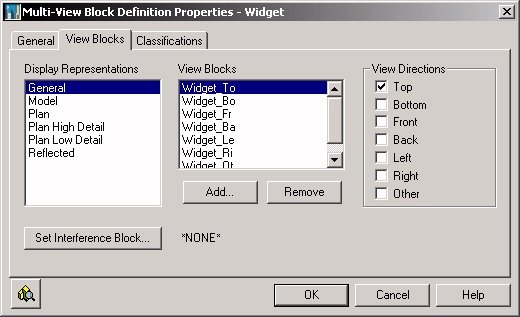
Once the view blocks are defined, the hard work is over. Open up the Style Manager and create a new Multi-View Block definition. Give the definition an appropriate name and description on the General tab. Then select the View Blocks tab, where you will assign the view blocks you created to the appropriate view directions for each Display Representation in which your MVB is to be visible. In my example file, the General Display Representation is used to display the othogonal view blocks, with the "3D block" assigned to the other view direction. The Model Display Representation has the "3D block" assigned to all view directions. Select the desired Display Representation in the left list box, then use the Add... button to select a view block. When adding a view block, the initial default is for all view directions to be selected; left click on the view direction toggles at the right to set or clear each view direction for the selected view block. The images below show the General Display Representation settings for the Widget_To [Top view block], Widget_Fr [Front view block], Widget_Le [Left view block] and Widget_Ot [Other view block]. The settings for the other view directions are similar, with the each block assigned to the appropriate view direction.


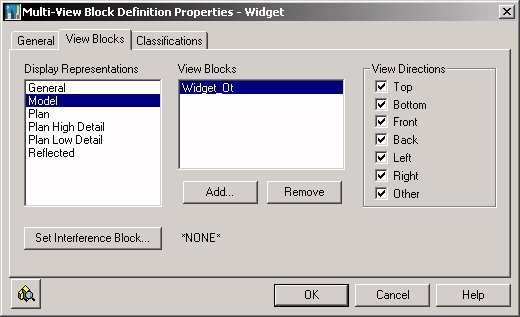
The following image shows how the Widget_Ot view block has been assigned to all view directions for the Model Display Represenation.

Select the OK button in the MVB Definition Properties dialog and the OK button in the Style Manager to save your MVB Definition to your drawing. Now would be a good time to save the drawing file, too.
Having defined a new MVB, you will want to test it before using it yourself or distributing it to others. The image below shows a new set of orientation lines, this time with the MVB inserted at the endpoint, then rotated in three dimensions so that, when viewed from the Front predefined view, all seven view blocks will be active at the same time. This allows you to make certain all view blocks were assigned, the correct view block was assigned to each view direction and the view block is properly oriented.

The image below is the result of changing to the Front view and shows that the MVB was created correctly.
Terminology
- MVB - abbreviation used in balance of article for Multi-View Block.
- view block - an AutoCAD block definition assigned to one or more view directions for one or more Display Representations.
- view direction - direction from which the ADT model is being viewed. MVBs allow assigning blocks to be displayed when one of the orthogonal view directions [Top, Bottom, Front, Back, Left or Right] is active, as well as one for "Other" view directions.
- WCS - World Coordinate System, a fixed coordinate system used as the basis for defining all objects and other coordinate systems.
The two most important things to keep in mind when creating the view blocks for your MVB are:
- Maintain an insertion point for all view blocks that is consistent in all three dimensions, preferrably at the MVB insertion point.
- Set the World Coordinate System current when defining the view blocks. The graphics for each orthogonal view block need to be drawn in the plane from which they will be viewed [World X-Y plane for Top and Bottom views, World X-Z plane for Front and Back views and World Y-Z plane for Left and Right views]. It may be advantageous to set an UCS that places the UCS X-Y plane parallel to the plane in which you wish to draw the graphics for a particular view block, but you MUST CHANGE BACK to the WCS before defining the view blocks!

You will also want to give consideration as to whether your MVB needs to display differently when different Display Representations are active. Perhaps your object should have a different top view displays for a regular plan and a reflected ceiling plan. If you have your Display System set up with two Display Representations for MVBs, one of which is only active in the Display Configuration[s] you use for regular plans and the other one of which is only active in the Display Configuration[s] you use for reflected ceiling plans, then you can create separate view blocks and assign each to the Top view direction in its corresponding Display Representation. Also remember that, unlike other ADT objects, the display control for MVBs is limited to assigning view blocks to view directions for the available Display Representations and then choosing which Display Representation[s] to have active for a given Display Representation Set. You can not control layer, color, linetype or plot style as a display setting; you need to set those up in the graphics of the view block. For example, if you want your MVB to plot screened when the Screened Display Represenation is active, then the graphics you use in the view block[s] assigned to the Screened Display Representation must be set up to plot screened, either by direct plot style/color assignment or by using ByLayer graphics on a layer that plots screened. My example MVB has the graphics in the view blocks all set to ByBlock, so that they will inherit the layer, color, linetype, etc, of the parent MVB.
Once the view blocks are defined, the hard work is over. Open up the Style Manager and create a new Multi-View Block definition. Give the definition an appropriate name and description on the General tab. Then select the View Blocks tab, where you will assign the view blocks you created to the appropriate view directions for each Display Representation in which your MVB is to be visible. In my example file, the General Display Representation is used to display the othogonal view blocks, with the "3D block" assigned to the other view direction. The Model Display Representation has the "3D block" assigned to all view directions. Select the desired Display Representation in the left list box, then use the Add... button to select a view block. When adding a view block, the initial default is for all view directions to be selected; left click on the view direction toggles at the right to set or clear each view direction for the selected view block. The images below show the General Display Representation settings for the Widget_To [Top view block], Widget_Fr [Front view block], Widget_Le [Left view block] and Widget_Ot [Other view block]. The settings for the other view directions are similar, with the each block assigned to the appropriate view direction.


The following image shows how the Widget_Ot view block has been assigned to all view directions for the Model Display Represenation.

Select the OK button in the MVB Definition Properties dialog and the OK button in the Style Manager to save your MVB Definition to your drawing. Now would be a good time to save the drawing file, too.
Having defined a new MVB, you will want to test it before using it yourself or distributing it to others. The image below shows a new set of orientation lines, this time with the MVB inserted at the endpoint, then rotated in three dimensions so that, when viewed from the Front predefined view, all seven view blocks will be active at the same time. This allows you to make certain all view blocks were assigned, the correct view block was assigned to each view direction and the view block is properly oriented.

The image below is the result of changing to the Front view and shows that the MVB was created correctly.
October 16, 2005
Embedding Office Knowledge in the Building Information Model
I read an interesting article by Tomislav Zigo a few weeks ago about Building Information Modeling. What intrigued me most was the idea of being able to take a firm’s accumulated knowledge and embed it into the objects in the information model, so that new hires or less experienced staff could take advantage of that knowledge. The article includes a sample file showing how property data could be used to create spaces and objects – in this case, Multi-View Blocks – that “know” whether a particular object belongs in a particular space. The sample file uses a schedule table to list the Multi-View Block objects and report whether the block is “allowed” in the space in which it was placed.
I found the sample file fascinating, but thought that in a file of “real project” size, that using a schedule table might be a little cumbersome. You would likely end up placing all of the objects, then generating the schedule and back-checking for items incorrectly placed. It occurred to me that having immediate, or near immediate feedback would improve the workflow. This seemed like just the excuse I needed to try out Display Themes, a feature added with the 2006 release.
I have posted a sample file of my own, in the Autodesk Architectural Desktop Customization Discussion Group. I chose to set up my sample file somewhat differently than the one noted above. Instead of listing all of the objects allowed in a space in the space style, I chose to list the space styles in which an object is permitted in the object’s style/definition. Either approach works – which is better for you depends upon your workflow and the number of different space styles and other objects that you would be including in your system.
Property Set Definitions
As always when dealing with schedule data, the first step is to establish the needed Property Set Definitions. I used style-based property sets – the out-of-the-box SpaceStyles Property Set Definition for the Style property and the custom LocationCheckStyles Property Set Definition – except for the location property that reads the style name from the space into the object’s property data. In Architectural Desktop 2006, the Location property could be part of the LocationCheckStyles Property Set Definition, but, for Multi-View Blocks anyway, the location grip is coincidental with the Multi-View Block insertion point grip, so it can not be moved independently of the block. I also found, when moving the Multi-View Block from room to room, that I had to use the ObjRelUpdate command to manually update the location property, so I chose to set up a separate, object-based Property Set Definition, LocationCheckObjects, to hold the location property. That does mean that you will need to attach the LocationCheckObjects property set to each object – you could set up a tool to do so, and apply it to multiple objects at once. As the goal is immediate feedback, this is not ideal, but I felt that having to attach the object-based property set once was less onerous than having to remember to run ObjRelUpdate every time a particular object was moved from one space to another. The way the formula is set up, the permission will show as “No” if the LocationCheckObjects property set is not attached, so having permission denied no matter where an object is placed should be a clue that the object-based property set is missing. Perhaps future versions of Architectural Desktop will improve the handling of style-based location properties. Remember, these did not work in style-based property sets at all in previous releases.
The LocationCheckObjects has one property, SpaceStyleName. This is a location property that reads in the name of the style of the space on which the object’s location grip is placed; the setting is shown in the image below.

LocationCheckObjects Property Set Defintion and SpaceStyleName Location Property
The LocationCheckStyles Property Set Definition is set up to apply to all styles and definitions, although in the sample file I only used it on Multi-View Block Definitions. There are two properties, PermissionGranted and PermissionList. PermissionList is a text-type manual property that will hold a list of space style names into which a particular object has permission to be placed. A large, “executive” desk, for example, might include Office_Large in its list, but not Office_Small or any of the Workstation styles, as it would not be appropriate to place a desk of that size in a smaller space. The PermissionGranted formula property is where the heavy lifting is done. The VBScript InStr function is used to search the PermissionList manual property, starting at the first character [the first “1” in the parentheses after “InStr”], for an occurrence of the string in the LocationCheckObjects:SpaceStyleName property. The second “1” in the parentheses tells the InStr function to perform a text comparison, rather than a binary comparison. What that means is that the comparison will ignore the case of the text. For example, “a” matches “A” in a text comparison, but does not in a binary comparison. The InStr function returns an integer value under most circumstances – 0 if the string is not found or a positive integer indicating the starting character position in the target string of the first occurrence of the search string. So the formula tests the result to see if it is greater than zero. If so, then the space style name was found in the permission list and the object is permitted; if not, the name was not found [or there was no style name because the object was not placed over a space], and the object is not permitted. The image below shows the properties in the LocationCheckStyles Property Set Definition, as well as the PermissionGranted formula with sample data that returns a result of “YES”.

LocationCheckStyles Property Set Definition and PermissionGranted Formula Property
By attaching the SpaceStyles property set to each space style and attaching both the LocationCheckStyles property set to each object style or definition [filling in the PermissionList for each style/definition] and the LocationCheckObjects property set to each object, we can identify whether or not a particular object has been placed correctly. Looking at the Extended Data tab of the Properties Palette to find out whether PermissionGranted for each object is “YES” or “NO” would quickly become tedious. Checking a schedule table would be better, but unless you frequently remove objects from the schedule selection set, would quickly result in a schedule table that would be too big to keep close to the items being added. Display Themes to the rescue! Display Themes allow you to override the “normal” appearance that an object would have for the current Display Configuration and view direction, based on property data attached to the object. This should have great appeal for architects, who are, by and large, a visually oriented group.
Display Theme Style
The Display Theme in the sample file keys on the value in the PermissionGranted property. When the theme is applied, objects whose PermissionGranted value is “YES” will display in color 80 [a bright green]; color 10, a bright red, indicates a “NO” value. Objects that do not have the PermissionGranted property attached will continue to display as they do when the Display Theme is disabled.
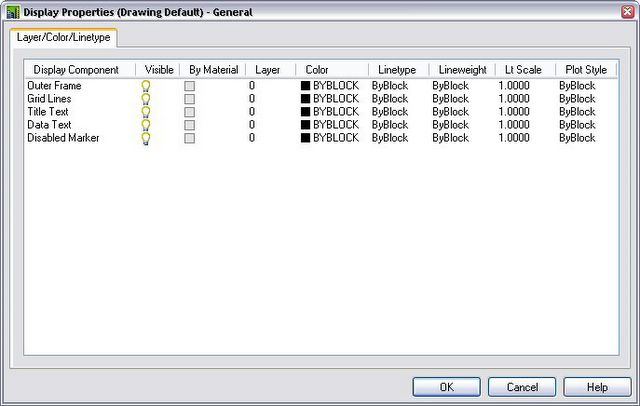
Display Themes have styles, like other Architectural Desktop objects, and can be created and edited in the Style Manager, under the Documentation Objects category. In addition to the usual “General” tab, where you can edit the style name and description, Display Themes have three other tabs: Display Rules, where you define the display overrides – “Theme Settings” – and under which conditions each is to be applied – “Theme Rules”; Legend Format, where you set parameters for the Display Theme legend; and Legend Display Properties, where you control the visibility and display of the components of the components of the Display Theme legend.
Design Rules
The main work to be done is on the Design Rules tab. For this relatively simple example, there are two Theme settings, one for when PermissionGranted is “YES”, Index 1 in the image below, and one for when PermissionGranted is “NO”, Index 2.

Theme Settings
The hatch parameters in a Theme Setting are only applied if the object has a hatch component turned on. Since Multi-View Blocks do not have a hatch component, the hatch settings have no effect in the sample file and I left them at the initial default values. Note also that I set up the sample Display Theme for on-screen purposes only. I left the Plot Style set to ByBlock, so unless the underlying object was set to plot using the object’s color, the sample file should plot the same whether or not the Display Theme was active. This appears to be the case using Plot Preview; I did not make any actual plots.
The Theme rules here are also quite simple. The LocationCheckStyles:PermissionGranted property holds the value to be shown graphically on the screen. Selecting Index 1 – “Permitted” – in the Theme Settings pane allows you to create Theme Rules for that index. Rule 1.1 states that Index 1 should be applied if the PermissionGranted property is equal to “YES”.

Theme Rules for Index 1 Theme Setting
Selecting Index 2 – “Not Permitted” – allows rules to be created for that index. Rule 2.1 states that Index 2 should be applied if the PermissionGranted property is equal to “NO”.

Theme Rules for Index 2 Theme Setting
Legend Format
Since “YES” and “NO” are the only two values that PermissionGranted can have, the Design Rules are complete. On the Legend Format tab, I set the Title to “Location Check” and the Text Style to “RomanS”, as shown below.

Legend Format
Legend Display Properties
I made no changes to the out-of-the-box settings in the sample file, as shown below.

Legend Display Properties
Adding the Display Theme
I chose to add my display theme by setting up a tool, but you can also type _AecDisplayThemeAdd at the Command: prompt, then select the desired style in the Properties Palette. There does not appear to be a command-line option to select or enter the desired style name. A generic Display Theme tool can be found in the Scheduling and Reporting Tool category of the Stock Tool Catalog. i-drop this tool onto an editable tool palette, then edit its properties to reference the desired Display Theme style. For this sample file, I did not bother creating a source file for the style, but you would want to do so for any Display Themes you expect to reuse in other drawings. Have your tool reference the style in the source file by setting the Style location property, after saving the source file to a location that will be available to all who will use the tool.

LocationCheck Display Theme Tool and Properties
When adding the Display Theme to a drawing, you will be prompted for the “Upper left corner of display theme:”. This is the upper left corner of the legend – pick an appropriate location. Similar to the prompts for a schedule table, you will then be asked to pick the “Lower right corner of display theme (or RETURN):”. If you pick a point, the legend will be scaled to fit between the two points; if you press ENTER or the space bar, the legend will be scaled according to the current drawing scale and annotation plot size as set in the Drawing Setup dialog. Assuming you have left all the display components turned on, the legend will show the title you entered on the Legend Format tab, along with a list of the Theme Settings accompanied by a square or circle showing the color and hatch pattern assigned to that setting. The Display Theme will also be applied to the current viewport. The legend in the sample file is shown below.

Display Theme Legend
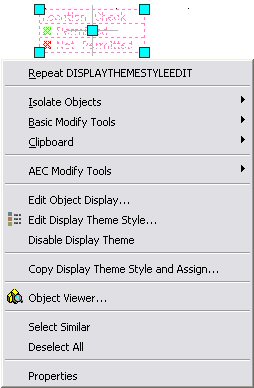
By selecting the legend and right clicking, you have access to a context menu that gives access to editing commands specific to Display Themes. Of particular note is Disable Display Theme, which allows you to turn off the display theme without removing it from the drawing. If you select this, a diagonal slash will appear on the legend [if you leave that component turned on], the display changes set in the theme are deactivated, and the menu item changes to Apply Display Theme, which allows you to turn the theme back on.

Display Theme Context Menu
The Results
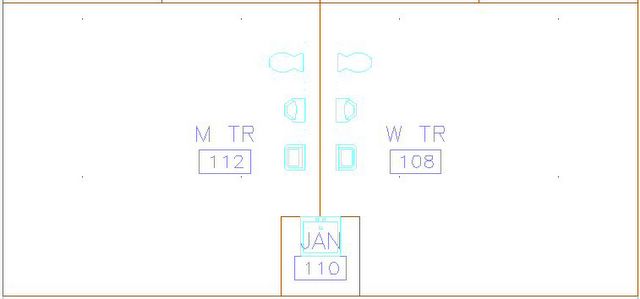
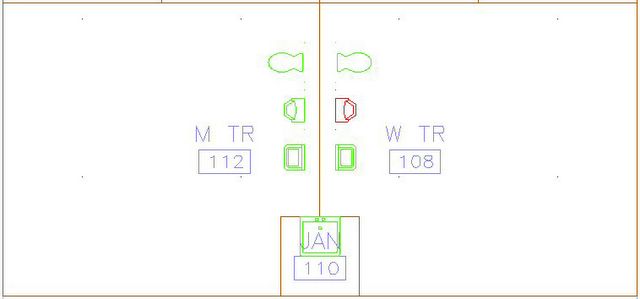
By activating the Location Check Display Theme, you can get immediate feedback on whether a particular object is permitted in a space when moving or copying an existing object, and nearly immediate feedback when adding a new object that already has the LocationCheckStyles property set attached and PermissionList property completed – all you need do is add the LocationCheckObjects property set. The effect is most dramatic when working live in the file, so I would encourage you to download the sample file and try it out for yourself [if you have the 2006 release of Architectural Desktop – Display Themes do not work in prior versions]. Here are two screen shots of the men’s and women’s toilet rooms, each of which has a water closet, urinal and lavatory Multi-View Block. The first shows the out-of-the-box Medium Detail display, the second shows the effect of activating the LocationCheck Display Theme. The PermissionList property for the urinal does not include any of the women’s toilet room Space Style names, and so the instance of the block in the women’s room turns red, flagging it as “Not Permitted”. The other blocks turn green, indicating that they are permitted in the space in which they are placed.

LocationCheck Display Theme Disabled

LocationCheck Display Theme Applied

Note that this is not meant to be a finished system, only a proof of concept. Using the space style name as the sole determinant may be too limiting in practice; setting up one or more manual properties in a style-based property set attached to the space style would allow you to have certain key words to identify space types without imposing burdens on the naming of the styles. The formula determining if an object is permitted could also be made more sophisticated, perhaps needing to match only part of the style name and/or splitting out the size [small, medium, large] comparison separately.
I found the sample file fascinating, but thought that in a file of “real project” size, that using a schedule table might be a little cumbersome. You would likely end up placing all of the objects, then generating the schedule and back-checking for items incorrectly placed. It occurred to me that having immediate, or near immediate feedback would improve the workflow. This seemed like just the excuse I needed to try out Display Themes, a feature added with the 2006 release.
I have posted a sample file of my own, in the Autodesk Architectural Desktop Customization Discussion Group. I chose to set up my sample file somewhat differently than the one noted above. Instead of listing all of the objects allowed in a space in the space style, I chose to list the space styles in which an object is permitted in the object’s style/definition. Either approach works – which is better for you depends upon your workflow and the number of different space styles and other objects that you would be including in your system.
Property Set Definitions
As always when dealing with schedule data, the first step is to establish the needed Property Set Definitions. I used style-based property sets – the out-of-the-box SpaceStyles Property Set Definition for the Style property and the custom LocationCheckStyles Property Set Definition – except for the location property that reads the style name from the space into the object’s property data. In Architectural Desktop 2006, the Location property could be part of the LocationCheckStyles Property Set Definition, but, for Multi-View Blocks anyway, the location grip is coincidental with the Multi-View Block insertion point grip, so it can not be moved independently of the block. I also found, when moving the Multi-View Block from room to room, that I had to use the ObjRelUpdate command to manually update the location property, so I chose to set up a separate, object-based Property Set Definition, LocationCheckObjects, to hold the location property. That does mean that you will need to attach the LocationCheckObjects property set to each object – you could set up a tool to do so, and apply it to multiple objects at once. As the goal is immediate feedback, this is not ideal, but I felt that having to attach the object-based property set once was less onerous than having to remember to run ObjRelUpdate every time a particular object was moved from one space to another. The way the formula is set up, the permission will show as “No” if the LocationCheckObjects property set is not attached, so having permission denied no matter where an object is placed should be a clue that the object-based property set is missing. Perhaps future versions of Architectural Desktop will improve the handling of style-based location properties. Remember, these did not work in style-based property sets at all in previous releases.
The LocationCheckObjects has one property, SpaceStyleName. This is a location property that reads in the name of the style of the space on which the object’s location grip is placed; the setting is shown in the image below.

LocationCheckObjects Property Set Defintion and SpaceStyleName Location Property
The LocationCheckStyles Property Set Definition is set up to apply to all styles and definitions, although in the sample file I only used it on Multi-View Block Definitions. There are two properties, PermissionGranted and PermissionList. PermissionList is a text-type manual property that will hold a list of space style names into which a particular object has permission to be placed. A large, “executive” desk, for example, might include Office_Large in its list, but not Office_Small or any of the Workstation styles, as it would not be appropriate to place a desk of that size in a smaller space. The PermissionGranted formula property is where the heavy lifting is done. The VBScript InStr function is used to search the PermissionList manual property, starting at the first character [the first “1” in the parentheses after “InStr”], for an occurrence of the string in the LocationCheckObjects:SpaceStyleName property. The second “1” in the parentheses tells the InStr function to perform a text comparison, rather than a binary comparison. What that means is that the comparison will ignore the case of the text. For example, “a” matches “A” in a text comparison, but does not in a binary comparison. The InStr function returns an integer value under most circumstances – 0 if the string is not found or a positive integer indicating the starting character position in the target string of the first occurrence of the search string. So the formula tests the result to see if it is greater than zero. If so, then the space style name was found in the permission list and the object is permitted; if not, the name was not found [or there was no style name because the object was not placed over a space], and the object is not permitted. The image below shows the properties in the LocationCheckStyles Property Set Definition, as well as the PermissionGranted formula with sample data that returns a result of “YES”.

LocationCheckStyles Property Set Definition and PermissionGranted Formula Property
By attaching the SpaceStyles property set to each space style and attaching both the LocationCheckStyles property set to each object style or definition [filling in the PermissionList for each style/definition] and the LocationCheckObjects property set to each object, we can identify whether or not a particular object has been placed correctly. Looking at the Extended Data tab of the Properties Palette to find out whether PermissionGranted for each object is “YES” or “NO” would quickly become tedious. Checking a schedule table would be better, but unless you frequently remove objects from the schedule selection set, would quickly result in a schedule table that would be too big to keep close to the items being added. Display Themes to the rescue! Display Themes allow you to override the “normal” appearance that an object would have for the current Display Configuration and view direction, based on property data attached to the object. This should have great appeal for architects, who are, by and large, a visually oriented group.
Display Theme Style
The Display Theme in the sample file keys on the value in the PermissionGranted property. When the theme is applied, objects whose PermissionGranted value is “YES” will display in color 80 [a bright green]; color 10, a bright red, indicates a “NO” value. Objects that do not have the PermissionGranted property attached will continue to display as they do when the Display Theme is disabled.
Display Themes have styles, like other Architectural Desktop objects, and can be created and edited in the Style Manager, under the Documentation Objects category. In addition to the usual “General” tab, where you can edit the style name and description, Display Themes have three other tabs: Display Rules, where you define the display overrides – “Theme Settings” – and under which conditions each is to be applied – “Theme Rules”; Legend Format, where you set parameters for the Display Theme legend; and Legend Display Properties, where you control the visibility and display of the components of the components of the Display Theme legend.
Design Rules
The main work to be done is on the Design Rules tab. For this relatively simple example, there are two Theme settings, one for when PermissionGranted is “YES”, Index 1 in the image below, and one for when PermissionGranted is “NO”, Index 2.

Theme Settings
The hatch parameters in a Theme Setting are only applied if the object has a hatch component turned on. Since Multi-View Blocks do not have a hatch component, the hatch settings have no effect in the sample file and I left them at the initial default values. Note also that I set up the sample Display Theme for on-screen purposes only. I left the Plot Style set to ByBlock, so unless the underlying object was set to plot using the object’s color, the sample file should plot the same whether or not the Display Theme was active. This appears to be the case using Plot Preview; I did not make any actual plots.
The Theme rules here are also quite simple. The LocationCheckStyles:PermissionGranted property holds the value to be shown graphically on the screen. Selecting Index 1 – “Permitted” – in the Theme Settings pane allows you to create Theme Rules for that index. Rule 1.1 states that Index 1 should be applied if the PermissionGranted property is equal to “YES”.

Theme Rules for Index 1 Theme Setting
Selecting Index 2 – “Not Permitted” – allows rules to be created for that index. Rule 2.1 states that Index 2 should be applied if the PermissionGranted property is equal to “NO”.

Theme Rules for Index 2 Theme Setting
Legend Format
Since “YES” and “NO” are the only two values that PermissionGranted can have, the Design Rules are complete. On the Legend Format tab, I set the Title to “Location Check” and the Text Style to “RomanS”, as shown below.

Legend Format
Legend Display Properties
I made no changes to the out-of-the-box settings in the sample file, as shown below.

Legend Display Properties
Adding the Display Theme
I chose to add my display theme by setting up a tool, but you can also type _AecDisplayThemeAdd at the Command: prompt, then select the desired style in the Properties Palette. There does not appear to be a command-line option to select or enter the desired style name. A generic Display Theme tool can be found in the Scheduling and Reporting Tool category of the Stock Tool Catalog. i-drop this tool onto an editable tool palette, then edit its properties to reference the desired Display Theme style. For this sample file, I did not bother creating a source file for the style, but you would want to do so for any Display Themes you expect to reuse in other drawings. Have your tool reference the style in the source file by setting the Style location property, after saving the source file to a location that will be available to all who will use the tool.

LocationCheck Display Theme Tool and Properties
When adding the Display Theme to a drawing, you will be prompted for the “Upper left corner of display theme:”. This is the upper left corner of the legend – pick an appropriate location. Similar to the prompts for a schedule table, you will then be asked to pick the “Lower right corner of display theme (or RETURN):”. If you pick a point, the legend will be scaled to fit between the two points; if you press ENTER or the space bar, the legend will be scaled according to the current drawing scale and annotation plot size as set in the Drawing Setup dialog. Assuming you have left all the display components turned on, the legend will show the title you entered on the Legend Format tab, along with a list of the Theme Settings accompanied by a square or circle showing the color and hatch pattern assigned to that setting. The Display Theme will also be applied to the current viewport. The legend in the sample file is shown below.

Display Theme Legend
By selecting the legend and right clicking, you have access to a context menu that gives access to editing commands specific to Display Themes. Of particular note is Disable Display Theme, which allows you to turn off the display theme without removing it from the drawing. If you select this, a diagonal slash will appear on the legend [if you leave that component turned on], the display changes set in the theme are deactivated, and the menu item changes to Apply Display Theme, which allows you to turn the theme back on.

Display Theme Context Menu
The Results
By activating the Location Check Display Theme, you can get immediate feedback on whether a particular object is permitted in a space when moving or copying an existing object, and nearly immediate feedback when adding a new object that already has the LocationCheckStyles property set attached and PermissionList property completed – all you need do is add the LocationCheckObjects property set. The effect is most dramatic when working live in the file, so I would encourage you to download the sample file and try it out for yourself [if you have the 2006 release of Architectural Desktop – Display Themes do not work in prior versions]. Here are two screen shots of the men’s and women’s toilet rooms, each of which has a water closet, urinal and lavatory Multi-View Block. The first shows the out-of-the-box Medium Detail display, the second shows the effect of activating the LocationCheck Display Theme. The PermissionList property for the urinal does not include any of the women’s toilet room Space Style names, and so the instance of the block in the women’s room turns red, flagging it as “Not Permitted”. The other blocks turn green, indicating that they are permitted in the space in which they are placed.

LocationCheck Display Theme Disabled

LocationCheck Display Theme Applied

Note that this is not meant to be a finished system, only a proof of concept. Using the space style name as the sole determinant may be too limiting in practice; setting up one or more manual properties in a style-based property set attached to the space style would allow you to have certain key words to identify space types without imposing burdens on the naming of the styles. The formula determining if an object is permitted could also be made more sophisticated, perhaps needing to match only part of the style name and/or splitting out the size [small, medium, large] comparison separately.
Labels:
BIM,
Display Theme,
Multi-View Block
Subscribe to:
Posts (Atom)