- Is the PICKFIRST system variable set to 1? If it is set to 0, set it to 1. This is the most likely reason why the double click failed. You can also access this setting in the Options dialog, on the Selection tab, in the Selection modes area at the middle left of the tab, by checking the Noun/verb selection toggle.

- Is the DBLCLKEDIT system variable set to ON? If it is set to OFF, set it to ON. This setting can also be accessed in the Options dialog, on the User Preferences tab, in the Windows Standard Behavior area at the upper left of the tab, by checking the Double click editing toggle.

- If both of the above system variables are set correctly, the final step is to verify that your customization file has the appropriate double click action assigned for MTEXT. Type CUI at the Command: prompt and press the ENTER key. In the Cusomize User Interface dialog, on the Customize tab, in the upper left pane (Customizations in...), expand the node for the ACA customization (or whatever your main customization file is called), if it is not already expanded. Scroll down if necessary to find the Double Click Actions node and expand that. Look for a node under that called Mtext and, if you find it, expand it. The out-of-the-box ACA.cuix assigns the Mtext Edit command to the Mtext double-click action.
- If the Mtext node exists, but does not have a command assigned or has a different command assigned, find the Mtext Edit... command on the Command List in the lower left. (TIP: Type mtext in the search bar at the top to narrow the items on the list and quickly find the Mtext Edit... item.) Left-click, hold and drag the Mtext Edit... item from the lower left pane to the upper right pane and drop it on the Mtext node under Double Click Actions. Select OK to save the change and return to the drawing editor, where you should now be able to double click on an MText object and enter editing mode.
- If there is no Mtext node, you will need to add one. In the upper left pane, right click on the Double Click Actions node and select New Double Click Action from the context menu, and then immediately type Mtext to replace the default name assigned to the new node. Select the new Mtext node and, in the upper right pane, type MTEXT as the value for the Object Name property of the node (see image below). With the new node created, follow the instructions in the bullet point above to add the Mtext Edit... command as the double-click action, save your changes and return to the drawing editor.

- If you have done all of the above and still are unable to double-click edit MTEXT objects, you may want to go back into the Customize User Interface dialog and see if any of the other customization files (enterprise, if you have one, or any partial customization files) have a double-click action assigned to MText; if so, try deleting all but one and see if that fixes the problem.
Showing posts with label CUI. Show all posts
Showing posts with label CUI. Show all posts
September 23, 2015
ACA: Double-click on MText Does Not Start MText Editor
If you find that double-clicking on MText is not initiating the MTEDIT command, check the following things:


May 10, 2007
Cycling Between Viewports in a Layout
Those of you who used Autodesk® Architectural Desktop prior to the introduction of the Customize User Interface (CUI) files in 2006 may recall that the menu file included an "accelerator" for the CTRL+R keystroke combination that would cycle between the viewports in a layout whose extents are at least partially visible on-screen. Those of you who have been using AutoCAD® for many years may also recall that the "original" accelerator was CTRL+V [or ^V in a menu macro], which got supplanted when Windows came along and made CTRL+V "paste".
The ability to cycle through the viewports can be handy when you have overlapping viewports and the program decides the one you want is "underneath" the one you do not want, and is essential if you have an "underneath" viewport that is entirely within the boundaries of another viewport. For whatever reason, the CTRL+R accelerator did not get incorporated into the ADT.cui file, so users of 2006 and later may find they no longer can cycle through viewports using CTRL+R. The good news is nothing else has been assigned to CTRL+R, and it is not difficult to add the CTRL+R functionality back.
In CUI files, the old accelerators are now called Shortcut Keys and are found under the Keyboard Shortcuts category of a given CUI. You can add Shortcut Keys to the main CUI or any partial CUIs you may have loaded; if you have a separate CUI for your company standard menu items or for your personal use, you may want to add the CTRL+R Shortcut Key there, to aid in migrating to future releases. The Help contains instructions for how to add a Shortcut Key, and there is even a video in the 2007 Help for those of you who are visually oriented. You can find this by navigating here: AutoCAD Help > Customization Guide > Customize the User Interface > Add Shortcut Keys and Temporary Overrides. In 2006, click on the Procedures tab, then select the "To create a shortcut key" link. In 2007, the video is on the "Add Shortcut Keys and Temporary Overrides" page.
For those who have an allergic reaction to the Help, or who find the fact that the instructions are written around the ACAD.cui, not the ADT.cui too annoying to bear, the balance of this article covers the specifics of adding the ^V macro as a Shortcut Key and assigning the CTRL+R keystroke to it. The first thing you will need to do is open the Customize User Interface dialog. Type CUI at the Command: prompt. If you hate keyboarding and want to use a pulldown menu, you will not be able to use the Tools pulldown, as noted in the Help [unless you have added that from the ACAD.cui file]. If you have added the CAD Manager pulldown menu [Window > Pulldowns > CAD Manager Pulldown] you can start the CUI command from there, as shown below. [As always, you can view a full-size version of reduced size images by clicking on the image.]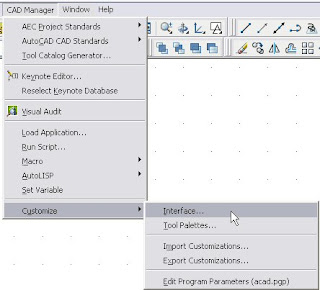
Set the Customize tab active, if it is not already current. The upper left pane of the Customize tab lists the CUI files that are loaded. You can choose to show all CUI files, or focus on one using the dropdown list at the top of the pane. Expand the CUI in which you want to add the CTRL+R Shortcut Key and then expand the Keyboard Shortcuts category, as shown below. You will not see the large red arrow, which I added to the image for emphasis.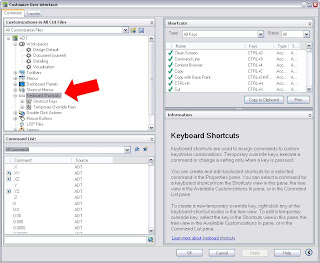
Here is a tip for those of you who have fully embraced the AutoCAD® Architecture/Autodesk Architectural Desktop mindset of right-clicking to do just about anything. In this case, it will not work. You can right click on either "Keyboard Shortcuts" or "Shortcut Keys" and a context menu will obediently appear, but there will not be an option to add a new Shortcut Key, as can be seen in the image below.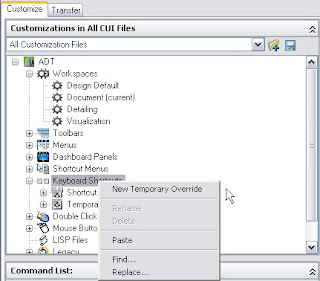
New Shortcut Keys are created by dragging the command you want from the Command List in the lower left pane of the CUI dialog and dropping it onto "Shortcut Keys" in the upper left pane. Fortunately for our example, there is alread a "command" in the Command List, named "CTRL+R", that has the ^V macro assigned to it, so we do not need to add a custom command to the list. Scroll down in the Command List list box until you see the "CTRL+R" command.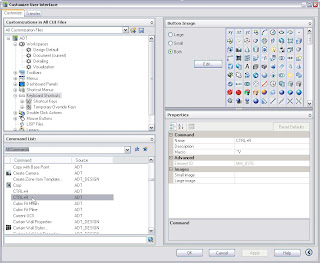
Left click on and then drag the "CTRL+R" command up to "Shortcut Keys" in the upper left pane and drop it there.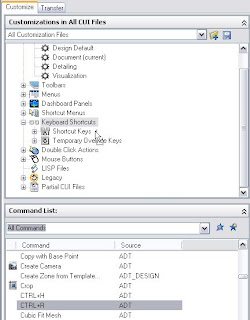
Expand the Shortcut Keys subcategory, if it did not do so automatically while you were dragging and dropping, and then find and select your new "CTRL+R" command on the list of commands. This will change the display on the right side of the Customize tab of the CUI dialog, displaying "Shortcuts" in the upper right pane, with a list of all of the Shortcut Keys commands, and "Properties" in the lower right pane. Since you selected "CTRL+R" command in the upper left pane, it is highlighted in the upper right pane and the Properties pane shows the properties for that command. Notice the horizontal bar in the left column in the Shortcuts pane, rather than the check mark that the other commands have. That is because a keystroke has not been assigned yet.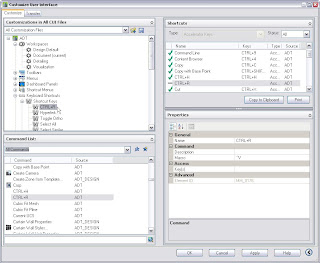
To assign a keystroke, click in the right column next to the "Key(s)" line in the Access category of the Properties pane. An ellipsis button will appear at the right side of that line; select it to open the Shortcut Keys dialog.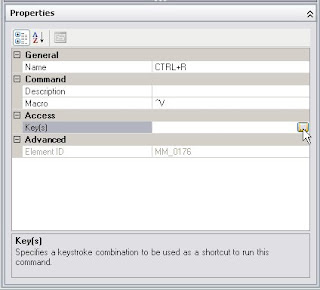
The Shortcut Keys dialog allows you to indicate what keystroke combination you want to assign to this command. Click in the edit box, if the focus is not already there, then press the "CTRL" and "R" keys at the same time, to enter "CTRL+R". The dialog will tell you what command is currently assigned to that keystroke combination, if any. If you are satisfied with the entry, select OK to return to the CUI dialog box.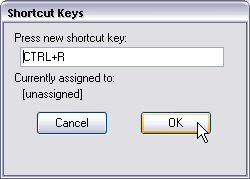
You have now assigned a keystroke combination to the CTRL+R command, and the Shortcuts pane now shows a checkmark in the first column on that line, as well as the assigned keystroke combination in the Keys column. Select the Apply button to save this change to the CUI, if you have additional changes to make, or select OK to save the change and return to the drawing file.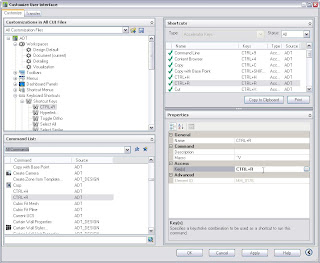
You should now find pressing CTRL+R when model space is active on a Layout with multiple viewports visible on screen will cycle through those viewports. You will want to back up the CUI file in which you made the change, to avoid having to do it again in the future, should you ever "lose" that file.
The ability to cycle through the viewports can be handy when you have overlapping viewports and the program decides the one you want is "underneath" the one you do not want, and is essential if you have an "underneath" viewport that is entirely within the boundaries of another viewport. For whatever reason, the CTRL+R accelerator did not get incorporated into the ADT.cui file, so users of 2006 and later may find they no longer can cycle through viewports using CTRL+R. The good news is nothing else has been assigned to CTRL+R, and it is not difficult to add the CTRL+R functionality back.
In CUI files, the old accelerators are now called Shortcut Keys and are found under the Keyboard Shortcuts category of a given CUI. You can add Shortcut Keys to the main CUI or any partial CUIs you may have loaded; if you have a separate CUI for your company standard menu items or for your personal use, you may want to add the CTRL+R Shortcut Key there, to aid in migrating to future releases. The Help contains instructions for how to add a Shortcut Key, and there is even a video in the 2007 Help for those of you who are visually oriented. You can find this by navigating here: AutoCAD Help > Customization Guide > Customize the User Interface > Add Shortcut Keys and Temporary Overrides. In 2006, click on the Procedures tab, then select the "To create a shortcut key" link. In 2007, the video is on the "Add Shortcut Keys and Temporary Overrides" page.
For those who have an allergic reaction to the Help, or who find the fact that the instructions are written around the ACAD.cui, not the ADT.cui too annoying to bear, the balance of this article covers the specifics of adding the ^V macro as a Shortcut Key and assigning the CTRL+R keystroke to it. The first thing you will need to do is open the Customize User Interface dialog. Type CUI at the Command: prompt. If you hate keyboarding and want to use a pulldown menu, you will not be able to use the Tools pulldown, as noted in the Help [unless you have added that from the ACAD.cui file]. If you have added the CAD Manager pulldown menu [Window > Pulldowns > CAD Manager Pulldown] you can start the CUI command from there, as shown below. [As always, you can view a full-size version of reduced size images by clicking on the image.]

Set the Customize tab active, if it is not already current. The upper left pane of the Customize tab lists the CUI files that are loaded. You can choose to show all CUI files, or focus on one using the dropdown list at the top of the pane. Expand the CUI in which you want to add the CTRL+R Shortcut Key and then expand the Keyboard Shortcuts category, as shown below. You will not see the large red arrow, which I added to the image for emphasis.

Here is a tip for those of you who have fully embraced the AutoCAD® Architecture/Autodesk Architectural Desktop mindset of right-clicking to do just about anything. In this case, it will not work. You can right click on either "Keyboard Shortcuts" or "Shortcut Keys" and a context menu will obediently appear, but there will not be an option to add a new Shortcut Key, as can be seen in the image below.

New Shortcut Keys are created by dragging the command you want from the Command List in the lower left pane of the CUI dialog and dropping it onto "Shortcut Keys" in the upper left pane. Fortunately for our example, there is alread a "command" in the Command List, named "CTRL+R", that has the ^V macro assigned to it, so we do not need to add a custom command to the list. Scroll down in the Command List list box until you see the "CTRL+R" command.

Left click on and then drag the "CTRL+R" command up to "Shortcut Keys" in the upper left pane and drop it there.

Expand the Shortcut Keys subcategory, if it did not do so automatically while you were dragging and dropping, and then find and select your new "CTRL+R" command on the list of commands. This will change the display on the right side of the Customize tab of the CUI dialog, displaying "Shortcuts" in the upper right pane, with a list of all of the Shortcut Keys commands, and "Properties" in the lower right pane. Since you selected "CTRL+R" command in the upper left pane, it is highlighted in the upper right pane and the Properties pane shows the properties for that command. Notice the horizontal bar in the left column in the Shortcuts pane, rather than the check mark that the other commands have. That is because a keystroke has not been assigned yet.

To assign a keystroke, click in the right column next to the "Key(s)" line in the Access category of the Properties pane. An ellipsis button will appear at the right side of that line; select it to open the Shortcut Keys dialog.

The Shortcut Keys dialog allows you to indicate what keystroke combination you want to assign to this command. Click in the edit box, if the focus is not already there, then press the "CTRL" and "R" keys at the same time, to enter "CTRL+R". The dialog will tell you what command is currently assigned to that keystroke combination, if any. If you are satisfied with the entry, select OK to return to the CUI dialog box.

You have now assigned a keystroke combination to the CTRL+R command, and the Shortcuts pane now shows a checkmark in the first column on that line, as well as the assigned keystroke combination in the Keys column. Select the Apply button to save this change to the CUI, if you have additional changes to make, or select OK to save the change and return to the drawing file.

You should now find pressing CTRL+R when model space is active on a Layout with multiple viewports visible on screen will cycle through those viewports. You will want to back up the CUI file in which you made the change, to avoid having to do it again in the future, should you ever "lose" that file.
Subscribe to:
Posts (Atom)