August 13, 2010
Facelift
After nearly six years, I decided to revise the template for this blog, converting to Blogger's newer Layout templates from my old "classic" template. I hope you enjoy the change.


August 11, 2010
Running Slowly?
Various suggestions have been made over the years in the Autodesk Discussion Groups and the AUGI Forums for dealing with AutoCAD® Architecture running more slowly than normal. Here are a few things that I have found are helpful in that situation.
- Bad Shortcuts: If you have a shortcut file in the AutoCAD Search Path (as defined on the Files tab of the Options dialog) that point to a non-existent folder or file, every time ACA need to check the search path (more often than you think), it will dutifully keep trying to resolve the bad shortcut until times out. One frequent culprit is the Add-A-Plotter Wizard in the Plotters folder. If you copied your plotters from a previous release and grabbed the Add-A-Plotter Wizard shortcut file as well, and then uninstalled the previous release (or otherwise moved or deleted the referenced program file), you will experience delays while ACA tries to find the missing file.
- Bad File Locations: Check the entries for the Search Path and other file locations on the Files tab of the Options dialog, to make certain that all of the folders/files specified exist (in the location given). We had an office standard profile that had network path that referenced the hard drive on a local computer. (Don't ask me, I did not set it up.) So long as that computer was logged into the network, all was well. As soon as it was logged off, things slowed down, while waiting for the search for that file/path to time out. It took a while for me to realize that the speed issues I was having only happened after 5:00 pm, and it was only after I found the improper pathing that I understood why.
August 05, 2010
AU Registration Later This Year
Those planning to go to Autodesk University 2010 who have not spent much time on the AU Online site lately may not be aware that, unlike recent years, registration this year will not open in August but instead will start on September 14.
If you are not already registered at the AU Online site, do so now, and you will be able to register a week early, starting September 7.
If you are not already registered at the AU Online site, do so now, and you will be able to register a week early, starting September 7.
July 26, 2010
Frozen Ribbon
No, it is not a new way to beat the summer heat (my apologies to readers in the southern hemisphere, who may be more interested in a way to stay warm, but this has been a particularly brutal summer here in Philadelphia); it is a frequently reported occurrence in AutoCAD® Architecture 2010 and 2011. Often triggered by the use of the MTEXT command, the freeze occurs if you have more than one CUIX file loaded and two or more each have a contextual ribbon tab (such as the Text Editor tab triggered by the MTEXT or MTEDIT commands) that is triggered by the same command or object selection.
This most frequently happens when both the ACA.cuix and ACAD.cuix files are loaded simultaneously, often so that an ACA user can have access to elements in the ACAD.cuix file that are not part of the ACA.cuix file. Unfortunately, loading both as they are, out-of-the-box, will result in having multiple contextual ribbon tabs for the same triggering action.
The solution is to either not load both at the same time, or, if you must have access to items in both, to create a custom CUIX file that has the items you want from the ACAD.cuix file, but does not have the contextual ribbon tabs (or at least not any that overlap those in the ACA.cuix file). You will need to decide whether it is easier to make a copy of the ACAD.cuix file under another name, and remove the overlapping contextual ribbon tabs -OR- set up a new CUIX file and transfer only the items you want/need from the ACAD.cuix file.
This most frequently happens when both the ACA.cuix and ACAD.cuix files are loaded simultaneously, often so that an ACA user can have access to elements in the ACAD.cuix file that are not part of the ACA.cuix file. Unfortunately, loading both as they are, out-of-the-box, will result in having multiple contextual ribbon tabs for the same triggering action.
The solution is to either not load both at the same time, or, if you must have access to items in both, to create a custom CUIX file that has the items you want from the ACAD.cuix file, but does not have the contextual ribbon tabs (or at least not any that overlap those in the ACA.cuix file). You will need to decide whether it is easier to make a copy of the ACAD.cuix file under another name, and remove the overlapping contextual ribbon tabs -OR- set up a new CUIX file and transfer only the items you want/need from the ACAD.cuix file.
July 24, 2010
Revit Training from Paul Aubin via lynda.com
If you are interested in an Internet-based Revit® "Essentials" course that is available any time your are, you may want to look into subscribing to lynda.com, where Paul Aubin has added such a course. According to the website, subscriptions begin at $25.00/month. Premium subscribers (starting at $37.50/month) also get access to exercise files. The class consists of 8:25 of video instruction; you can get more details here.
Your subscription also provides access to training on AutoCAD, 3DS Max, Maya and Sketchbook Pro, as well as many other software titles.
Your subscription also provides access to training on AutoCAD, 3DS Max, Maya and Sketchbook Pro, as well as many other software titles.
July 20, 2010
Insertion Point of an AEC Object in AutoLISP
If you have ever tried to use AutoLISP to automate a task involving an AEC Object, you may have found that the ENTGET function does not return as much information for an AEC Object as it does for an AutoCAD object. A question posted to the Autodesk AutoCAD Architecture Customization Discussion Group, asking how the insertion point of a Multi-View Block might be obtained in AutoLISP, prompted me to see if I could figure out how to do just that. I knew that the Visual LISP ActiveX (VLAX) functions allowed for direct access to an object's properties. Unfortunately, the amount of time I have available for fun* things like writing AutoLISP code shrank significantly right around the time that the VL/VLAX/VLR functions were introduced, so I have never become proficient with them. Since this task was fairly simple, I thought I would take a shot at it anyway.
Using the 2010 Help (the 2011 Help no longer appears to have the AutoCAD Architecture ActiveX Reference section), I was able to determine that Multi-View Blocks (as well as a number of other AEC Objects) have a Location property that holds the "insertion point" as a variant three-element array of doubles. That means that the value is not pre-declared as a specific data type ("variant") and that it contains an array of three, double-precision real numbers ("doubles"), which is what you would expect to describe a 3D point. From previous experince, however, I knew that I would not be able to just assign that property value to an AutoLISP variable and use it with AutoLISP functions. I scanned through the VLAX functions, and saw the VLAX-VARIANT-VALUE function, the description of which indicated that it would return the value of a variant. That sounded like it was just what I wanted, but I found that for a variant containing an array, the return value was a "safearray", and that was not the simple list of three real numbers I needed. Fortunately, I also found the VLAX-SAFEARRAY->LIST function, which converts a "safearray" to an AutoLISP-style list of three real numbers. This may be less "safe", but it is far more useful when using AutoLISP functions.
The following code is what I posted in reply in the Discussion Group. There is no error checking in the subroutine, so it will crash if the entity name passed belongs to an object of a type that does not have a Location property. I am assuming that the calling routine will only pass entity names of objects that have a Location property; if that is not possible, then the subroutine would need to verify that the passed entity name belongs to a appropriate object type before trying to obtain the Location property. If the subroutine tests for appropriate object type, then a special "alert" return value should be included to inform the calling routine that an inappropriate entity name was passed.
* - Yes, I suppose it is sad that I find writing AutoLISP code "fun".
Using the 2010 Help (the 2011 Help no longer appears to have the AutoCAD Architecture ActiveX Reference section), I was able to determine that Multi-View Blocks (as well as a number of other AEC Objects) have a Location property that holds the "insertion point" as a variant three-element array of doubles. That means that the value is not pre-declared as a specific data type ("variant") and that it contains an array of three, double-precision real numbers ("doubles"), which is what you would expect to describe a 3D point. From previous experince, however, I knew that I would not be able to just assign that property value to an AutoLISP variable and use it with AutoLISP functions. I scanned through the VLAX functions, and saw the VLAX-VARIANT-VALUE function, the description of which indicated that it would return the value of a variant. That sounded like it was just what I wanted, but I found that for a variant containing an array, the return value was a "safearray", and that was not the simple list of three real numbers I needed. Fortunately, I also found the VLAX-SAFEARRAY->LIST function, which converts a "safearray" to an AutoLISP-style list of three real numbers. This may be less "safe", but it is far more useful when using AutoLISP functions.
The following code is what I posted in reply in the Discussion Group. There is no error checking in the subroutine, so it will crash if the entity name passed belongs to an object of a type that does not have a Location property. I am assuming that the calling routine will only pass entity names of objects that have a Location property; if that is not possible, then the subroutine would need to verify that the passed entity name belongs to a appropriate object type before trying to obtain the Location property. If the subroutine tests for appropriate object type, then a special "alert" return value should be included to inform the calling routine that an inappropriate entity name was passed.
(defun AECINS (ename / ob ptarray ptins)
  (setq ob (vlax-ename->vla-object ename))
  (setq ptarray (vlax-get-property ob 'Location))
  (setq ptins (vlax-safearray->list (vlax-variant-value ptarray)))
)
* - Yes, I suppose it is sad that I find writing AutoLISP code "fun".
June 27, 2010
Selection Cycling
As mentioned in the AutoCAD Improvements section of my AutoCAD Architecture 2011 Overview post, I found the Selection Cycling feature quite handy. Here is a look at how it works.
Activation of the Selection Cycling feature is controled by a new toggle on the Application Status Bar, and the SELECTIONCYCLING system variable. SELECTIONCYCLING is stored in the registry (so is not drawing-dependent) and has three main values, as noted in the online Help:
0 - Off
1 - On (the list dialog does not display)
2 - On (the list dialog displays the selected objects that you can cycle through)
What the Help fails to mention is that the Application Status Bar toggle can introduce two other values:
-1 - Off, but previous value was "1" and, when toggled back on, will reset to "1"
-2 - Off, but previous value was "2" and, when toggled back on, will reset to "2"
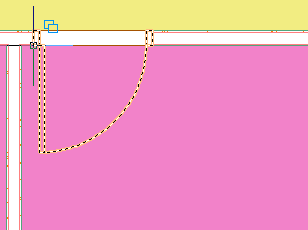
If you manually set SELECTIONCYCLING to "0" to turn it off, clicking on the Application Status Bar toggle will set the value to "2". With selction cycling active, when your cursor hovers over a spot where there are multiple objects, you will see an overlapping rectangle icon adjacent to the cursor.
 With SELECTIONCYCLING set to 1, you will get the legacy behavior for cycling through multiple items near your pick point. As indicated in the online Help:
1. At the Select Objects prompt, hold down Shift + Spacebar. Click as near as possible to the object you want.
2. Keep clicking until the object you want is highlighted.
3. Press Enter to select the object.
Note: If selection preview is turned on, you can cycle through the objects by rolling over the object on top to highlight it, and pressing and holding Shift and then pressing Spacebar continuously. When the required object is highlighted, left-click to select it.
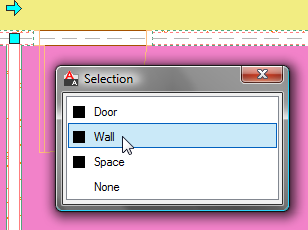
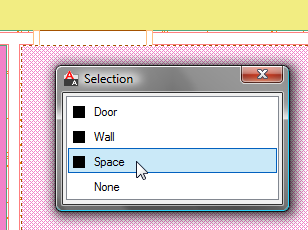
With SELECTIONCYCLING set to 2, a left click will call up the Selection dialog, listing all of the objects that are selectable at the click point, by object type. If you move your cursor over to the dialog and hover over an item on the list, it will be highlighted both on the list and in the drawing.
 When the object you want is highlighted, a left click on the item in the dialog dismisses the dialog and selects that item. If you decide against selecting any of the offered items, choose None at the bottom of the list.
You will probably not want to have this turned on all of the time, but for those times when you need to select an item in heavy traffic, toggling Selection Cycling on can be quite effective.
Activation of the Selection Cycling feature is controled by a new toggle on the Application Status Bar, and the SELECTIONCYCLING system variable. SELECTIONCYCLING is stored in the registry (so is not drawing-dependent) and has three main values, as noted in the online Help:
0 - Off
1 - On (the list dialog does not display)
2 - On (the list dialog displays the selected objects that you can cycle through)
What the Help fails to mention is that the Application Status Bar toggle can introduce two other values:
-1 - Off, but previous value was "1" and, when toggled back on, will reset to "1"
-2 - Off, but previous value was "2" and, when toggled back on, will reset to "2"
If you manually set SELECTIONCYCLING to "0" to turn it off, clicking on the Application Status Bar toggle will set the value to "2".
 With selction cycling active, when your cursor hovers over a spot where there are multiple objects, you will see an overlapping rectangle icon adjacent to the cursor.
 With SELECTIONCYCLING set to 1, you will get the legacy behavior for cycling through multiple items near your pick point. As indicated in the online Help:
1. At the Select Objects prompt, hold down Shift + Spacebar. Click as near as possible to the object you want.
2. Keep clicking until the object you want is highlighted.
3. Press Enter to select the object.
Note: If selection preview is turned on, you can cycle through the objects by rolling over the object on top to highlight it, and pressing and holding Shift and then pressing Spacebar continuously. When the required object is highlighted, left-click to select it.
With SELECTIONCYCLING set to 2, a left click will call up the Selection dialog, listing all of the objects that are selectable at the click point, by object type. If you move your cursor over to the dialog and hover over an item on the list, it will be highlighted both on the list and in the drawing.


 When the object you want is highlighted, a left click on the item in the dialog dismisses the dialog and selects that item. If you decide against selecting any of the offered items, choose None at the bottom of the list.
You will probably not want to have this turned on all of the time, but for those times when you need to select an item in heavy traffic, toggling Selection Cycling on can be quite effective.
May 30, 2010
ACA 2011 CUI Glitch
I found a minor problem with the ACA.cuix file that ships with the 2011 release. On the View ribbon tab, on the Navigate panel, the 2010 release had a single command on the expanded panel, to toggle the ViewCube on and off. The 2011 View ribbon added a User Interface drop-down button to the View tab, on the Windows panel that provides an equivalent. While the View Cube control that the 2010 command on the Navigate panel ran has apparently been removed from the 2011 CUI, the Navigate panel still has the non-functional command listed, so the Navigate panel still indicates that the panel can be expanded to show more commands, as evidenced by the triangle icon next to the panel name.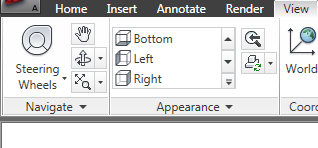 Unfortunately, when you expand the panel in 2011, there are no additional commands displayed.
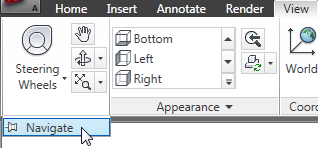 If this bothers you and you have editing rights to the ACA.cuix file, you can fix this by running the CUI command. (I usually just type CUI and press ENTER, but you can also find the CUI command on the Manage ribbon tab, on the Customization panel.) On the Customize tab, under the ACA customization file, expand the Ribbon and Panels nodes...
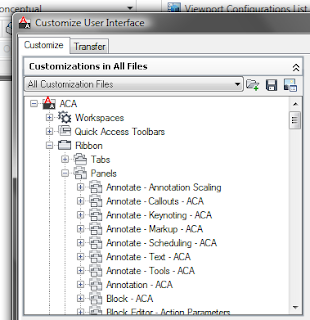 ...and then scroll down and expand the View Navigate - ACA panel node. If you simply want to eliminate the expandability of the Navigation panel, then delete the Row 2 item below the SLIDEOUT listed under View Navigate - ACA. If you want to keep the panel expandable, and add the ViewCube toggle back to the panel, find the ViewCube Display command in the Command List pane (lower left of the Customize User Interface dialog) and drag it up under the Row 2 listing. (I left the old View Cube command - you could delete this.) The out-of-the-box ViewCube Display command shows only a Small icon, with no text. I chose to add a name (ViewCube Display) and change the display to SmallWithText, as shown in step "2" below.
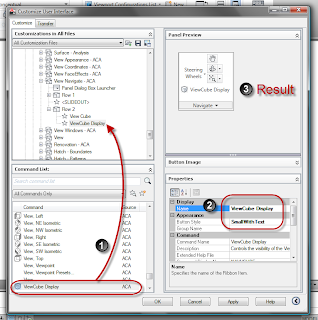 The result, shown in the Panel Preview above and in the actual ribbon below, is that the expanded panel once again has a ViewCube toggle command.
 Unfortunately, when you expand the panel in 2011, there are no additional commands displayed.
 If this bothers you and you have editing rights to the ACA.cuix file, you can fix this by running the CUI command. (I usually just type CUI and press ENTER, but you can also find the CUI command on the Manage ribbon tab, on the Customization panel.) On the Customize tab, under the ACA customization file, expand the Ribbon and Panels nodes...
 ...and then scroll down and expand the View Navigate - ACA panel node. If you simply want to eliminate the expandability of the Navigation panel, then delete the Row 2 item below the SLIDEOUT listed under View Navigate - ACA. If you want to keep the panel expandable, and add the ViewCube toggle back to the panel, find the ViewCube Display command in the Command List pane (lower left of the Customize User Interface dialog) and drag it up under the Row 2 listing. (I left the old View Cube command - you could delete this.) The out-of-the-box ViewCube Display command shows only a Small icon, with no text. I chose to add a name (ViewCube Display) and change the display to SmallWithText, as shown in step "2" below.
 The result, shown in the Panel Preview above and in the actual ribbon below, is that the expanded panel once again has a ViewCube toggle command.
May 17, 2010
ACA 2010 Update 2 Now Available
Update 2 for AutoCAD Architecture 2010 (yes, 2010, not 2011) is now available from the Autodesk website. Update 2 includes Update 1, so if you have not yet installed Update 1 (like me), you can just install Update 2.
According to the AutoCAD Architecture 2010 Update 2 Readme, the following defects have been fixed (list includes both Update 1 and Update 2):
AEC Dimensions
Update 1
API
Update 1
Doors/Windows/Openings
Update 2
Drawing Management
Update 2
Export to AutoCAD
Update 2
External References
Update 1
GBXML
Update 2
General UI
Update 2
IFC
Update 1
Layers
Update 1
Multiview Blocks
Update 2
Performance
Update 1
Property Palette
Update 1
Save
Update 2
Schedules
Update 1
Sections
Update 1
Structural Members
Update 1
Spaces
Update 2
Wall Objects
Update 1
According to the AutoCAD Architecture 2010 Update 2 Readme, the following defects have been fixed (list includes both Update 1 and Update 2):
AEC Dimensions
Update 1
- Multiple overlapping windows may lead to incorrect dimensions.
API
Update 1
- AutoCAD Architecture might crash when trying to define a Display Theme style using .NET API.
Doors/Windows/Openings
Update 2
- When a custom block is applied to a door, window, or door-window assembly, the block will be visible even if it is not within the cut plane range.
- Sometimes, you cannot insert an opening in a wall in a certain cleanup group.
Drawing Management
Update 2
- AutoCAD Architecture may crash when you repath certain projects with no drawings open.
- Renaming items in the Project Navigator, and repathing the project may cause AutoCAD Architecture to crash.
Export to AutoCAD
Update 2
- Export to Autocad sometimes causes AutoCAD Architecture to crash.
External References
Update 1
- Openings in external references with negative Z value are placed at an incorrect position.
- When you execute UNDO command after binding an external reference, AutoCAD Architecture may become unresponsive.
- AutoCAD Architecture may crash if you unload an external reference, attach it again, and then execute an UNDO.
GBXML
Update 2
- Duplicate openings are created in gbXML output when walls are slightly off from being perpendicular to each other.
General UI
Update 2
- Checkboxes are not displayed correctly on the Object Snap tab of the Drafting Settings dialog on Windows 7.
IFC
Update 1
- Slabs may have the wrong elevation when imported from an IFC file due to an incorrect thickness offset.
- Exporting a drawing to IFC may create incorrect IFC GUIDs for AEC objects.
- Importing IFC files that contain certain material settings may crash.
- Space exported to IFC have the IFC type of IFCTYPEOBJECT instead of IFCSPACETYPE.
- When you import an IFC file, containing a space that uses a negative value for extrusion, the extrusion is in the wrong direction.
- Importing an IFC file fails if it contains a 3D vector for True North direction.
Layers
Update 1
- The "New layer from Standard" button doesn't work in localized versions.
- Layer description fields are not automatically populated in all cases.
- When the Layer Properties Manager is open, opening a drawing sometimes causes AutoCAD Architecture to crash.
Multiview Blocks
Update 2
- When AutoCAD Architecture and Civil 3D are installed side by side, AutoCAD Architecture crashes on executing MVBLOCKADD command.
Performance
Update 1
- Response is very slow when using Dynamic UCS and objects are Isolated.
- Sometimes, it takes a long time to complete an UNDO after a COPY.
Property Palette
Update 1
- Changing an entry to one that is the first characters of the previous entry will not work in some fields.
Save
Update 2
- When you save a drawing to a previous version, sometimes, you are not warned about possible data loss.
Schedules
Update 1
- Schedules are not sorted as expected when values are a combination of numeric and alphabetic characters.
- Sometimes, schedule table data is not rounded off as specificed in the property data format.
Sections
Update 1
- Some objects imported from Inventor display as points in 2D Sections.
- When a window or door window assembly is sectioned, some linework may be missing in the section.
Structural Members
Update 1
- Custom block based on 3D Solids using Boolean operations are always placed at the start point.
Spaces
Update 2
- AutoCAD Architecture may crash when a spaced update is triggered for a large number of spaces within an external reference.
Wall Objects
Update 1
- AutoCAD Architecture might hang when opening certain drawings that contain modified Wall Endcaps.
- Window openings may not be created due to Wall Plan Modifiers.
- Using Refedit on a block containing Wall Object may cause a crash.
- When working on a project located on a slow network, the wall and curtain wall tools are slow to respond.
- Some walls in an external reference display solution tips when the units of the host drawing are different from that of the external reference.
- AutoCAD Architecture will crash when you delete a component of a wall which is on a locked layer.
April 05, 2010
ACA: Annotative Content and Named Layout Views
I ran into this recently and thought I would document/pass on the observation:
If you set up a named Layout View, and then try to restore that Layout View when you are in Model Space of a Viewport, the program will automatically switch to Paper Space and restore the requested view, leaving you in Paper Space, without making any change to the drawing extents visible within the Viewport, even if the Viewport is unlocked. That is quite nice and the way it should be. Unfortunately, there is a potential problem.
If the Viewport in which you started had a drawing scale other than 1'-0" = 1'-0" (1:1), which is probably the case for most Viewports, and there is annotative content in that Viewport, the content does not have 1'-0" = 1'-0" (1:1) as an added scale and Annotation Visibility is set to show only the current scale, you may be surprised to find that the annotative content is no longer visible.
You can find the reason for this by unlocking the Viewport (if locked) and clicking on the Annotation Scale Synchronization button (located just to the right of the drawing scale control on the Drawing Window Status Bar when in Model Space of a Layout Viewport - or when in Paper Space and the Viewport is selected). Unfortunately, it is hard to tell the difference between when this button is active or inactive. Even more unfortunate is the fact that using this button to synchronize the viewport annotation scale and the viewport drawing scale means that the viewport drawing scale will be changed to the viewport annotation scale (which is why the Viewport needs to be unlocked for it to work when in Model Space; from Paper Space, the Viewport will rescale even if the Viewport is locked). You will find that the drawing scale changes to 1'-0" = 1'-0" (1:1), so it seems that when you asked ACA to restore the Layout View from Model Space on a Layout, before it switches to Paper Space, it applies the annotation scale of the Layout View (1:1) to the viewport - even if the Viewport is locked! That is why the annotative content disappears (or, should 1'-0" = 1'-0" (1:1) be an assigned scale, changes size).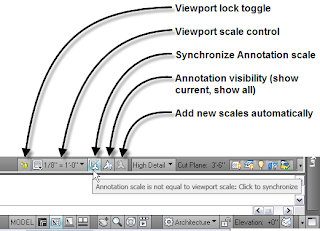
Rather than selecting the Annotation Scale Synchronization button (unless you want to change the Viewport scale to 1:1), unlock the viewport (if locked) and then use the Viewport Scale control to reselect the same drawing scale. This will reset the annotation scale to match the Viewport scale and your annotative content should leap back into view (or resume the proper size).
An alternate solution (and another way to see that the annotation scale has been changed to 1'-0" = 1'-0" (1:1)) would be to select the Viewport while in Paper Space and on the Design tab of the Properties palette, under the Misc category, reset the Annotation scale property to the same scale as the Viewport scale. You will need to unlock the Viewport to do so, but you can do that with the Display locked property, which is conveniently located just above the Annotation scale property.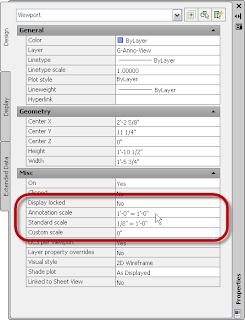
Or, you could just remember to switch to Paper Space before restoring the named Layout View, which avoids the problem altogether. That is easier said than done - even after I figured out why the annotation was disappearing, there have been times where I forget to change to Paper Space first. At least now I know why the annotation disappeared and what to do to restore it.
If you set up a named Layout View, and then try to restore that Layout View when you are in Model Space of a Viewport, the program will automatically switch to Paper Space and restore the requested view, leaving you in Paper Space, without making any change to the drawing extents visible within the Viewport, even if the Viewport is unlocked. That is quite nice and the way it should be. Unfortunately, there is a potential problem.
If the Viewport in which you started had a drawing scale other than 1'-0" = 1'-0" (1:1), which is probably the case for most Viewports, and there is annotative content in that Viewport, the content does not have 1'-0" = 1'-0" (1:1) as an added scale and Annotation Visibility is set to show only the current scale, you may be surprised to find that the annotative content is no longer visible.
You can find the reason for this by unlocking the Viewport (if locked) and clicking on the Annotation Scale Synchronization button (located just to the right of the drawing scale control on the Drawing Window Status Bar when in Model Space of a Layout Viewport - or when in Paper Space and the Viewport is selected). Unfortunately, it is hard to tell the difference between when this button is active or inactive. Even more unfortunate is the fact that using this button to synchronize the viewport annotation scale and the viewport drawing scale means that the viewport drawing scale will be changed to the viewport annotation scale (which is why the Viewport needs to be unlocked for it to work when in Model Space; from Paper Space, the Viewport will rescale even if the Viewport is locked). You will find that the drawing scale changes to 1'-0" = 1'-0" (1:1), so it seems that when you asked ACA to restore the Layout View from Model Space on a Layout, before it switches to Paper Space, it applies the annotation scale of the Layout View (1:1) to the viewport - even if the Viewport is locked! That is why the annotative content disappears (or, should 1'-0" = 1'-0" (1:1) be an assigned scale, changes size).

Rather than selecting the Annotation Scale Synchronization button (unless you want to change the Viewport scale to 1:1), unlock the viewport (if locked) and then use the Viewport Scale control to reselect the same drawing scale. This will reset the annotation scale to match the Viewport scale and your annotative content should leap back into view (or resume the proper size).
An alternate solution (and another way to see that the annotation scale has been changed to 1'-0" = 1'-0" (1:1)) would be to select the Viewport while in Paper Space and on the Design tab of the Properties palette, under the Misc category, reset the Annotation scale property to the same scale as the Viewport scale. You will need to unlock the Viewport to do so, but you can do that with the Display locked property, which is conveniently located just above the Annotation scale property.

Or, you could just remember to switch to Paper Space before restoring the named Layout View, which avoids the problem altogether. That is easier said than done - even after I figured out why the annotation was disappearing, there have been times where I forget to change to Paper Space first. At least now I know why the annotation disappeared and what to do to restore it.
Subscribe to:
Posts (Atom)