Showing posts with label ViewCube. Show all posts

March 30, 2011

AutoCAD 2012 New Feature - In-Canvas View Controls

The In-Canvas View Control is a new feature added to AutoCAD® 2012, so it is also available in ACA 2012. When combined with the tools on the Navigation Bar and the ViewCube, you really do not need to tear off the View panel from the Home ribbon tab anymore.

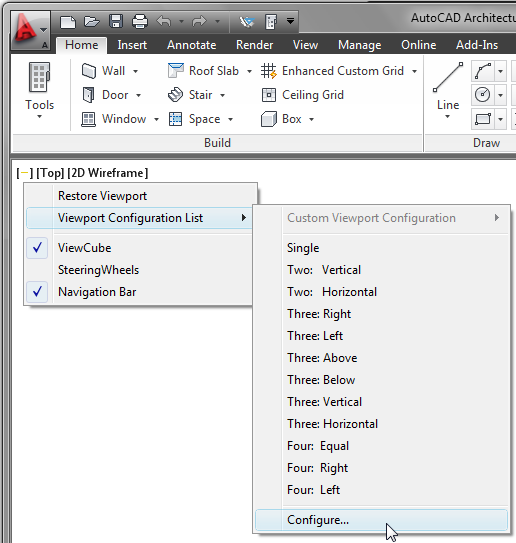
Appearing at the top left corner of the drawing area on the Model "tab" (TILEMODE 1) and consuming a minimum of screen real estate, there are three text strings enclosed in square brackets; a left click on one of the strings gives access to popup menus related to that particular view control. The first string - either a "-" (one viewport displayed) or a "+" (multiple viewports displayed - allows you to control the visibility of the ViewCube, SteeringWheels and Navigation Bar as well as access to Viewport configurations, including any custom configurations you may have created.You can also temporarily maximize the currently active viewport and then restore the previous viewport configuration using this first menu.

The second string allows you to quickly select a Model View to restore, either preset or custom, as well as access to the View Manager. The name of the current View direction or Model Space View (if current) is displayed in the second string, for easy reference while you work.
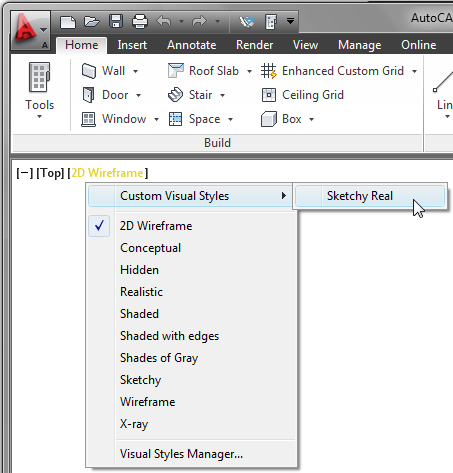
The third string displays the name of the current Visual Style, and the menu allows you to set a different Visual Style current (predefined or custom) or to open the Visual Styles Manager.
The VPCONTROL System Variable controls the display of the In-Canvas View Controls. Set it to Off (0) to hide the controls. Set it to On (1) to display the controls. It is stored in the registry, so the setting will hold for all drawings.

With TILEMODE set to 0, you will not see the View Controls unless you maximize a viewport on a Layout "tab".

May 30, 2010

ACA 2011 CUI Glitch

I found a minor problem with the ACA.cuix file that ships with the 2011 release. On the View ribbon tab, on the Navigate panel, the 2010 release had a single command on the expanded panel, to toggle the ViewCube on and off. The 2011 View ribbon added a User Interface drop-down button to the View tab, on the Windows panel that provides an equivalent. While the View Cube control that the 2010 command on the Navigate panel ran has apparently been removed from the 2011 CUI, the Navigate panel still has the non-functional command listed, so the Navigate panel still indicates that the panel can be expanded to show more commands, as evidenced by the triangle icon next to the panel name.Unfortunately, when you expand the panel in 2011, there are no additional commands displayed.If this bothers you and you have editing rights to the ACA.cuix file, you can fix this by running the CUI command. (I usually just type CUI and press ENTER, but you can also find the CUI command on the Manage ribbon tab, on the Customization panel.) On the Customize tab, under the ACA customization file, expand the Ribbon and Panels nodes......and then scroll down and expand the View Navigate - ACA panel node. If you simply want to eliminate the expandability of the Navigation panel, then delete the Row 2 item below the SLIDEOUT listed under View Navigate - ACA. If you want to keep the panel expandable, and add the ViewCube toggle back to the panel, find the ViewCube Display command in the Command List pane (lower left of the Customize User Interface dialog) and drag it up under the Row 2 listing. (I left the old View Cube command - you could delete this.) The out-of-the-box ViewCube Display command shows only a Small icon, with no text. I chose to add a name (ViewCube Display) and change the display to SmallWithText, as shown in step "2" below.The result, shown in the Panel Preview above and in the actual ribbon below, is that the expanded panel once again has a ViewCube toggle command.