While the Hotfix has not shown up on the official AutoCAD® Architecture Updates & Service Packs page, apparently is has been sent to at least one person who submitted a support claim related to the fact that installing ACA 2010 breaks the ability to directly i-drop a tool from Content Browser into the Workspace in previous releases. Fortunately, that person was Odin Cary, who has posted the files to his ARCHIdigm website, as I learned in this thread in the Autodesk Discussion Groups. Thanks to Odin for making the files available, and thanks to Pedro Aroso for spreading the word.
If you have installed 2010 but still need to run earlier versions to complete projects already underway (as you are permitted to do if you are on subscription) and the breaking of direct i-drop is cramping your style, you may want to get the files from Odin's site, rather than waiting for the link to show up on the Autodesk site.
Showing posts with label Content Browser. Show all posts
Showing posts with label Content Browser. Show all posts
August 13, 2009


February 25, 2009
Repathing Default Location of Content Browser Library
In this thread in the AutoCAD Architecture Discussion Group, Tony Michniewicz of Autodesk reveals a method for setting a different default folder where Content Browser will look for your library file (CBL):
Create a plain text file called ContentBrowser.ini and save it to the root folder of your AutoCAD Architecture installation, which is the folder where the acad.exe and AecCB.exe files are located. (The default location for Windows XP is C:\Program Files\AutoCAD Architecture 2008; your location may vary.)
Place the following text in the file:
You will want to substitute your path and CBL file name for C:\ContentBrowserLibraryFolder\ContentBrowserLibrary.cbl in the example above. Do not forget to include a carriage return (hit the "Enter" key, for those of you too young to have used a typewriter) after the last line.
Ordinarily, this should not be necessary, but I can think of at least two situations where this would be handy. One I experienced myself, when testing out an early version of a deployment for 2008, in which the Content Browser Library file location was set to a network folder that was read-only to me. This has been corrected, but at the time, I had to manually point Content Browser to a library file on my computer each time I opened it, in order to be able to open/create catalogs other than those set in the network file. I wish I had known that I could have redirected the default location this easily.
I could also see a situation where, in order to cut down on the number of catalogs that have to be waded through to find the one of interest, separate CBL files might be used. The ability to assign types to catalogs and sort/filter them by type would be my first choice if I were using a later version, since that is much easier to manage than editing (or swapping out) the ContentBrowser.ini file.
Create a plain text file called ContentBrowser.ini and save it to the root folder of your AutoCAD Architecture installation, which is the folder where the acad.exe and AecCB.exe files are located. (The default location for Windows XP is C:\Program Files\AutoCAD Architecture 2008; your location may vary.)
Place the following text in the file:
[Files]
Library=C:\ContentBrowserLibraryFolder\ContentBrowserLibrary.cbl
You will want to substitute your path and CBL file name for C:\ContentBrowserLibraryFolder\ContentBrowserLibrary.cbl in the example above. Do not forget to include a carriage return (hit the "Enter" key, for those of you too young to have used a typewriter) after the last line.
Ordinarily, this should not be necessary, but I can think of at least two situations where this would be handy. One I experienced myself, when testing out an early version of a deployment for 2008, in which the Content Browser Library file location was set to a network folder that was read-only to me. This has been corrected, but at the time, I had to manually point Content Browser to a library file on my computer each time I opened it, in order to be able to open/create catalogs other than those set in the network file. I wish I had known that I could have redirected the default location this easily.
I could also see a situation where, in order to cut down on the number of catalogs that have to be waded through to find the one of interest, separate CBL files might be used. The ability to assign types to catalogs and sort/filter them by type would be my first choice if I were using a later version, since that is much easier to manage than editing (or swapping out) the ContentBrowser.ini file.
August 05, 2007
Command Tool: Open a Specific File
If you have bought into the tool palette workflow in AutoCAD® Architecture/Autodesk® Architectural Desktop, you may find yourself wanting to move other customizations that you formerly might have put on a toolbar on a tool palette. Fortunately, there is a tool type just for this occasion, the Command Tool. You can find a "blank" version of the Command Tool in the Stock Tool Catalog that ships with ACD-A/ADT, in the Helper Tools category.
A post in the AutoCAD Architecture 2008 Discussion Group asked if there was a way to have a tool on a tool palette open a specific file. After a little confusion over exactly was wanted got cleared up, I noted that while I was unable to get either the OPEN or NEW commands to work directly in a Command Tool to either open a specific file or start a new file with a specific template without the user interacting with the "Select File" or "Select template" dialogs, I was able to use a script file to run the NEW command at the Command Line and to get the desired template file entered onto the Command Line, only requiring the end user to press the Enter key. I thought I tried addiing a space to the end of the script to force the value to be accepted and end the command, and it did not work, but I was in a bit of a hurry and may have not properly edited and saved the script file. I have taken a second look at this, in ACD-A 2008 and in ADT 2005, and was able to get both the OPEN and NEW commands to fully execute by running a script file from a tool palette tool. While opening most files is probably best done by the user directly with the OPEN command (or through Project Navigator, if you are using that), there may be a few "source files" to which you would like to have direct access, without a lot of navigation in the "Select File" dialog. If you are putting together a palette of tools related to a specific task that requires starting a new drawing with a specific template file - especially if it is not your typical default file - then the New File tool may be of use to you.
The first thing you will need is the script file. Script files, for those who do not know, are plain text files that represent the keystrokes you would type at the Command Line. Notepad is a good choice for creating and editing script files, as you do not have to worry that the saved files will have any of the extraneous formatting information that a word processor can put into a file. The SCRIPT command is then used to open a run a script file, feeding the text in the script file to the Command Line. Many commands, that would normally open a dialog box for user input will run a Command Line version when invoked from a script, even when FILEDIA is set to 1 and including those, such as OPEN and NEW, that no longer have a Command Line version (command name preceded by a "-"). For an OPEN tool, you will need to know the file name and the path where the file will be stored. For a NEW tool, you will need to know the file name and path of the template file you wish to use. The text of the script files I created when testing this tonight follow:
OPEN Tool
NEW Tool
Two things to note in the samples above. First, there is a single space at the end of the second line; that space acts as the "Enter" after the file name is passed to the OPEN or NEW command, ending the command input and executing the command. Second, the path for the drawing file or template file has forward slashes, rather than the ususal backslashes, to separate folder names. Script files will interpret a backward slash as a pause for user input. The forward slashes will be interpreted correctly; just be aware that you can not simply cut and paste the path from Windows Explorer to the script. The script file then needs to be saved to a location to which everyone running the tool has access.
At this point, I also quickly created two rather crude BMP files to serve as the tool images, by "stealing" the graphics for the OPEN and NEW toolbar buttons on the Standard toolbar. If I had to look at these tools on a regular basis, I probably would have spent a little more time and made much nicer images. You could also just live with the default image for a Command Tool, a white square.
After creating a new tool palette in my current workspace on which to create the new tools (setting an existing, editable tool palette current also works), I opened the Content Browser, found and opened the Stock Tool Catalog, navigated to the Helper Tools category...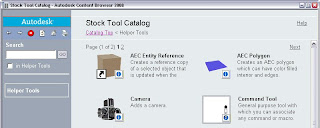 ...and i-dropped the Command Tool onto the tool palette.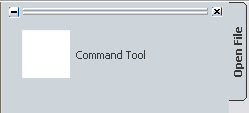
I right clicked on that tool and made a copy, so I would have two command tools, one for OPEN and one for NEW. I then right clicked on the tool that was to run the OPEN script and chose Properties... from the context menu. I gave the tool a name and a decription. The description is displayed in the tool tip when you hover over a tool, so providing a meaningful description can be helpful to those using the tool. I chose to indicate the command (Open) and the full path and file name of the file to be opened. I then right clicked in the Image area, and chose Specify Image... from the context menu (the only choice). I navigated to the location where I had saved the image file for the Open command and selected that file. The command string entered can be seen in the image below; the SCRIPT command is run, and the script file, with full path, completes the command string. Once again, forward slashes are used to separate folders in the path. Select OK to close the Command dialog and OK again to save and close the changes made to the tool's properties.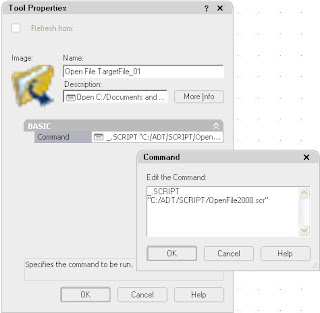
Creating the tool for the NEW script followed the same procedure as noted above for the OPEN tool; an image showing the properties dialog with the command string for the NEW tool is shown below.
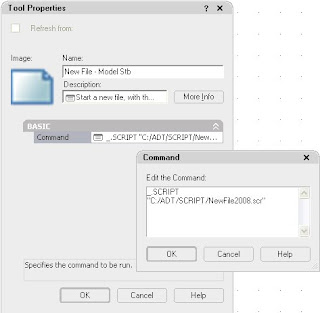
All that remains is to test the tools (you may want to test the script files manually first, to be certain they work, before testing the tools). Once you are satisfied they work, you can share them with others through the Content Browser, like any other tool.

A post in the AutoCAD Architecture 2008 Discussion Group asked if there was a way to have a tool on a tool palette open a specific file. After a little confusion over exactly was wanted got cleared up, I noted that while I was unable to get either the OPEN or NEW commands to work directly in a Command Tool to either open a specific file or start a new file with a specific template without the user interacting with the "Select File" or "Select template" dialogs, I was able to use a script file to run the NEW command at the Command Line and to get the desired template file entered onto the Command Line, only requiring the end user to press the Enter key. I thought I tried addiing a space to the end of the script to force the value to be accepted and end the command, and it did not work, but I was in a bit of a hurry and may have not properly edited and saved the script file. I have taken a second look at this, in ACD-A 2008 and in ADT 2005, and was able to get both the OPEN and NEW commands to fully execute by running a script file from a tool palette tool. While opening most files is probably best done by the user directly with the OPEN command (or through Project Navigator, if you are using that), there may be a few "source files" to which you would like to have direct access, without a lot of navigation in the "Select File" dialog. If you are putting together a palette of tools related to a specific task that requires starting a new drawing with a specific template file - especially if it is not your typical default file - then the New File tool may be of use to you.
The first thing you will need is the script file. Script files, for those who do not know, are plain text files that represent the keystrokes you would type at the Command Line. Notepad is a good choice for creating and editing script files, as you do not have to worry that the saved files will have any of the extraneous formatting information that a word processor can put into a file. The SCRIPT command is then used to open a run a script file, feeding the text in the script file to the Command Line. Many commands, that would normally open a dialog box for user input will run a Command Line version when invoked from a script, even when FILEDIA is set to 1 and including those, such as OPEN and NEW, that no longer have a Command Line version (command name preceded by a "-"). For an OPEN tool, you will need to know the file name and the path where the file will be stored. For a NEW tool, you will need to know the file name and path of the template file you wish to use. The text of the script files I created when testing this tonight follow:
OPEN Tool
_.OPEN
"C:/Documents and Settings/David Koch/My Documents/The Architect's Desktop Blog/Tool Palette Tool To Open File/TargetFile_01.dwg"
NEW Tool
_.NEW
"C:/Documents and Settings/All Users/Application Data/Autodesk/ACD-A 2008/enu/Template/Aec Model (Imperial Stb).dwt"
Two things to note in the samples above. First, there is a single space at the end of the second line; that space acts as the "Enter" after the file name is passed to the OPEN or NEW command, ending the command input and executing the command. Second, the path for the drawing file or template file has forward slashes, rather than the ususal backslashes, to separate folder names. Script files will interpret a backward slash as a pause for user input. The forward slashes will be interpreted correctly; just be aware that you can not simply cut and paste the path from Windows Explorer to the script. The script file then needs to be saved to a location to which everyone running the tool has access.
At this point, I also quickly created two rather crude BMP files to serve as the tool images, by "stealing" the graphics for the OPEN and NEW toolbar buttons on the Standard toolbar. If I had to look at these tools on a regular basis, I probably would have spent a little more time and made much nicer images. You could also just live with the default image for a Command Tool, a white square.
After creating a new tool palette in my current workspace on which to create the new tools (setting an existing, editable tool palette current also works), I opened the Content Browser, found and opened the Stock Tool Catalog, navigated to the Helper Tools category...
 ...and i-dropped the Command Tool onto the tool palette.
I right clicked on that tool and made a copy, so I would have two command tools, one for OPEN and one for NEW. I then right clicked on the tool that was to run the OPEN script and chose Properties... from the context menu. I gave the tool a name and a decription. The description is displayed in the tool tip when you hover over a tool, so providing a meaningful description can be helpful to those using the tool. I chose to indicate the command (Open) and the full path and file name of the file to be opened. I then right clicked in the Image area, and chose Specify Image... from the context menu (the only choice). I navigated to the location where I had saved the image file for the Open command and selected that file. The command string entered can be seen in the image below; the SCRIPT command is run, and the script file, with full path, completes the command string. Once again, forward slashes are used to separate folders in the path. Select OK to close the Command dialog and OK again to save and close the changes made to the tool's properties.

Creating the tool for the NEW script followed the same procedure as noted above for the OPEN tool; an image showing the properties dialog with the command string for the NEW tool is shown below.

All that remains is to test the tools (you may want to test the script files manually first, to be certain they work, before testing the tools). Once you are satisfied they work, you can share them with others through the Content Browser, like any other tool.
December 03, 2005
Caution When Changing Content Browser Libraries
If you have multiple versions of ADT installed on your computer, you may want to be careful about opening content browser library files [CBL extension] in a version of ADT other than the one in which it was created. Let me state that I do not know for certain that caused the problem I had earlier today - perhaps some other form of operator error is to blame.
I was in the middle of trying to figure out where project-based palette groups were stored and ran across the folder where the content browser library files are stored on my computer. The files for both 2005 and 2006 are in the same folder, but have different names. At some point, I had the 2006 library - ContentBrowserLibrary47.cbl - open [by what means, I do not recall, so I am not certain that I opened it with the AecCB47.exe application] and decided to open a different library. When I tried to reopen the 2006 library file, it was empty - not a single catalog - and the title had changed from "David Koch's Content Browser Library" to "contentbrowserlibrary47". After getting over the initial shock, and a few vain attempts at reopening the file in the hope that is would "magically" restore itself, I set about chasing down the location of all of the catalogs that were open in it. My custom catalog was easy, it was remembering what the out-of-the-box catalogs were and where they were located that was hard. I may not have even got all of them, but I think I got most of them. I did decide not to open "MyCatalog", as I found that if I keep my custom files in that catalog, and then install a newer version of ADT, it overwrites the "MyCatalog" file.
One thing I did discover is that if you navigate to a CBL file in Windows Navigator, right click and choose Open With, the Content Browser application is listed only as "AecCB EXE" - there is NO indication of what version of AecCB will be used. My suspicion is that I inadvertently opened my 2006 library with another version, and that may have lead to the file getting "cleared". So if you have multiple versions of ADT installed on your computer, I would advise being careful when changing libraries within Content Browser, and only open libraries that were created with the version of Content Browser that is currently open. I would avoid double clicking on a CBL file. If you do not want to open ADT first, then open the desired version of the Content Browser by double clicking on the EXE file or using the Start Menu, then opening the desired library file [if it is not the current default file].
I did make copies of the CBL files, adding "_backup" to the file name, in case I manage to make a similar mistake in the future. The usefulness of the backup will depend, of course, on whether I remember to make a new backup if I ever add or delete catalogs from the library in the future.
12/28/2005 Update:
It would appear that the problems I was having can be ascribed to "operator error". It is still a good idea to regularly back up your CBL file.
I was in the middle of trying to figure out where project-based palette groups were stored and ran across the folder where the content browser library files are stored on my computer. The files for both 2005 and 2006 are in the same folder, but have different names. At some point, I had the 2006 library - ContentBrowserLibrary47.cbl - open [by what means, I do not recall, so I am not certain that I opened it with the AecCB47.exe application] and decided to open a different library. When I tried to reopen the 2006 library file, it was empty - not a single catalog - and the title had changed from "David Koch's Content Browser Library" to "contentbrowserlibrary47". After getting over the initial shock, and a few vain attempts at reopening the file in the hope that is would "magically" restore itself, I set about chasing down the location of all of the catalogs that were open in it. My custom catalog was easy, it was remembering what the out-of-the-box catalogs were and where they were located that was hard. I may not have even got all of them, but I think I got most of them. I did decide not to open "MyCatalog", as I found that if I keep my custom files in that catalog, and then install a newer version of ADT, it overwrites the "MyCatalog" file.
One thing I did discover is that if you navigate to a CBL file in Windows Navigator, right click and choose Open With, the Content Browser application is listed only as "AecCB EXE" - there is NO indication of what version of AecCB will be used. My suspicion is that I inadvertently opened my 2006 library with another version, and that may have lead to the file getting "cleared". So if you have multiple versions of ADT installed on your computer, I would advise being careful when changing libraries within Content Browser, and only open libraries that were created with the version of Content Browser that is currently open. I would avoid double clicking on a CBL file. If you do not want to open ADT first, then open the desired version of the Content Browser by double clicking on the EXE file or using the Start Menu, then opening the desired library file [if it is not the current default file].
I did make copies of the CBL files, adding "_backup" to the file name, in case I manage to make a similar mistake in the future. The usefulness of the backup will depend, of course, on whether I remember to make a new backup if I ever add or delete catalogs from the library in the future.
12/28/2005 Update:
It would appear that the problems I was having can be ascribed to "operator error". It is still a good idea to regularly back up your CBL file.
Subscribe to:
Posts (Atom)